No NPU on Certain Dell Laptops with an AMD CPU
Summary: The following article provides information about why certain Dell laptops with an AMD Central Processing Unit (CPU) do not list a Neural Processing Unit (NPU).
Symptoms
NPU is not listed in Task Manager on your Dell laptop
Certain AMD processors do not have NPU integrated into the processor. Opening a utility such as Task Manager does not list the NPU under performance.
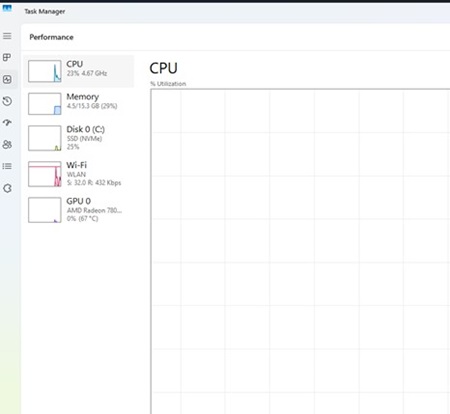
This article affects the following Dell laptops:
- Dell 14 DC14255
- Dell Pro 14 Essential PV14255
- Inspiron 14 5445 Laptop
- Inspiron 14 7445 2-in-1 Laptop
What is NPU?
It is specialized hardware that is designed to make artificial intelligence (AI) and machine learning tasks run quicker. It is optimized for tasks involving neural networks and parallel processing. This is crucial for the complex computations AI uses. NPUs are for the special demands of AI workloads and offers greater efficiency and performance there.
Cause
Only certain AMD CPUs include an NPU. Certain conditions must be met to see the Accelerated Processing Unit (APU) list in Task Manager:
-
The AMD R5 CPU does not include an NPU
-
The AMD R7 CPU does include an NPU under the following circumstances:
-
Update the operating system to Windows 11 (24H2) or newer
-
Ensure that the AMD graphics driver is version
30.0.13026.7002, A04or newer
-
Resolution
The laptop is working as designed under these circumstances. Use the following information and check does your laptop meet these conditions:
How to confirm the specification of the CPU in your laptop:
-
Use the following Windows Shortcut to open the power user menu:
Press down the Windows Logo and X keys simultaneously and let go.
-
Select Device Manager from the menu that appears.
-
Go to Processors to view your CPU.
How to confirm the Windows 11 version on your laptop:
-
Use the following Windows Shortcut to open the power user menu:
Press down the Windows Logo and X keys simultaneously and let go.
-
Select System from the menu that appears.
-
Go to Windows Specifications to check your operating system version.
How to confirm the graphics driver version on your laptop:
-
Use the following Windows Shortcut to open the power user menu:
Press down the Windows Logo and X keys simultaneously and let go.
-
Select Device Manager from the menu that appears.
-
Go to Display Adapter and double-click the adapter to open the properties window.
-
Click the Driver tab on the properties window. It lists the driver version that is in use.