PowerEdge:使用 RACADM 工具远程重置和更改 iDRAC 密码
Summary: 本文介绍如何在 Windows Server 上使用 Dell RACADM 工具远程重置或更改 iDRAC 密码。当忘记 iDRAC 密码且不能停机时,此方法非常有用。
This article applies to
This article does not apply to
This article is not tied to any specific product.
Not all product versions are identified in this article.
Instructions
本文介绍如何在 Windows Server 2019 上使用 Dell RACADM 工具远程重置或更改 iDRAC 密码。当忘记 iDRAC 密码且不能停机时,此方法非常有用。
环境
- 服务器型号:Dell PowerEdge R350(示例)
- 操作系统:Windows Server 2019
- 所需工具:Dell iDRAC 工具 (RACADM)
- 下载链接:https://www.dell.com/support/home/drivers/driversdetails?driverid=82kgw&oscode=ws19l&productcode=poweredge-r350
前提条件
- 对托管 RACADM 工具的 Windows Server 的管理访问权限
- 与 iDRAC 接口的网络连接。
流程
步骤 1:下载并解压 iDRAC 工具。
- 从戴尔支持站点下载 iDRAC 工具包。
- 浏览至下载的文件,然后双击以解压。
- 指定解压文件的目标位置(默认值:C:\openmanage)
- 单击 解压缩 以完成解压。
步骤 2:安装 iDRAC 工具。
- 导航至解压的文件夹 (C:\openmanage)。
- 运行 iDRACTools_x64.msi 以安装 RACADM 和 IPMI Tool for Windows。
- 安装完成后,从开始菜单中搜索 iDRAC UI 启动程序 。
- 这将打开 RACADM 命令的命令提示符窗口。
步骤 3:导航至 RACADM 目录。
- 打开命令提示符。
- 将目录更改为 RACADM 安装路径:
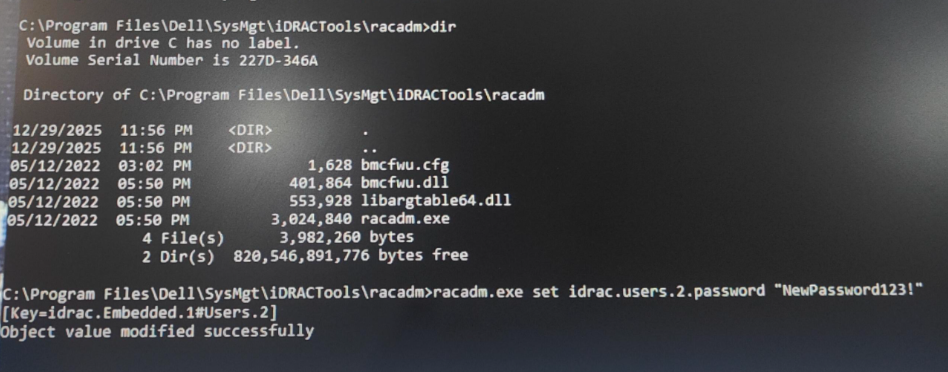
cd "C:\Program Files\Dell\SysMgt\IDRACTools\racadm"
步骤 4:重置或更改 iDRAC 密码
- 运行以下命令以重置用户 ID 2(默认 root/admin 帐户)的密码:
racadm.exe set idrac.users.2.password "NewPassword123!" (Any password)
- 预期的输出:
已成功修改对象值。
步骤 5:验证访问权限。
- 在浏览器中打开 iDRAC UI。
- 使用更新的凭据登录。
- 确认成功访问和功能。
下面分享的输出示例:
Affected Products
Rack Servers, PowerEdge R350Article Properties
Article Number: 000409855
Article Type: How To
Last Modified: 06 Jan 2026
Version: 1
Find answers to your questions from other Dell users
Support Services
Check if your device is covered by Support Services.