IDPA 업그레이드 후 Data Protection Central 내부 LDAP가 작동하지 않음
Summary: IDPA 업그레이드 후 DPC(Data Protection Central) 서버 LDAP가 작동하지 않습니다.
This article applies to
This article does not apply to
This article is not tied to any specific product.
Not all product versions are identified in this article.
Symptoms
내부 LDAP가 작동하지 않습니다.
- ID 소스가 있지만 연결이 끊어진 것으로 표시됨
- 그룹도 식별 소스에서 사라집니다.
- 추가하려고 할 때 역할 매핑 오류가 수신됨
안에 /var/log/dpc/iam/iam-provider/keycloak.log (루트로) 다음과 같은 인증서 오류가 표시됩니다.
2024-10-21 17:17:53,937 ERROR [org.keycloak.services] (executor-thread-17) KC-SERVICES0055: Error when connecting to LDAP: <ACM FQDN>:636: javax.naming.CommunicationException: <AMC FQDN>:636 [Root exception is javax.net.ssl.SSLHandshakeException: PKIX path validation failed: java.security.cert.CertPathValidatorException: signature check failed]안에 /var/log/dpc/iam/iam-service/iam-service.log (루트로) 다음과 같은 LDAP 그룹 추가 오류가 표시됩니다.
2024-10-21 13:22:44,810 INFO https-jsse-nio-9922-exec-9 c.e.c.s.s.IndetitySourceService LDAP instance Id: ae45949d-40dd-46ee-8136-bc40e0d32644 . Adding group role mapping for [cn=dp_admin,ou=Group,dc=idpa,dc=local]안에 /var/log/dpc/elg/elg.log, 그룹 추가 오류도 표시됩니다.
2024-10-21 13:22:44,949 ERROR https-jsse-nio-9922-exec-9 c.e.c.s.s.GlobalExceptionHnalder IdentitySourceException:com.emc.clp.security.exception.IdentitySourceException: Failed to create group role mapping. Received error for ldap mapper group [MapperGroup(cn=dp_admin,ou=Group,dc=idpa,dc=local] creation.Cause
IDPA를 업그레이드한 후 DPC 서버가 ACM LDAP 서버에 연결하거나 그룹을 추가할 수 없습니다.
Resolution
절차:
- 다음을 사용하여 DPC CLI에 admin으로 로그인합니다.
SSH or PuTTY및su -루트 사용자에게. - 다음 명령을 실행합니다.
service dp-iam restart
service msm-elg restart- DPC UI에 로그인하고 AdministrationIdentity >Sources로 이동합니다.
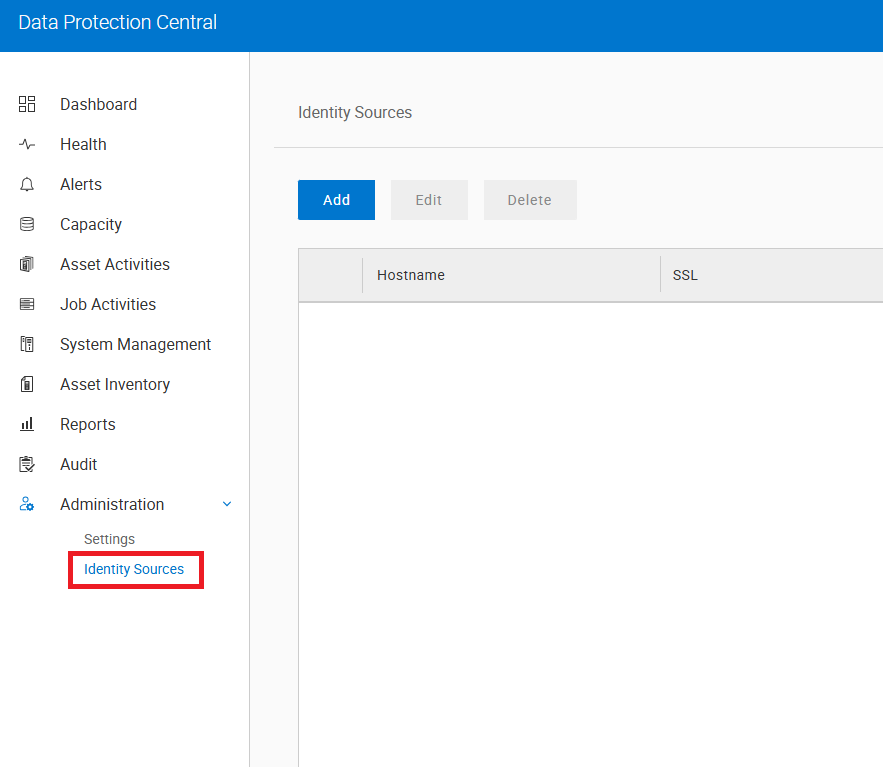
- ACM LDAP 서버의 ID 소스를추가합니다.
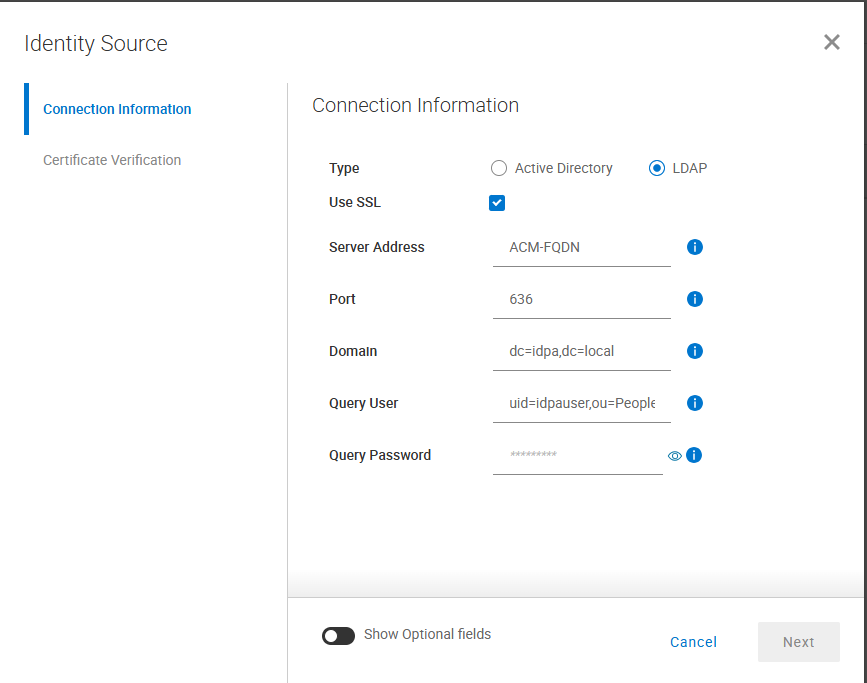
Type = LDAP

Use SSL = select

Server Address = <ACM FQDN> (Use actual ACM Fully Qualified Domain Name)

Port = 636

Domain = dc=idpa,dc=local

Query User = uid=idpauser,ou=People,dc=idpa,dc=local

Query Password = idpauser password- Next 버튼을 클릭한 다음 다음 화면에서 Save 버튼을 클릭합니다.
- LDAP 서버를 강조 표시하고
|<-을 클릭하여 사이드바를 엽니다. Group Search Name에 다음을 입력하고 Add Group 버튼을 클릭합니다.
cn=dp_admin,ou=group,dc=idpa,dc=local
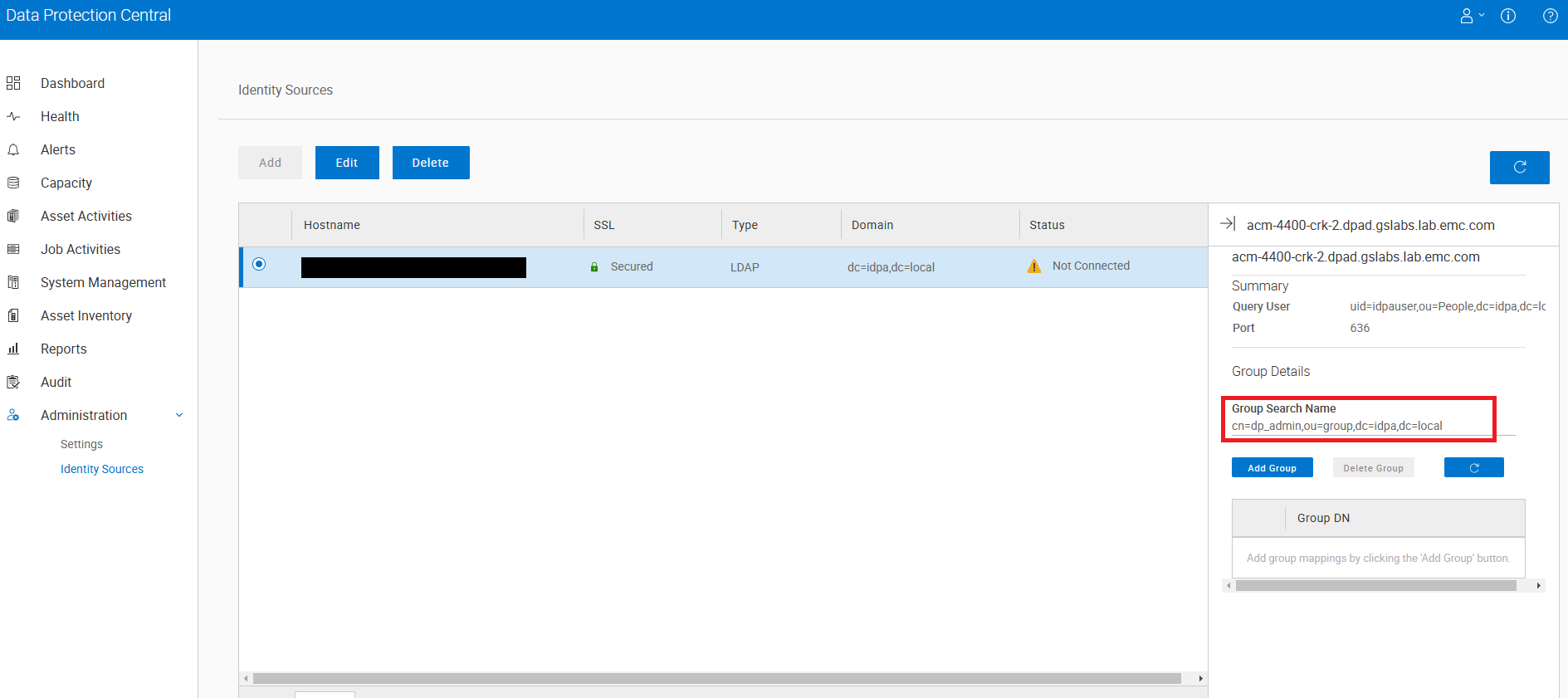
ID 소스 및 그룹이 추가되면 ldapIntegrationStatus.xml 다음 프로세스를 사용하여 ACM 서버에서.
- 를 사용하여 ACM CLI에 로그인합니다.
PuTTY or SSH루트로 입력하고 다음 디렉토리로 이동합니다.
/usr/local/dataprotection/var/configmgr/server_data/config- 의 백업을 만듭니다.
ldpaIntgrationStatus.xml다음 명령을 사용합니다.
cp ldapIntegrationStatus.xml ldpaIntegrationStatus.xml.backup- 편집
ldpaIntegrationStatus.xml에서 열어서vi. 찾기DATA_PROTECTION_CENTRALcomponent 태그를 지정하고 그렇지 않은 경우 INTEGRATED로 설정합니다. 다음과 같이 표시되어야 합니다.
        <component>
            <id>DATA_PROTECTION_CENTRAL</id>
            <status>INTEGRATED</status>
</component>- Esc 키를 누른 다음 다음을 입력하여 이 변경 사항을 저장합니다.
:x.
이제 DPC UI에 로그인을 시도합니다. idpauser 계좌.
로그인에 실패하면 Dell 지원 부서에 문의하여 이 문제에 대한 지원을 받으십시오.
Article Properties
Article Number: 000269136
Article Type: Solution
Last Modified: 11 Dec 2025
Version: 4
Find answers to your questions from other Dell users
Support Services
Check if your device is covered by Support Services.