NVP-vProxy: Data Protection Restore Client Troubleshooting Guide
Summary: This article provides a general overview for backup administrators and NetWorker support for troubleshooting the Data Protection Restore Client (DPRC) used to perform VMware File Level Restore (FLR) and SQL application data. ...
Instructions
The Data Protection Restore Client (DPRC) is a web user interface for performing NetWorker VMware Protection (NVP) File Level Restore (FLR) and SQL app-consistent (MSVMAPPAGENT) restores.
The DPRC is accessed from a web browser using: https://<NETWORKER-SERVER-ADDRESS>:9090/flr
There are two authentication modes available, these modes dictate where the restore can be performed from:
- User: FLR or APP restore can only be performed directly from the Virtual Machine's (VM) web browser. Only the VMs backups are listed.
- Admin: FLR or APP restore can be performed for any VM to another VM in the vCenter.
FLR can be performed from other NetWorker interfaces:
- NetWorker Management Console (NMC)
- NetWorker Web User Interface (NWUI)
The DPRC provides VMware administrators and users the ability to perform self-service restores of VM data without requiring Administration access to the above NetWorker administration interfaces.
SQL APP-consistent (MSVMAPPAGENT) recoveries can only be performed from DPRC.
For more information about using DPRC, see the NetWorker VMware Integration Guide. NetWorker documentation is available through: Support for NetWorker | Manuals & Documents (You must sign in with your Dell support account).
Initial Troubleshooting Steps:
- Identify the NetWorker server version and Operating System: NetWorker: Methods for Identifying NetWorker Software version
- Identify the vCenter version.
- From VMware vSphere, select the vCenter (topmost object) in the inventory and click the summary tab:
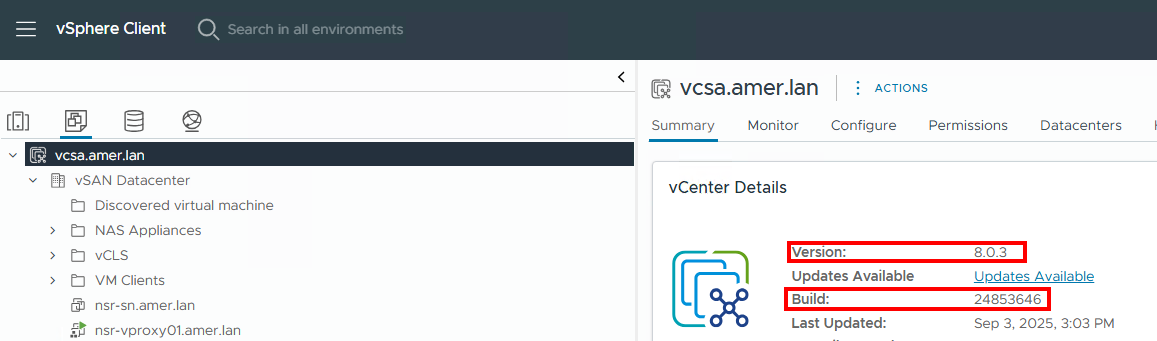
- From VMware vSphere, select the vCenter (topmost object) in the inventory and click the summary tab:
- Review NetWorker Compatibility documentation to ensure that the NetWorker version supports the VMware version, and that the VM operating system supports FLR: E-Lab Interoperability Navigator 2.0-HOME (You must sign in with your Dell support account).
- Review the NetWorker VMware Integration Guide's vProxy FLR Limitations section and ensure that the VM does not contain any configurations which prevent FLR support. NetWorker documentation is available through: Support for NetWorker | Manuals & Documents (You must sign in with your Dell support account).
- For FLR issues, check to see if the FLR can be performed from the NMC or NWUI. This identifies if the issue is specific to the DPRC or a broader issue impacting NetWorker. If successful, this provides an FLR workaround while the DPRC issue is investigated.
- Recoverable backups (or clones) must exist on a Data Domain type device: NVP-vProxy: Data Protection Restore Client Is Not Displaying Some (or Any) Backups
Logging:
The Data Protection Restore Client (DPRC) logs information to the following file on the NetWorker server:
- Linux:
/nsr/authc/logs/flr-server.log - Windows (Default install path):
C:\Program Files\EMC NetWorker\nsr\authc-server\tomcat\logs\flr-server.log
The standard logging level is INFO, in some scenarios this may be insufficient, to enable debugging, perform the following:
- Edit the
flr-server logback.xmlfile in a text editor:
- Linux:
/nsr/authc/webapps/flr/WEB-INF/classes/logback.xml - Windows (Default install path):
C:\Program Files\EMC NetWorker\nsr\authc-server\tomcat\webapps\flr\WEB-INF\classes\logback.xml
- Change the
root levelfromINFOtoDEBUG, and save the changes:
<?xml version="1.0" encoding="UTF-8"?>
<configuration>
    <appender name="STDOUT" class="ch.qos.logback.core.ConsoleAppender">
        <encoder>
            <pattern>%d{HH:mm:ss.SSS} [%thread] %-5level %logger{55} - %msg%n</pattern>
        </encoder>
    </appender>

  <appender name="FILE" class="ch.qos.logback.core.FileAppender">
    <file>${catalina.base}/logs/flr-server.log</file>
    <append>true</append>
    <encoder>
      <pattern>%d{yyyy-MM-ddTHH:mm:ss.SSS} [%thread] %-5level %logger{25}.%M %L - %msg%n</pattern>
    </encoder>
  </appender>

    <root level="DEBUG">
        <appender-ref ref="FILE"/>
        <appender-ref ref="STDOUT"/>
    </root>
</configuration>
- Restart NetWorker server services:
systemctl restart networker

or

nsr_shutdown
systemctl start networker
net stop nsrd
net start nsrd
Reproduce the issue in the DPRC, the
flr-server.log contains DEBUG messages. When debugging is no longer needed, repeat the above steps, returning root level back to INFO.
Authentication Issues:
For authentication issues, the NetWorker authentication server (AUTHC) logs must be reviewed:
| Log Path | Purpose |
|
Contains security audit messages for the NetWorker Authentication Service. Debugging is often required to enable logging in this file. |
|
Contains security audit messages for the NetWorker Authentication Service. |
|
Contains access information for the embedded Apache httpd web server. |
AUTHC debug can also be enabled: NetWorker: How To Enable AUTHC DEBUG for Troubleshooting Purposes
Functional Issues:
In addition to the vcui.log, browser inspect console and NetWorker REST API logs can be reviewed to determine operational issues:
- In the web browser, right-click within the window and click Inspect; or press
CTRL+SHIFT+I. (Exact options may differ depending on the browser.) - In the Inspect console, click the Network tab:

- Perform an operation in the DPRC that is producing an issue. The inspected console's Name column lists operations that are performed.
- Click the operation that appears during the issue and review the Headers tab. The general information shows what API operation is performed and the result.
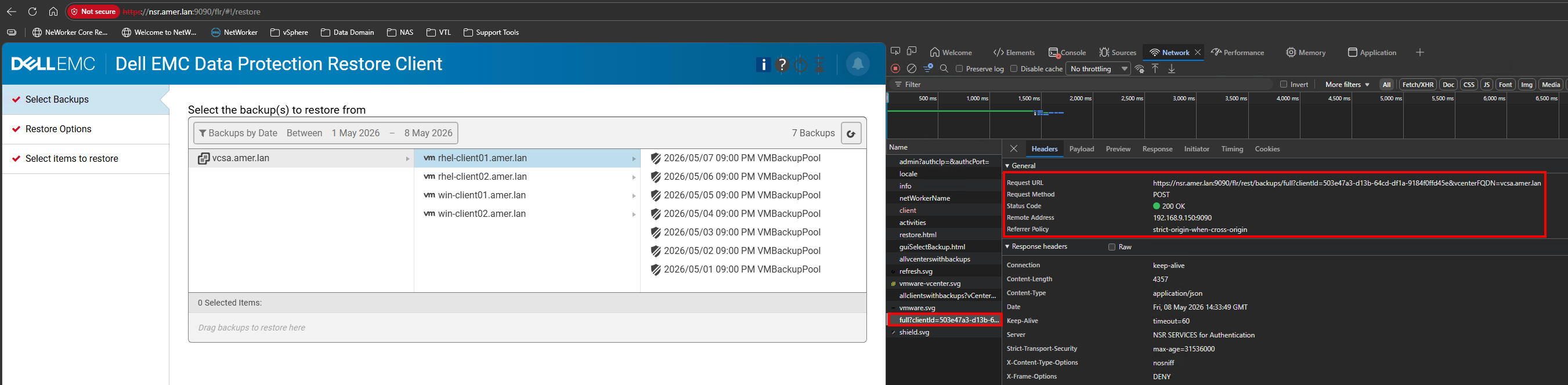
- Also review the Payload and Response tabs for additional information about the operation.
Additional NetWorker Logging:
The NetWorker server REST API logs should also include logging that aligns with operations performed in the vSphere plugin or VCUI. The REST API log is in the following NetWorker server location:
- Linux:
/nsr/logs/restapi/restapi.log - Windows (Default install path):
C:\Program Files\EMC NetWorker\nsr\logs\restapi\restapi.log
REST API debugging can also be enabled: NetWorker: How to Enable REST API Debugging
General NetWorker logs: NetWorker: Log Files and Locations
Additional Information
The following article details logs that are specific to restore operations: NVP-vProxy Triage Guide: NetWorker VMware Protection vProxy Triage and Log Overview