How to Capture a HAR file for Dell Device Management Console
Summary: Learn how to capture HAR files for troubleshooting Dell Device Management Console by following these instructions.
This article applies to
This article does not apply to
This article is not tied to any specific product.
Not all product versions are identified in this article.
Instructions
How to capture a HAR file for Dell Device Management Console.
Affected Product:
- Dell Device Management Console
The process to capture a HAR file for Dell Device Management Console differs between Chromium Browsers (Google Chrome or Microsoft Edge) and Mozilla Firefox. Select the appropriate browser for more information.
Chromium Browsers (Google Chrome or Microsoft Edge)
- Go to Dell Device Management Console.
- Sign in with your account.
Note: To avoid capturing authentication information, do not start logging of the HAR file prior to authentication. Credentials may be in the log if HAR file logging is started first.
- Once authenticated into Dell Device Management Console, press F12 and then click Network
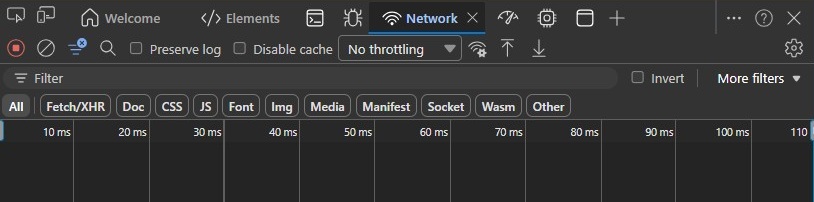
- Clear the log by clicking the Clear Network Log button or by pressing CTRL + L.

- Reproduce the issue. Once complete, click the Export HAR button.

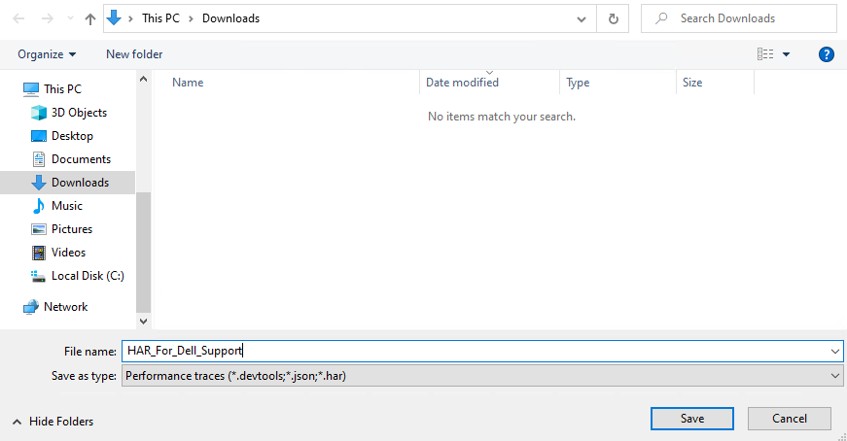
- Name and save the HAR file.
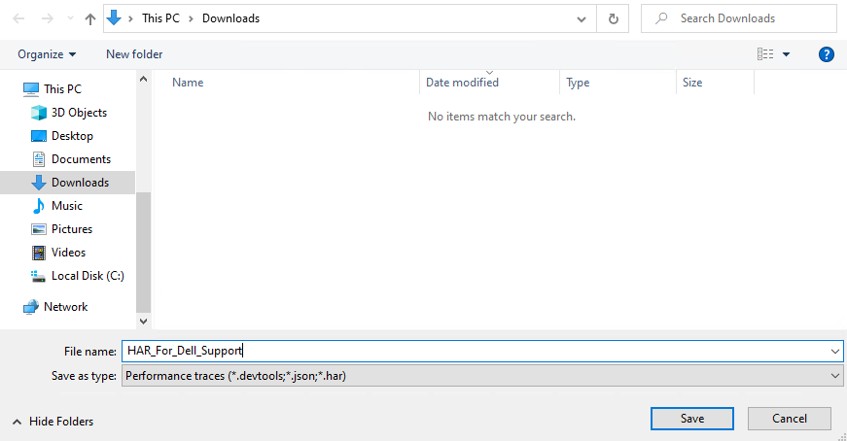
- Provide the Dell Support representative with access to the HAR file.
Mozilla Firefox
- Go to Dell Device Management Console.
- Sign in with your account.
Note: To avoid capturing authentication information, do not start logging of the HAR file prior to authentication. Credentials may be in the log if HAR file logging is started first.
- Once authenticated into Dell Device Management Console, press F12 and then click Network
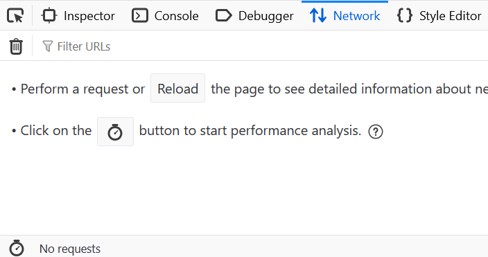
- Click the log by clicking the Clear button.

- Reproduce the issue. Once complete, click the gear icon and select Save All As HAR.
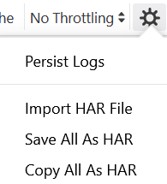
- Name and Save the HAR file.
Affected Products
Dell Device Management ConsoleArticle Properties
Article Number: 000489533
Article Type: How To
Last Modified: 15 Jul 2026
Version: 1
Find answers to your questions from other Dell users
Support Services
Check if your device is covered by Support Services.