PowerEdge: How to Test Network Bandwidth Using iPerf
Summary: Use iPerf in server and client mode to measure network throughput between two systems and identify available bandwidth.
Instructions
iPerf3 tool is an open source software that is available with source code. It is developed by ESnet (External Link) and Lawrence Berkeley National Laboratory (External Link). It is released under a three-clause BSD license (External Link). The iPerf3 tool is not a Dell Technologies tool.
Learn how to test network bandwidth and throughput using iPerf by configuring a client and server and interpreting network performance results.
Use iPerf to test available network bandwidth between systems and to measure network throughput and identify performance issue.
The iPerf3 utility is a commonly used network testing tool that measures the throughput of a network between two systems.
It allows the user to set various parameters that can be used for testing a network, or alternatively for optimizing or tuning a network. It has a client and server functionality and can measure the throughput between the two ends, either unidirectionally or bi-directionally. It is an open-source software that runs on various platforms including Linux, Windows, and VMware.
If a specific interface address must be used, you can specify the address to use with the -B <x.x.x.x> option.
When testing networks above 10G speeds its best to connect the client with multiple threads using the -P <threads> option.
iPerf3 and its uses can be found at iPerf.fr. (External Link).
Download or install the iPerf3 utility for the operating system (OS) being used:
Windows Installation:
- Download the latest binary for the
iPerftool (External Link) - Extract the Binary
.zipfile anywhere on the local file system to later run it from. - There is no install for Windows, instead open a command prompt at the location the utility was extracted to.
Red Hat Linux Installation:
- Run the following command with superuser privileges (root):
dnf install iperf3
Ubuntu Linux Installation:
- Run the following command with sudo privileges:
sudo apt install iperf3
iPerf utility is installed by default on VMware ESXi 7.0 and later and is located on the local file system at /usr/lib/vmware/vsan/bin/iperf3.
How to test available network bandwidth:
- On the server receiving data, run the following command:
iperf3 -s
The port used (Default 5201) must be opened if a local firewall is enabled. You can specify a specific port (if needed) with the -p <port> option.
- On the server sending data, run the following command:
iperf3 -c x.x.x.x
Replace the <x.x.x.x> with the IP address of the server from step 2.
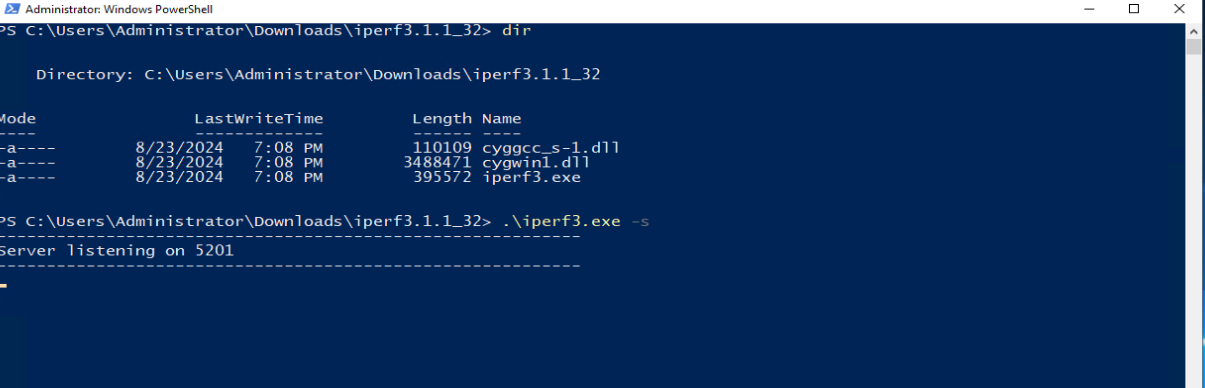
Figure 1: Image of iPerf3 running on Windows as server ready to receive data.
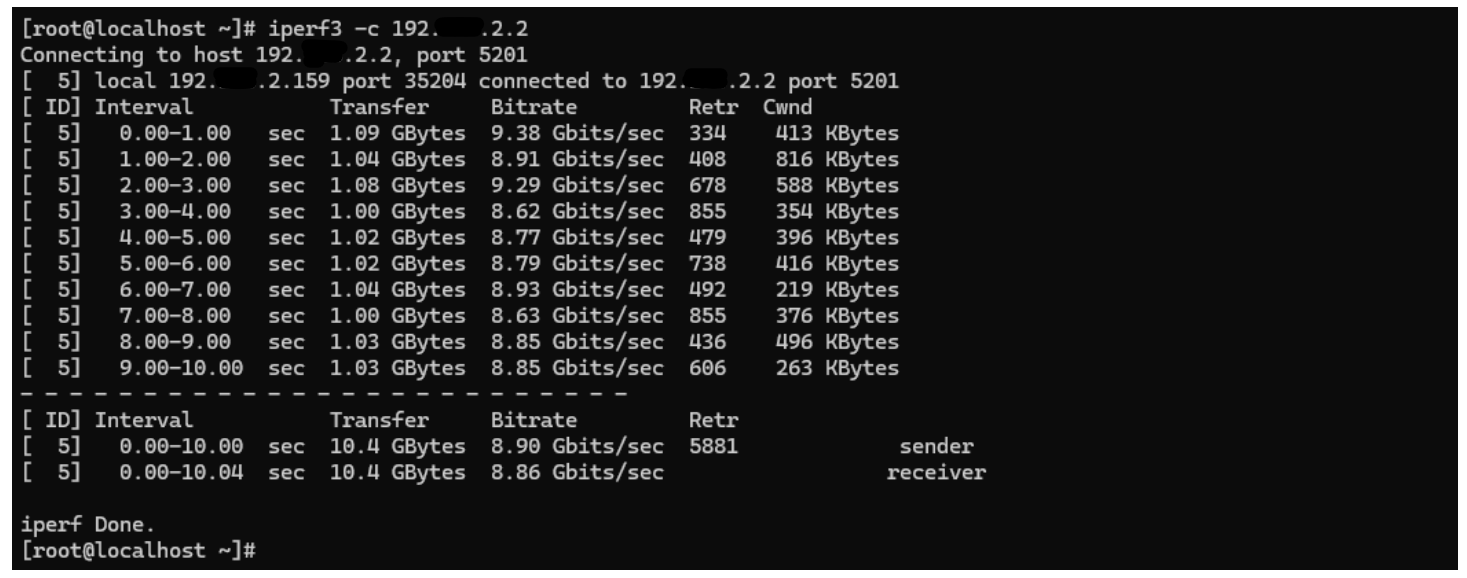 Figure 2: Image of
 iPerf3 running on Linux as client showing transfer results
Additional Information
- What is the iPerf command to test bandwidth from a client?
To test network bandwidth from a client machine, the standard basic iPerf3 command is:
iperf3 -c <server_ip_address>
Replace <server_ip_address> with the actual IP address of your listening iPerf server. This default command runs a 10-second Transmission Control Protocol (TCP) throughput test.
- How does iPerf measure network throughput?
iPerf measures network throughput by running client and server software on opposite ends of a network. The client transfers a stream of data packets across the connection for a set time. It then calculates throughput by taking the total number of successfully received bytes and dividing that result by the test duration.
For more information on iPerf, see iPerf - The ultimate speed test tool for TCP, UDP and SCTP (External Link).