How to Obtain the MSI Installer Package for Dell Command Update
Summary: Learn more about retrieving the MSI installer package from the Dell Command | Update (DCU) executable.
This article applies to
This article does not apply to
This article is not tied to any specific product.
Not all product versions are identified in this article.
Instructions
MSI Installer Package
The following steps can be used to get the MSI installer package:
-
Go to Dell Command | Update product page.
-
Download the latest version available.
Note: The links in this table automatically identify the computer. If this is not the preferred choice, go to the installation section to install the preferred choice.DCU 5.7 for Computers with Intel or AMD Processors (Released April 2026) DCU 5.6 for Computers with ARM Processors (Released November 2025) -
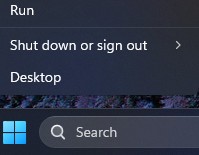
Right-click the Windows start menu icon and select Run.
-
In the Run Box, type
CMDand press Ctrl + Shift + Enter keys simultaneously to run an elevated command prompt.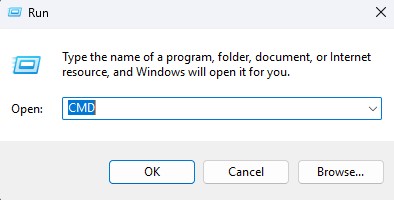
-
If prompted for the User Account Control (UAC), click Yes to proceed.
-
Browse to the folder location of the downloaded executable.
-
Type the following command, then press the Enter key:
Note: Switches are case-sensitive.Dell-Command-Update-Application_[VERSION].exe /passthrough /X /B”[EXTRACTION PATH]” Example: C:\Dell>Dell-Command-Update-Application_5CR1Y_WIN64_5.6.0_A00.exe /passthrough /X /B”C:\Dell\DCU_Extracted”
-
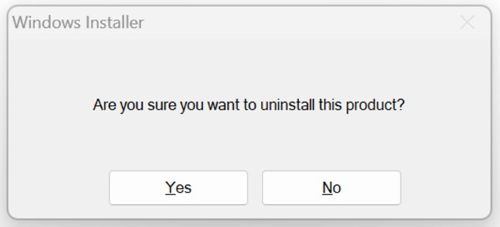
Click No if prompted to uninstall.
-
In Windows Explorer, go to the
[EXTRACTION PATH], and locate the MSI Installer Package.
Affected Products
Dell Command | UpdateArticle Properties
Article Number: 000177292
Article Type: How To
Last Modified: 08 May 2026
Version: 17
Find answers to your questions from other Dell users
Support Services
Check if your device is covered by Support Services.