SourceOne Search Web Server site Certificate error
Summary: Sourceone Web Search returns a server certificate error
Symptoms
When accessing SourceOne Web Search the following error is returned regarding the server certificate:
site is insecure with error: The website’s security certificate is not yet valid or has expired. Error Code: DLG_FLAGS_SEC_CERT_DATE_INVALID
Cause
Resolution
Install a new IIS certificate, note this process does not outline how to get a new certificate only how to apply it to the server in IIS.
1) Open IIS manager.
2) Click on the Server name and select Server Certificate.
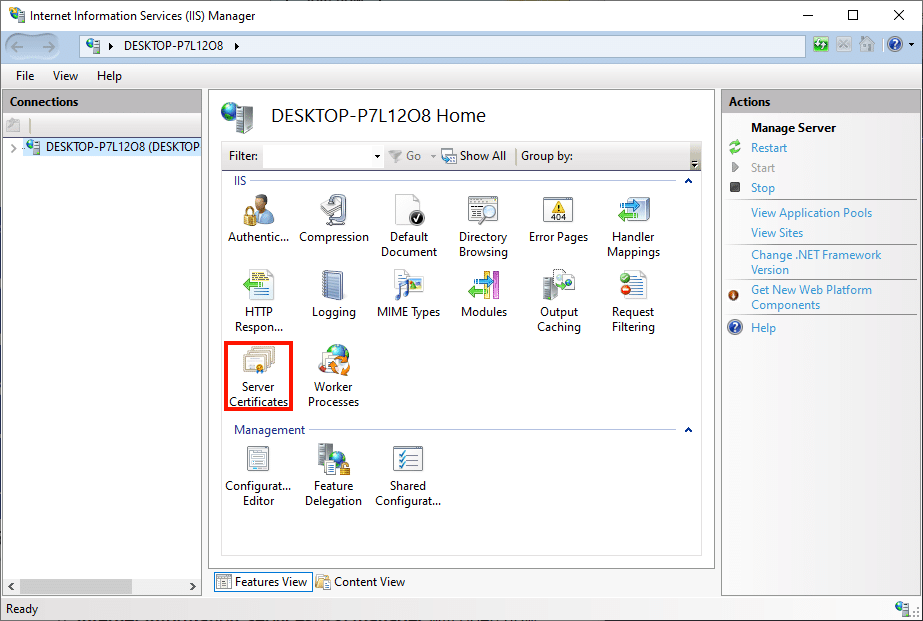
4) Delete the existing/old certificate.
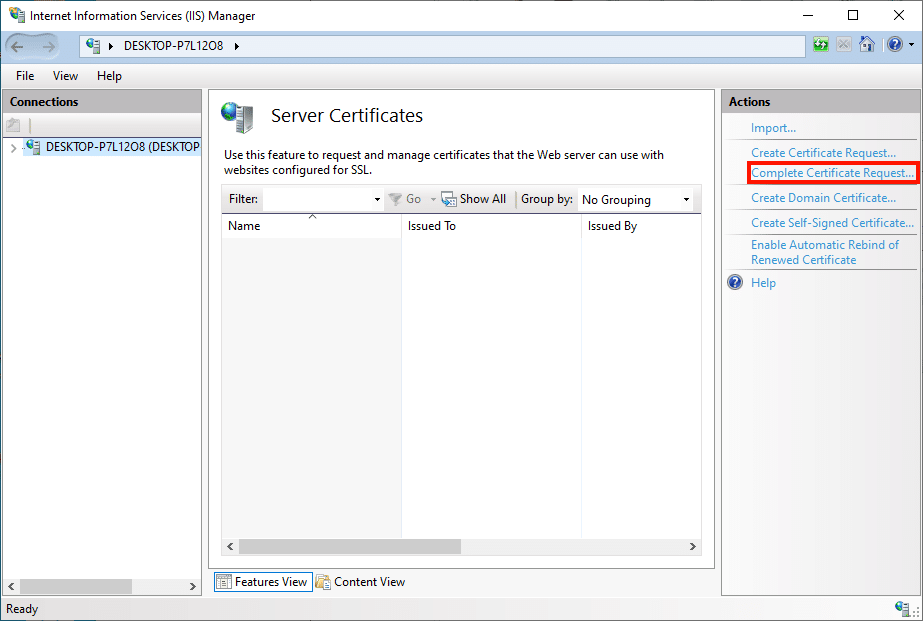
5) On the right side click on "Complete Certificate request".
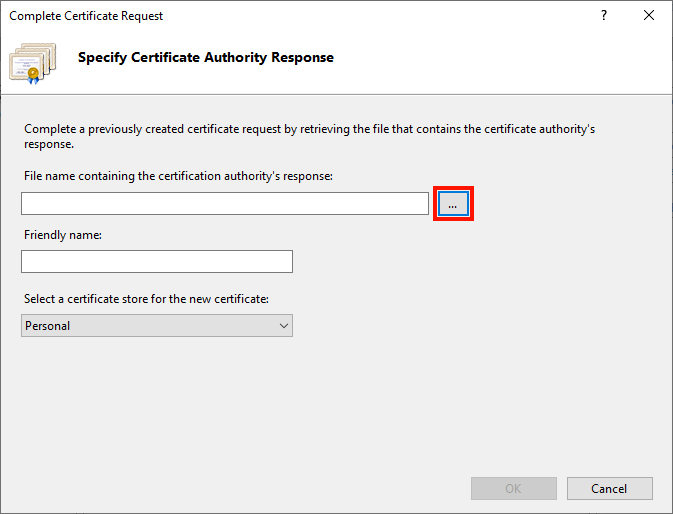
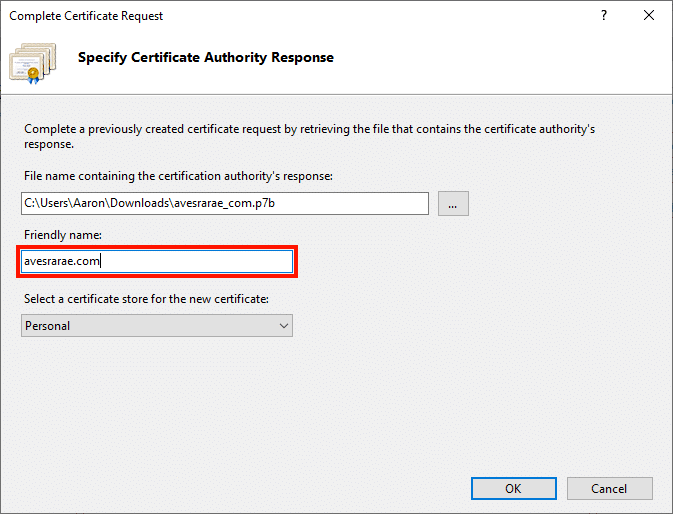
6) The Complete Certificate Request wizard will appear. First, click the button labeled “…” to open the file open dialog box.
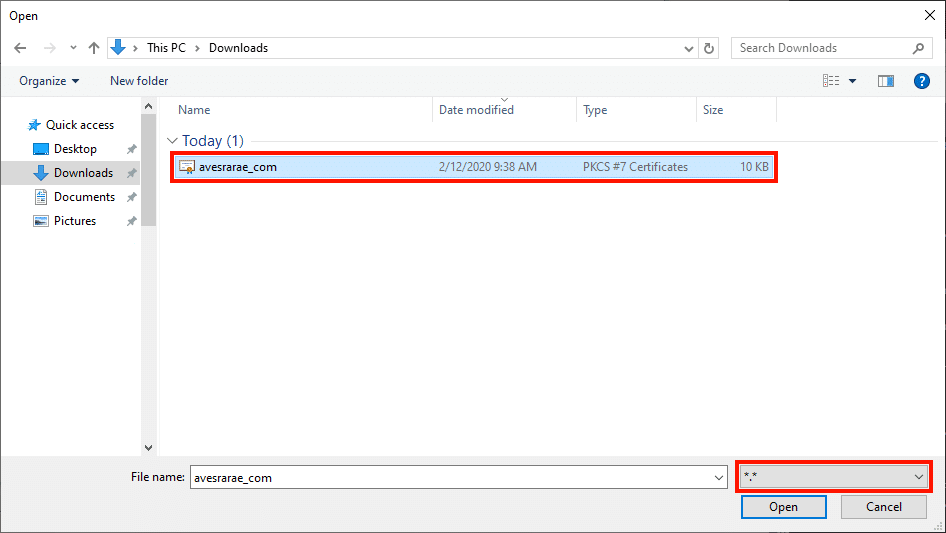
7) Navigate to the .p7b file we downloaded from SSL.com. Note that we will have to change the drop-down menu to the right of the File name field from *.cer to *.* to see the file.
8) Enter a memorable name for the certificate in the Friendly name field (here we are simply entering the certificate’s common name).
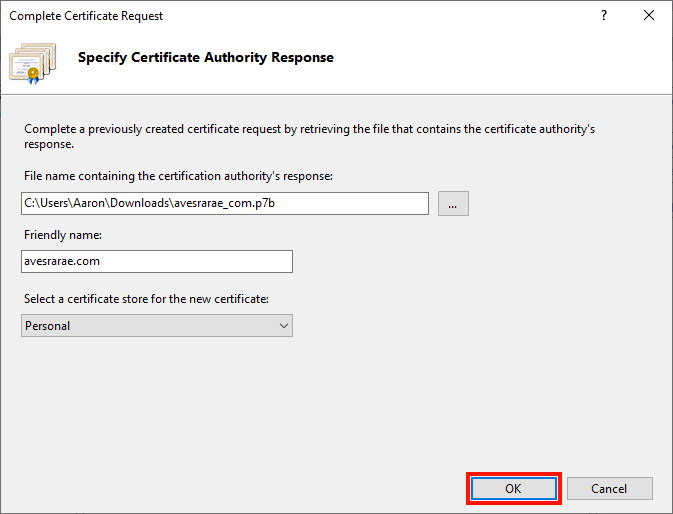
9) Click the OK button.
10) After finishing Restart IIS and try to access the web search.