How to Configure Dell Hybrid Client Simple Certificate Enrollment Protocol
Summary: This article explains how to configure the Simple Certificate Enrollment Protocol (SCEP) in Wyse Management Suite (WMS).
This article applies to
This article does not apply to
This article is not tied to any specific product.
Not all product versions are identified in this article.
Instructions
Affected Products:
- Wyse Management Suite
Table of Contents:
- Prerequisites
- What is SCEP?
- Steps to configure SCEP from WMS
- Steps to configure SCEP from Device Settings
Prerequisites
- Install the client and pass the required parameters. The user generates a key pair and certificate signing request to the SCEP server.
- Securely issue certificates to many network devices to enroll for a certificate by using a URL and a shared secret to communicate with a PKI.
- Contact the SCEP server for the certificate and as it is available, the user can fetch it and install it as needed.
- 802.1x uses this certificate.
What is SCEP?
SCEP is a protocol standard used for certificate management. SCEP is predominantly used for Certificate-based authentication, whereby access to services such as Wi-Fi, VPN and securing email through encryption is carried out using certificates.
SCEP allows us to securely issue certificates to large numbers of network devices using an automatic enrollment technique.
Steps to configure SCEP from WMS:
- Log in to Wyse Management Suite using your administrator credentials.
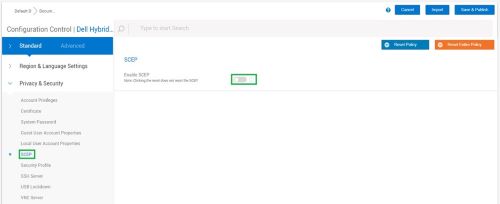
- Go to Dell Hybrid Client 2.x configuration > Advanced.
- Select SCEP > Enable SCEP and add a row.
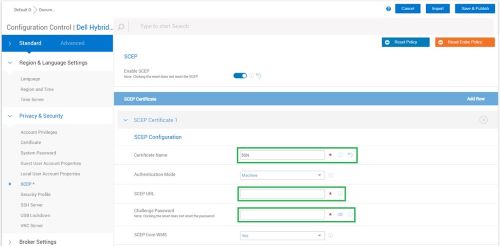
- Set the certificate name as (
$SNor$sn) This takes the serial number of devices. - Provide a valid SCEP URL, Challenge Password and Save & Publish configuration.
- Log in to Dell Hybrid Client (DHC): Open Device Settings > Advanced Settings (Enter the password) and open SCEP.
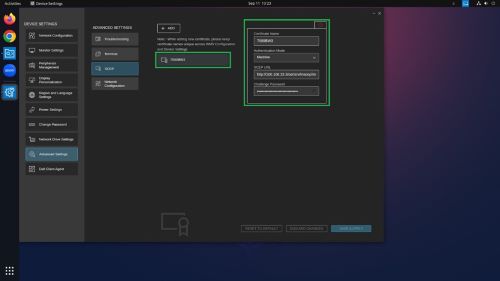
- After the SCEP connection is created, a successful message will appear on the bottom right corner of the display.
Steps to configure SCEP from Device Settings:
- Log in to DHC open Device Settings > Advanced Settings (Enter the password) and open SCEP.
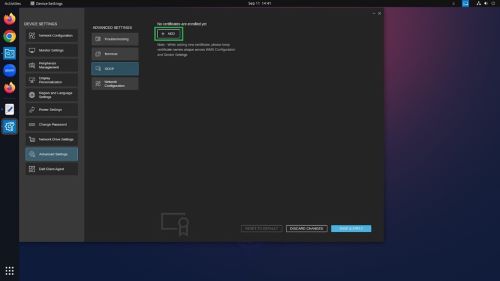
- Set the certificate name as (
$SNor$sn) This takes the serial number of devices. - Provide a valid SCEP URL, Challenge Password, and save the configuration.
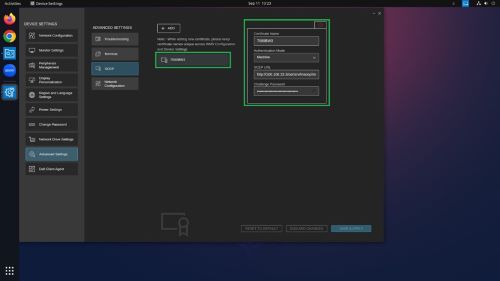
- After the SCEP connection is created, a successful message will appear on the bottom right corner of the display.
Affected Products
Wyse Management SuiteArticle Properties
Article Number: 000217896
Article Type: How To
Last Modified: 15 Apr 2025
Version: 4
Find answers to your questions from other Dell users
Support Services
Check if your device is covered by Support Services.