4G LTE Function Lost When Firmware Update is Interrupted
Summary: The 4G LTE function is lost if a firmware (FW) update is interrupted on a Dell Chromebook 3110.
Symptoms
Affected Platforms:
- Chromebook 3110
Normal behavior:
4G LTE user interface will disappear and resume after five minutes.
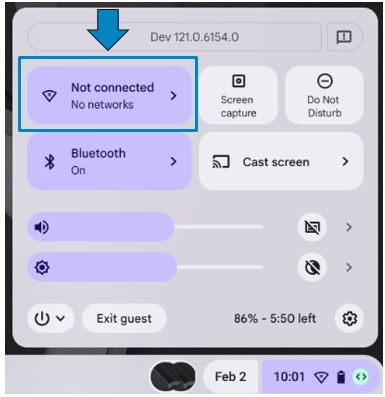
Figure 1: (English Only) Network not connected
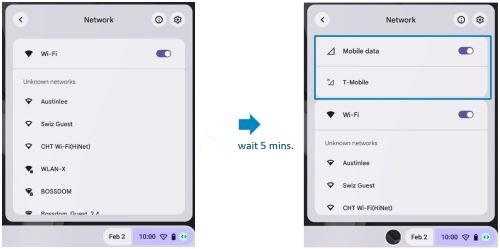
Figure 2: (English Only) Mobile Data Network available after five minutes
Abnormal behavior:
4G LTE user interface will disappear, but it will return to normal after nine minutes.
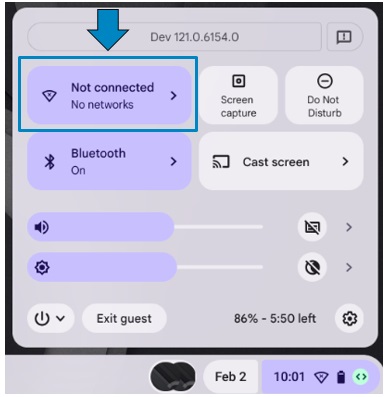
Figure 3: (English Only) Network not connected
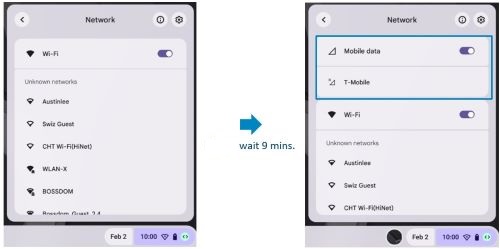
Figure 4: (English Only) Mobile Network available after nine minutes
Cause
The computer triggers the FW update, or a SIM is inserted without any installation notification.
4G LTE starts the carrier FW upgrade in the background when the SIM is inserted for the first time, there are two conditions:
- Normal condition: 4G function and user interface will be ready after FW update complete. (Five minutes)
- Abnormal condition: Request takes up to nine minutes to complete FW recovery, this is due to the computer being powered off, the lid is closed, or the computer goes to sleep during FW update.
Resolution
- Plug in AC adapter for charging and boot into Chrome.
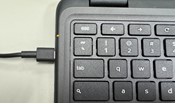
Figure 5: AC adapter plugged into Chromebook
- 4G LTE will start for FW upgrade, the network icon is available after 5 minutes.
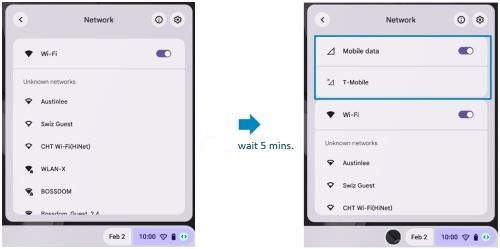
Figure 6: (English Only) Mobile Data Network available after five minutes
- Do not power off computer, close the lid, or allow computer to go to sleep for five minutes while the FW upgrade completes.
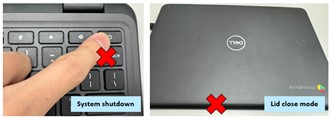
Figure 7: (English Only) Do not Power off computer, close lid, or allow computer to sleep while FW update completes
- If the computer is powered off, the lid closes or computer goes to sleep during the FW update, wait for up to nine minutes for the computer to return to a normal state for next boot.
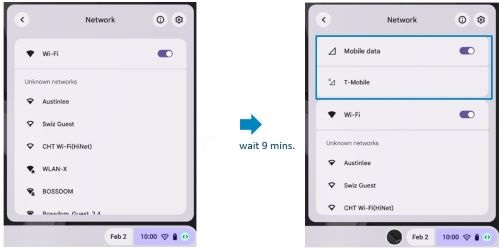
Figure 8: (English Only) Mobile Network available after nine minutes