Laptop Does Not Boot to the Operating System After Deleting Secure Boot Keys and Flashing BIOS
Summary: Learn how to resolve the laptop not booting into the operating system after deleting Secure Boot keys and flashing BIOS.
Symptoms
The computer may fail to boot to the operating system, enter diagnostics mode and display one of the following messages:
No Bootable Device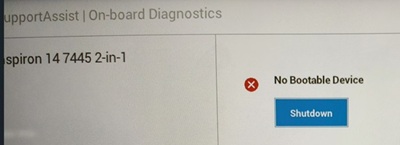
Windows Boot Manager has been blocked by the current security policy
The issue occurs after enabling Custom Mode, deleting all keys in the BIOS and flashing to the following affected BIOS versions.
Affected Platforms and BIOS Versions:
|
Inspiron 14 5425 Inspiron 16 5625 |
1.24.0 or later |
| Inspiron 14 7425 2-in-1 | 1.24.0 or later |
|
Inspiron 14 7435 2-in-1 Inspiron 16 7635 2-in-1 |
1.18.0 or later |
|
Inspiron 14 5435 Inspiron 16 5635 |
1.18.0 or later |
|
Vostro 5415 Vostro 5515 |
1.30.0 or later |
| Inspiron 7415 2-in-1 | 1.31.0 or later |
|
Dell 14 Plus 2-in-1 DB04255 Dell 14 Plus DB14255 Dell 16 Plus DB16255 |
1.6.1 or later |
|
Inspiron 14 7445 2-in-1 Inspiron 14 5445 |
1.13.1 or later |
| Dell Pro 14 Essential PV14255 | 1.6.2 or later |
| Dell 14 DC14255 | 1.6.2 or later |
Cause
The Platform Key is reloaded after updating the BIOS with the imported new key. After the reload, the original setting is reset and due to Secure Boot mechanism, the boot is blocked.
Resolution
The engineering department is working on a fix to be released in a new version of BIOS. The updated BIOS is posted to the computer's support page once it is made available in February 2026. After the BIOS is updated, it recognizes custom mode. If the computer is determined to be in custom mode, it does not perform an automatic reload of the Platform Key.
Workaround:
- Turn on the computer and press the Enter key repeatedly when the Dell logo appears to boot to the BIOS setup menu.
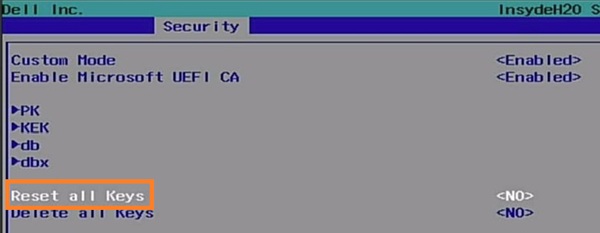
- Go to Security tab and select Expert Key Management.
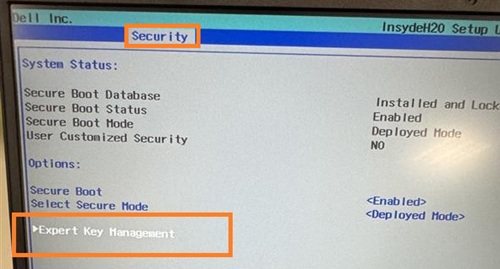
- Ensure that the Custom Mode is Enabled. Select Reset all Keys and select Yes. Save the changes and exit the BIOS setup menu.