Windows Server: How to Properly Rename an Active Directory domain controller
Summary: This article describes the process of renaming an Active Directory (AD) domain controller (DC).
This article applies to
This article does not apply to
This article is not tied to any specific product.
Not all product versions are identified in this article.
Instructions
Caution: Renaming a DC is not as simple as changing the server's name in the System Properties window. This appears to work: the operation completes without any errors, and the server reboots. However, attempting to rename a DC in this way can result in authentication issues, including an inability to log in to the domain from the DC. It may not be possible to recover from these issues without restoring the DC from a backup or reinstalling the operating system.
Renaming a DC is not often necessary. If it must be done, the recommended procedure is to demote the DC, rename it, and re-promote it. If this is not feasible, the following steps provide an alternative method that has been performed in Windows Server 2019 with no adverse effects. In the commands shown, <oldname> represents the old fully-qualified domain name (FQDN) of the DC, and <newname> represents its new FQDN.
Note: Before beginning this procedure, ensure that the DC is fully backed up. A usable backup of a DC must include its system state. Also verify that AD and SYSVOL replication are functional throughout the domain.
- At an elevated command prompt, type
netdom computername <oldname> /add:<newname>. The output should indicate that the new name was successfully added as an alternate name for the DC.
- To confirm that the new name was added, type
netdom computername <oldname> /enumerate. Both names should be listed in the output.
- Type
netdom computername <oldname> /makeprimary:<newname>to set the new FQDN as the DC's primary name. The output should indicate that this was successful. It indicates if a reboot is necessary.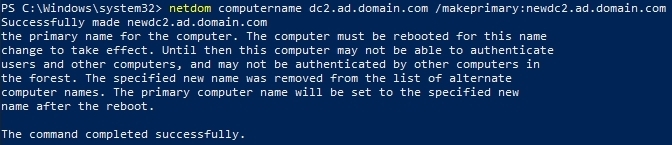
- Reboot the DC.
- Launch an elevated command prompt and type
netdom computername <newname> /remove:<oldname>to remove the old FQDN from the DC's list of names.
- Confirm that the old name has been removed using
netdom computername <newname> /enumeratecommand. The new FQDN should be the only name listed in the output. The DC has now been renamed.
See this video for a demonstration of the procedure:
How to Rename an Active Directory domain controller.
Duration: 00:04:56 (hh:mm:ss)
When available, closed caption (subtitles) language settings can be chosen using the CC icon on this video player.
Affected Products
Microsoft Windows Server 2016, Microsoft Windows Server 2019, Microsoft Windows Server 2022, Microsoft Windows 2012 Server, Microsoft Windows 2012 Server R2Article Properties
Article Number: 000226230
Article Type: How To
Last Modified: 18 Dec 2024
Version: 5
Find answers to your questions from other Dell users
Support Services
Check if your device is covered by Support Services.