How to Identify the Netskope Client Version
Summary: Learn how to identify the version of the Netskope Client by following these step-by-step instructions.
This article applies to
This article does not apply to
This article is not tied to any specific product.
Not all product versions are identified in this article.
Instructions
This article provides the steps to locate and identify the Netskope Client version.
Affected Products:
- Netskope Client
Affected Operating Systems:
- Windows
- Mac
- Android
Knowing the Netskope Client version allows administrators to:
- Identify known issues
- Determine UI differences
- Understand workflow changes
- Verify system requirements
Click Windows, Mac, or Android for versioning information.
Windows
The Windows Netskope Client version can be identified through the:
Click the appropriate method for more information.
UI
- Log in to the Windows computer.
- In the Windows System Tray, right-click the Netskope Client icon and then select About.

- Record the Version. In the example, 66.0.0.327 is the Version.
 Note: The Version may differ from the example above.
CLI
- As an administrator, right-click the Windows start menu and then click Run.

- In the Run UI, type
cmdand then press Enter.
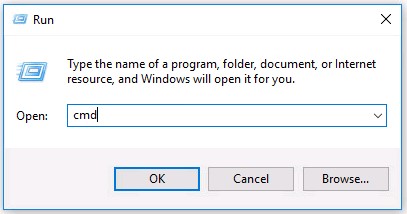
- In Command Prompt, type
wmic product where name='Netskope Client' get versionand then press Enter.

- Record the Version. In the example, 70.0.0.391 is the product version.

- Type
exitand then press Enter.Note: The Version may differ from the example above.
Installer
- Right-click
NSClient[TENANTSPECIFICINFO].msiand select Properties.
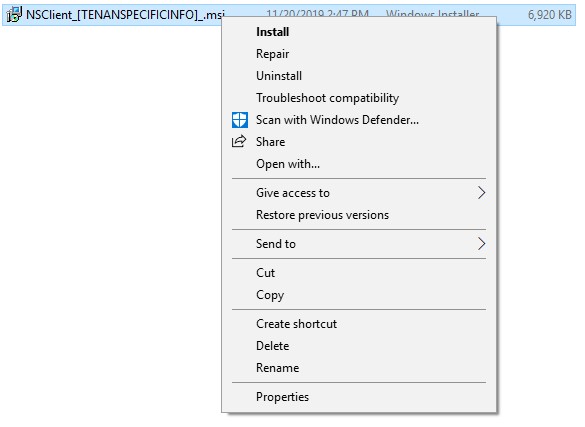 Note:
Note:[TENANTSPECIFICINFO]= Name assigned to Netskope tenant - Click the Details tab.

- The version is located within Subject. Record the version. In the example, 69.2.0.373 is the Version.
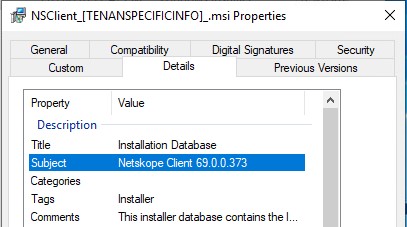 Note: The Version may differ from the example above.
Mac
The Mac Netskope Client version can be identified through the:
Click the appropriate method for more information.
UI
- Log in to the Mac computer.
- In the menu bar, select the Netskope Client icon and then select About.
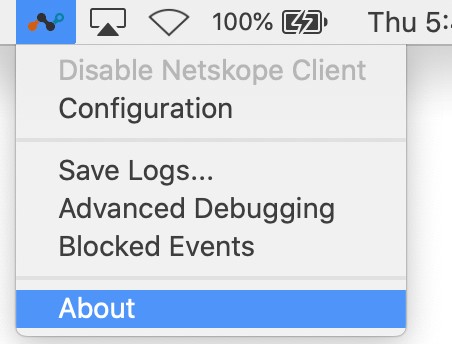
- Record the Version. In the example, 70.0.0.391 is the Version.
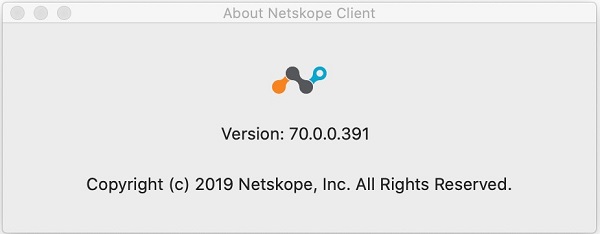 Note: The Version may differ from the example above.
Terminal
- From the Apple menu, click Go and then select Utilities.
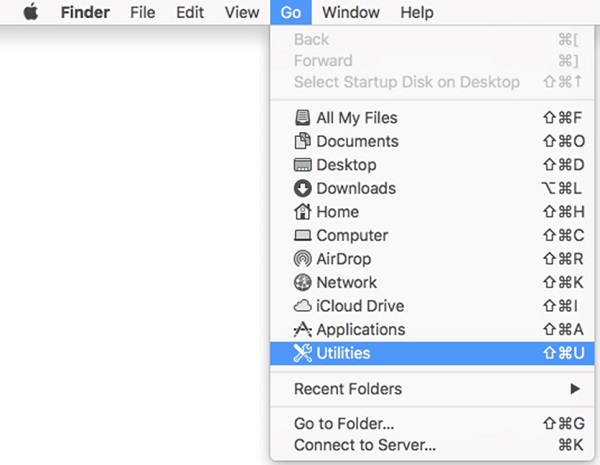
- In the Utilities menu, double-click Terminal.
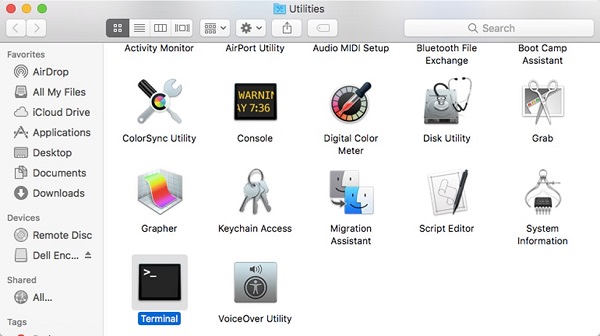
- In Terminal, type
defaults read /Library/Application\ Support/Netskope/STAgent/Netskope\ Client.app/Contents/Info.plist CFBundleShortVersionStringand then press Enter.

- Record the Version. In the example, 70.0.0.391 is the product version.
 Note: The Version may differ from the example above.
 - Type
exitand then press Enter.
Android
The Android Netskope Client version can be identified through the user interface (UI).
- Select the Netskope Client application.
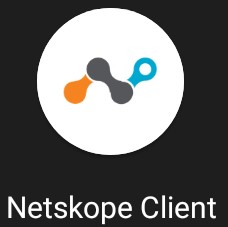
- Select the dropdown on the right and then choose Settings.

- Locate App info and then record the Version. In the example, 70.0.0.391 is the Version.
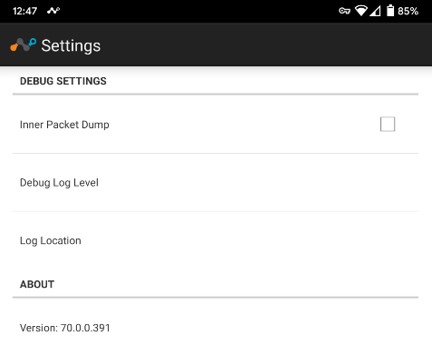 Note: The Version may differ from the example above.
Affected Products
NetskopeArticle Properties
Article Number: 000130781
Article Type: How To
Last Modified: 31 Aug 2026
Version: 15
Find answers to your questions from other Dell users
Support Services
Check if your device is covered by Support Services.