How to Test Your Dell Laptop Screen
Summary: Learn how to run the integrated screen test on your Dell laptop to diagnose display issues like lines, black screens, flickering, or cracked glass. Step-by-step guide included.
Instructions
This guide helps you check if your Dell laptop screen is working correctly using the LCD built in self-test (BIST).
Run the LCD BIST to See if the Video Distortion Issue is Present
Duration: 00:21
When available, closed caption (subtitles) language settings can be chosen using the Settings or CC icon on this video player.
What Is the Screen Self-Test?
Your Dell laptop has helpful integrated tools that check if your screen is working properly. These tests show different colors and patterns on your screen to help you identify problems.
When should you use these tests?
- Your screen is blank or black
- You see unusual lines or dots on your screen
- Colors are faded or do not look right
- Parts of your screen are not displaying anything
- You think your screen might be cracked or damaged
- You see flickering, blurry, or distorted images
- You notice bright or dead pixels, light leaks, or bubbles
Important: These tests only check your screen hardware. They do not check your Windows settings, graphics drivers, or software.
Before You Start
Good to know:
- These tests work even if Windows is not starting normally
- You do not need to install anything
- The tests are safe and will not harm your laptop
Prepare your laptop:
- Save any open work and close all programs
- Shut down your laptop completely and wait for all lights to turn off
- Disconnect external monitors, USB devices, docking stations, and headphones
- Connect your power adapter (charger) to your laptop, this is important for accurate results
- Clean your screen gently with a soft cloth to remove any dust particles
Running the Basic Screen Test - LCD Built In Self-Test (BIST)
This test checks if your screen can display colors correctly and helps identify common display problems.
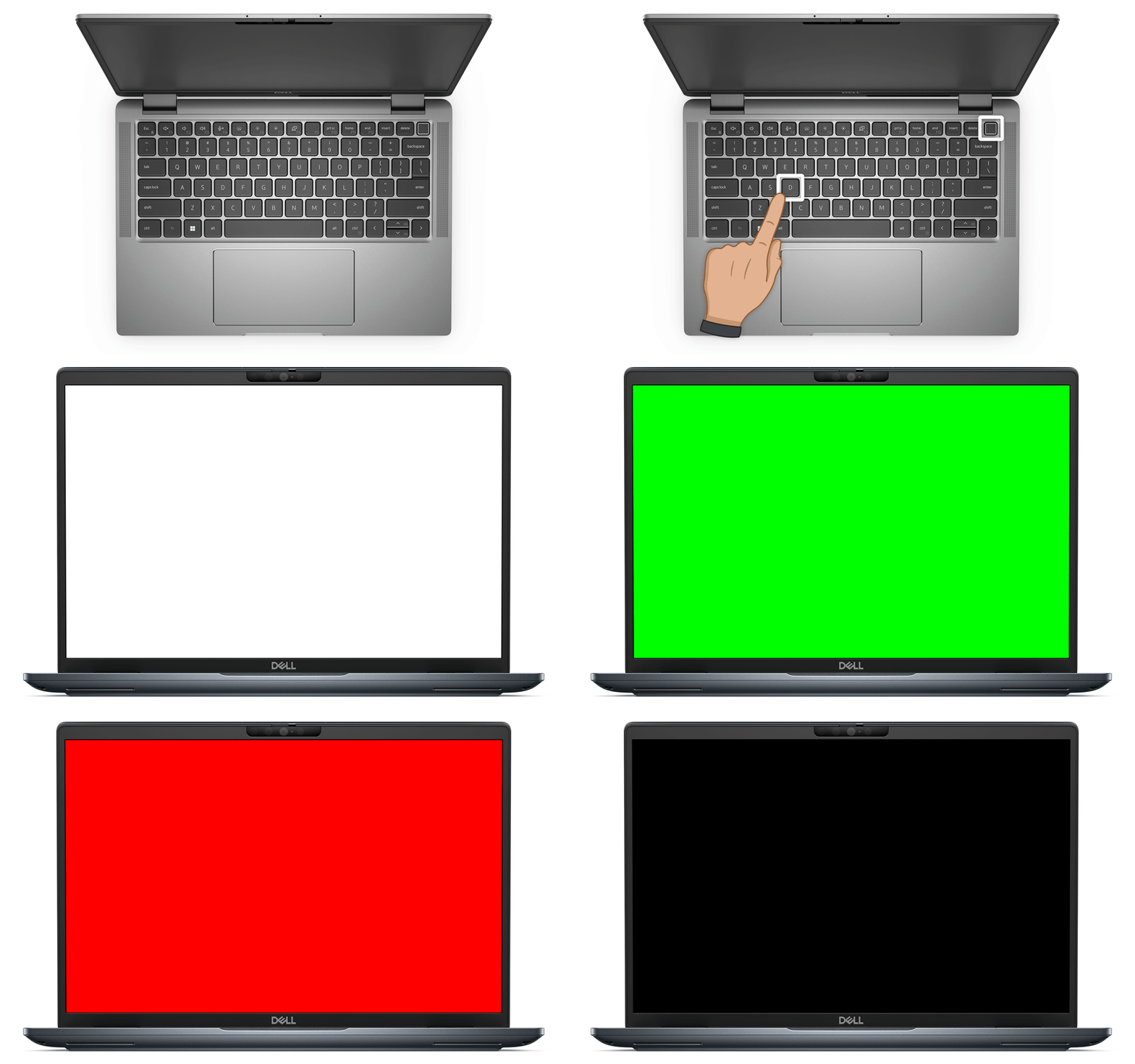
To start the test: Press and hold the D key on your keyboard, then press the Power button to turn on your laptop. Keep holding the D key until you see colors appear on your screen, then release it.
Tip: If nothing happens, try again. Make sure you are pressing and holding the D key before pressing the power button.
What happens during the test: Your screen shows solid colors that fill the entire screen. The colors appear in this order: black, white, red, green, and blue. Each color displays for a few seconds, and the sequence repeats continuously until you stop the test.
What to look for: While each color is showing, carefully examine your entire screen for:
- Horizontal or vertical lines
- Spots, dots, or pixels that are a different color
- Flickering, flashing, or unstable areas
- Sections that stay dark or do not display the color
- Colors that appear washed out, too bright, or incorrect
- Fuzzy or blurry areas
If you notice any problems, they will usually appear on multiple colors. Pay special attention to where the problem appears on your screen.
To stop the test: Press the Esc key on your keyboard, or press and hold the Power button for 10 seconds until your laptop turns off completely.
Running the Enhanced Screen Test - Enhanced Built In Self-Test (BIST)
Newer Dell laptops (with updated BIOS) have an enhanced test that can detect additional screen problems, including cracked glass or physical damage. This test provides more detailed information through both visual patterns and LED indicator lights.
To start the enhanced test: Press and hold the D key, then press the Power button to turn on your laptop (just like the basic test). Keep holding D until colors start appearing on your screen, then release it.
What happens during the enhanced test: Your screen shows the same color sequence (white, black, red, green, blue) twice. The colors fill your entire screen, making it easier to spot even small defects.
What to look for on the screen: Watch carefully for:
- Any lines, distortions, or color inconsistencies
- Fuzzy or blurry areas
- Signs of cracks or spider-web patterns in the glass
- Pressure marks or spots
- Dead pixels or clusters of pixels that do not light up
- Uneven brightness across different areas
- Touchscreen responsiveness issues (if your laptop has a touchscreen)
What to look for on the LED indicators: During the test, also watch your laptop's Battery or Power LED light. This small indicator light helps diagnose specific hardware problems.
Finding your LED indicator: The Battery or Power LED location varies by laptop model. If you are not sure where it is, check your laptop's user guide.
Understanding LED flash patterns: If there is a hardware problem, the LED flashes in a specific pattern. The flashes happen in groups with pauses between them, count both the amber (orange) flashes and the white flashes.
New enhanced diagnostic codes (replacing older codes):
- Four amber, three white flashes
- Four amber, four white flashes
- Four amber, five white flashes
- Four amber, six white flashes
To stop the test: Press Esc or hold the Power button for 10 seconds.
Compatibility note: If your laptop does not support the enhanced test, it continues showing the basic color test. This is normal for older laptop models or laptops that have not had their BIOS updated.
Understanding Your Results
If all colors look perfect and no LED lights are flashing:
Your screen hardware is working correctly. The problem might be with Windows, your graphics driver, or a software setting. Try these steps:
- Update your graphics driver
- Check your Windows display settings
- Run Windows updates
- See our comprehensive troubleshooting guide "Laptop Screen Not Working"
If you see lines, dots, dark areas, pattern distortions, or LED flashing:
Your screen may need professional service. Take these steps:
- Write down exactly what you saw during the test
- If LED lights flashed, count and note the pattern (for example, "four amber, three white")
- Take a photo with your phone if possible, this helps our support team understand the problem
- Contact Dell Technical Support to discuss repair options
If you see cracks, pressure marks, or spider-web patterns:
Your screen glass is damaged and will need replacement. Physical damage to the screen typically is not covered under standard warranty, but Dell Technical Support can provide repair options based on the warranty coverage of your laptop.
If nothing appears on your screen:
Try these steps first:
- Make sure your laptop was completely powered off before starting the test
- Try the test again, pressing and holding the D key firmly before pressing the power button
- Confirm that your power adapter is securely connected
- Look for any small indicator lights on your laptop that show it is receiving power
If the screen still shows nothing, contact Dell Technical Support for diagnosis. Your laptop may have a hardware issue that requires expert evaluation.
Display Care and Maintenance
Taking good care of your laptop screen can help prevent problems and extend its life.
Daily care tips:
- Clean your screen regularly with a soft, lint-free cloth
- Avoid touching the screen with your fingers when possible
- Close your laptop gently, do not slam the lid
- Do not place heavy objects on your closed laptop
- Keep liquids away from your laptop
Placement considerations:
- If your laptop has a glossy screen bezel, be mindful of reflections from lights and bright surfaces
- Adjust your screen angle to reduce glare and eye strain
- Avoid using your laptop in direct sunlight for extended periods
For more detailed information about laptop care, see these Dell knowledge base articles:
- "Best Practices for Use, How to Clean and Maintain Your Dell Laptop for Longevity"
- "How to Clean and Maintain Your Dell Computer"
Important Safety Information
For complete safety instructions, see the Dell knowledge base article "Electrical Safety for Dell Product Repair: ESD Protection and Precautions."
For FCC notices (U.S. only) and other regulatory information, browse to Dell's regulatory compliance website at www.dell.com/regulatory_compliance.
Frequently Asked Questions
Q: How long does the screen test take?
A: Each color displays for a few seconds. You can watch the test screen for as long as you need to check thoroughly for problems. The test repeats until you stop it.
Q: What if I cannot press the D key and power button at the same time?
A: Use two hands to make this easier, one hand for the D key and one for the power button. You can also ask someone to help you press both keys together.
Q: Can I use this test on a Dell desktop monitor?
A: No, this test is specifically for Dell laptop screens. Dell desktop monitors have their own integrated diagnostic tests that you access through the monitor's menu buttons. See the Dell knowledge base article "How to Run a Diagnostic Test on a Dell Monitor" for instructions.
Q: Will this test fix my screen?
A: No, this test only helps identify if there is a problem with your screen hardware. It is a diagnostic tool, not a repair tool. However, it provides valuable information about what is wrong, which helps determine the right solution.
Q: My laptop is showing colored flashing lights instead of starting. Is that the same as this test?
A: No, flashing LED lights on your laptop (like the amber and white flash patterns described in this article) are diagnostic error codes that indicate hardware problems detected by your laptop's integrated diagnostics. While the Enhanced LCD-BIST may cause these lights to flash during testing, if your laptop shows these flashing patterns when you normally try to turn it on, it means that your laptop has detected a hardware issue. Check your laptop's user guide to understand the meaning of the flashing patterns.
Q: What is the difference between the basic and enhanced tests?
A: The basic test shows solid colors to check for general display problems like lines, dead pixels, or color issues. The enhanced test (available on newer laptops with updated BIOS) adds more sophisticated detection capabilities including the ability to identify cracked glass and provides detailed diagnostic information through LED flash codes. These LED codes help pinpoint specific hardware failures more precisely.
Q: Do I need to update my BIOS to run the screen test?
A: No, the basic screen test works on all Dell laptops without requiring a BIOS update. However, updating your BIOS to the latest version enables the enhanced diagnostic features, which provide more detailed and accurate information about screen problems. If you are experiencing display issues, Dell Technologies recommends updating your BIOS before running the test.
Q: What if the test passes but I am still having display problems?
A: If the test shows no problems with your screen hardware, the issue is likely related to your graphics driver, Windows display settings, or software configuration. Follow the troubleshooting steps in the Dell knowledge base article "Laptop Screen Not Working" to resolve software-related display issues.