How to Download and Install Dell Unifying Software
Summary: Download and install Dell Unifying Software with our easy-to-follow instructions. Follow the steps to save, install, and set up Dell's Unifying software for device management.
This article applies to
This article does not apply to
This article is not tied to any specific product.
Not all product versions are identified in this article.
Instructions
Download and Installing the Dell Unifying Software
- Browse to the Dell Unifying Software page
- On the Dell Unifying Application page, click Download File
- Click Save
- Click Save on the "Enter name of file to save to..." screen (Make note of where the file was downloaded)
- Browse to where the file was download and double-click the file. (The User Account Control window may appear, if so click Yes)
- Click Continue
- Click Ok
- Click Yes and follow the prompts to install the application
- After installing Dell Splash Screen software, the Splash Screen software will auto-download the Dell Unifying Software.
NOTE: The Dell Unifying Software lets you manage your devices that use a Logitech Unifying receiver.
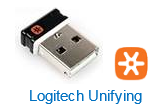
You can add or remove devices using the software's wizard. For more information about unifying devices, browse to the: Logitech Unifying Software page. For information about determining the difference between versions of the KM636 wireless keyboard and mouse, see article Dell Wireless Keyboard and Mouse (KM636) - how to differentiate between Logitech's Unifying and Dell's Universal pairing.
You can add or remove devices using the software's wizard. For more information about unifying devices, browse to the: Logitech Unifying Software page. For information about determining the difference between versions of the KM636 wireless keyboard and mouse, see article Dell Wireless Keyboard and Mouse (KM636) - how to differentiate between Logitech's Unifying and Dell's Universal pairing.
If your keyboard or mouse does not support the Dell Unifying Software, see Dell KB articles Guide For Pairing and Troubleshooting Dell Bluetooth Keyboards and Mouse or Support for Dell Display and Peripheral Manager | Drivers & Downloads | Dell US
Article Properties
Article Number: 000136421
Article Type: How To
Last Modified: 22 May 2026
Version: 8
Find answers to your questions from other Dell users
Support Services
Check if your device is covered by Support Services.