P5525QC 显示器以太网固件无法使用 Dell ISP 固件更新工具、Dell Display Manager 或 Dell Display and Peripheral Manager 进行更新
Summary: 有关使用 Dell ISP 固件更新工具、Dell Display Manager (DDM) 或 Dell Display and Peripheral Manager (DDPM) 更新 Dell P5525QC 显示器的信息。
This article applies to
This article does not apply to
This article is not tied to any specific product.
Not all product versions are identified in this article.
Symptoms
使用“显示器固件更新实用程序”更新显示器固件时,如果网络固件版本为 0.18 或更低版本。Dell Display Manager (DDM) 和 Dell Display and Peripheral Manager (DDPM) 用户在更新过程中遇到错误。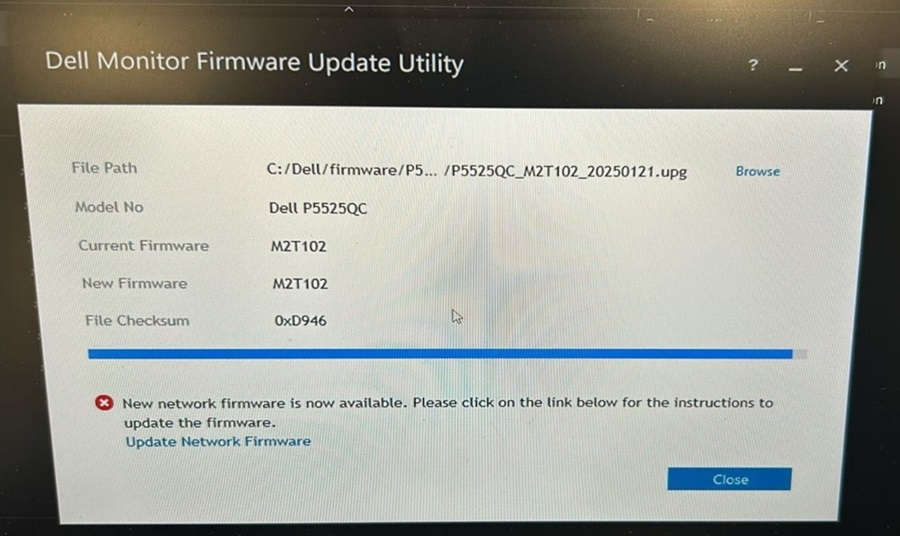
Cause
这是因为当前显示器的固件版本为 0.18 或更低版本不支持通过 USB HID 模式更新网络固件。
只有网络固件版本 0.20 及更高版本支持 USB HID 模式,以便使用戴尔“Monitor Firmware Update Utility”。
Resolution
要更新 Dell P5525QC 显示器上的以太网固件,请使用到 RJ45 端口的网络连接。
- 从戴尔支持网站下载最新的固件:Dell P5525QC驱动程序与下载
- 使用 RJ45 线缆连接显示器和计算机,启用以太网。
按住纵杆按钮 3 秒钟以打开电源。此时将出现一个网络图标,并在 中心显示 3 秒钟。+友情链接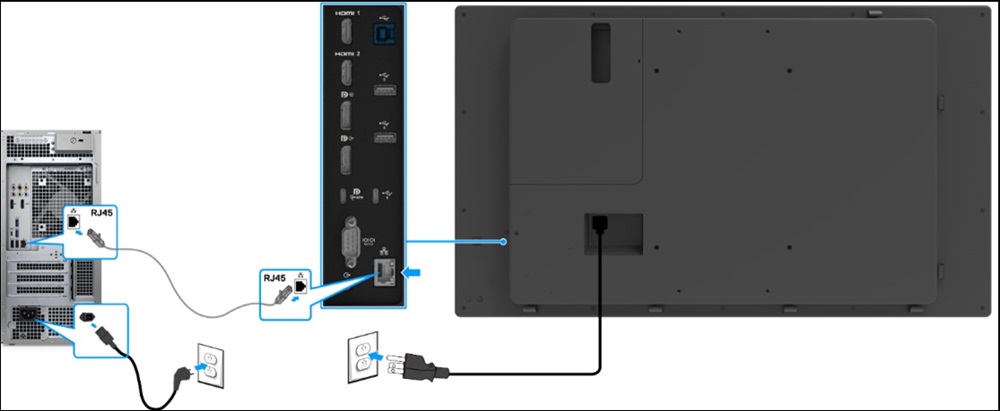
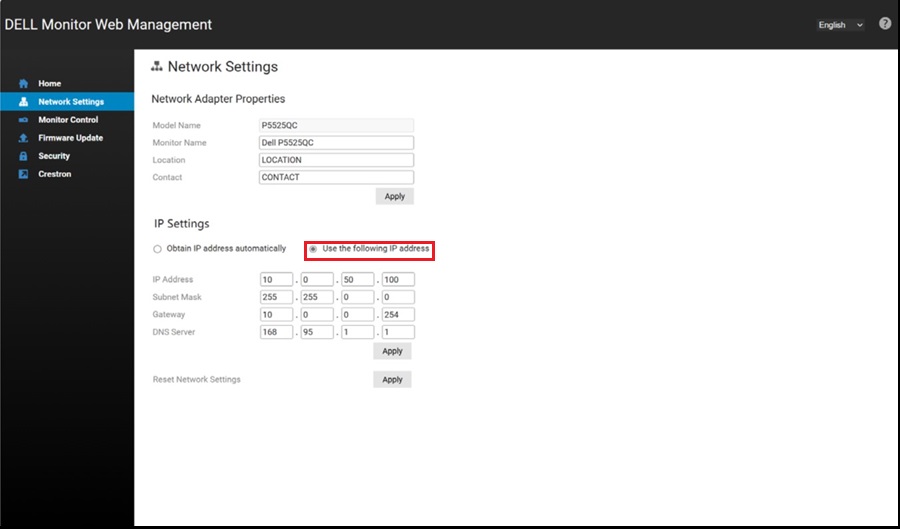
- 要访问 Dell Display Web Management 工具,您必须为计算机和显示屏设置 IP 地址。
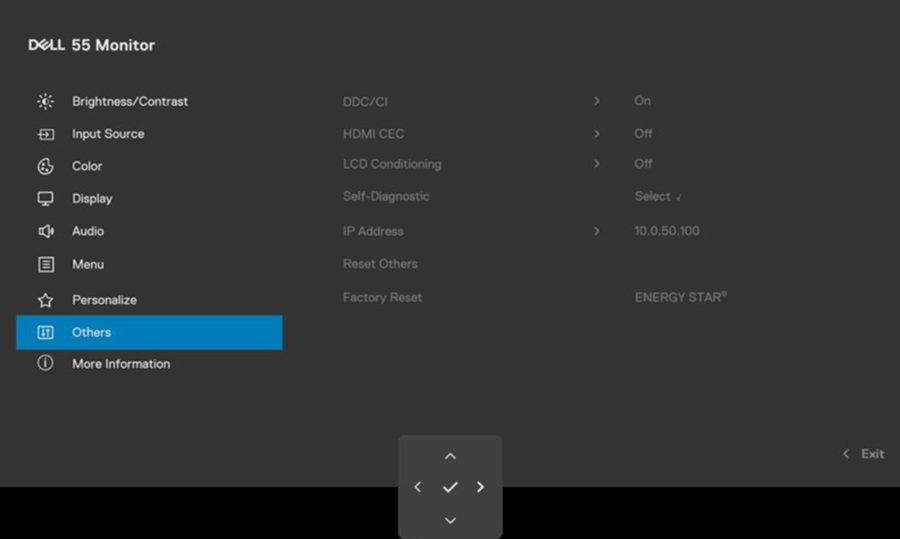
- 要显示显示屏的 IP 地址,请导航至屏上显示 (OSD) 菜单其他 > 。默认情况下,IP 地址为 10.0.50.100。
- 在计算机的“IP 属性”选项卡中,通过选择“使用以下 IP 地址”来指定 IP 地址,然后输入以下值:对于 IP 地址:10.0.50.101,对于子网掩码:255.0.0.0(将所有其他条目留空)。
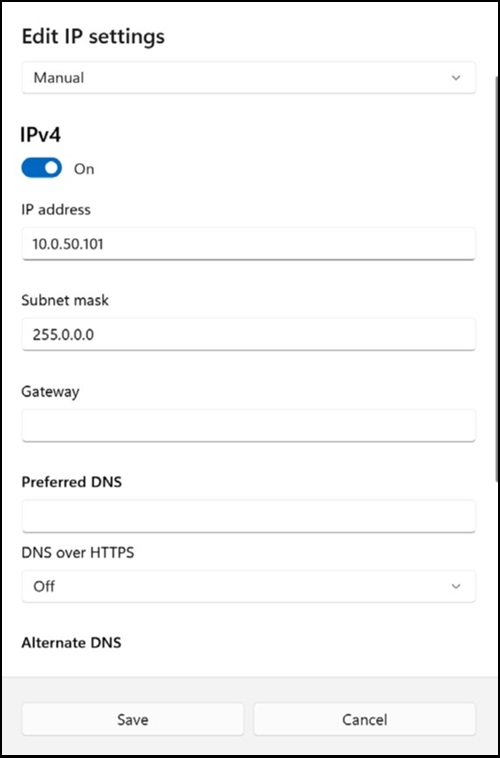
- IP 地址配置(示例)现在如下所示:

- 要访问 Web 管理,请执行以下作:
打开网页浏览器,然后在地址栏中键入显示屏的 IP 地址 (10.0.50.100)。 - Web 管理主页如下所示。您可以检查当前网络固件版本。
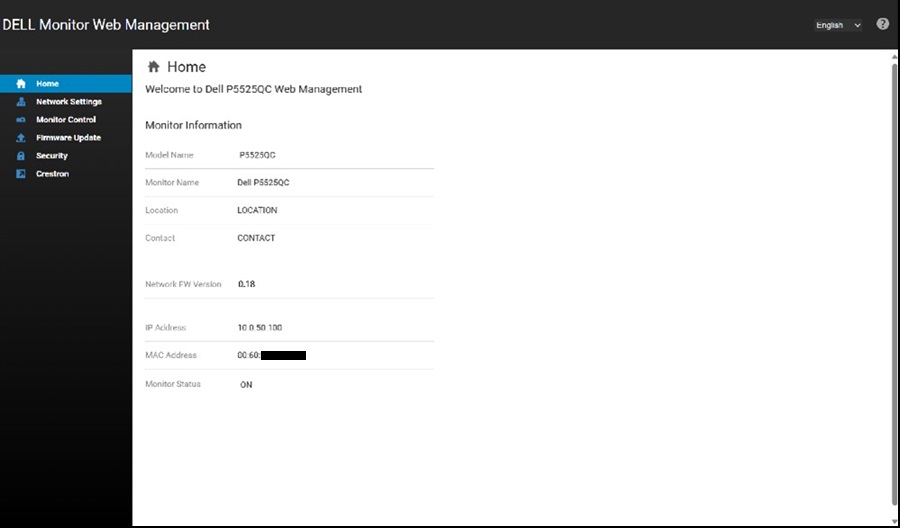
- 选择 Firmware Update 选项。
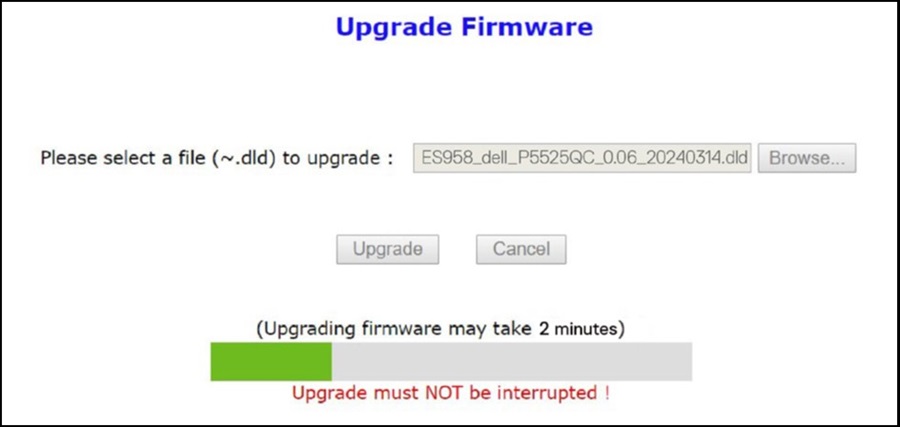
- 单击 更新 ,然后选择您下载的固件文件。

- 单击 Upgrade 按钮,固件开始更新。
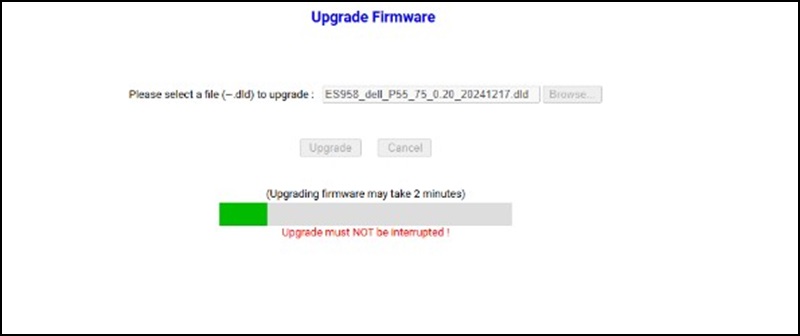
- 更新完成后,将自动显示 设备重新启动 。

- 网络固件版本已更新。
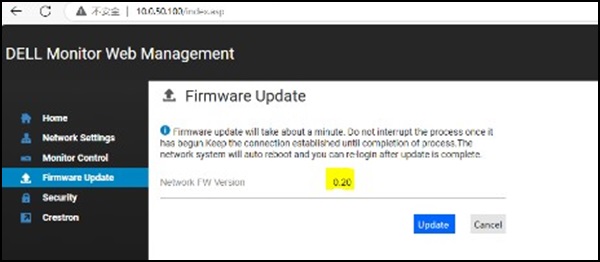
提醒:当 Dell P5525QC 显示器网络固件版本为 0.2 或更高版本时,您可以使用 USB-C 连接,通过 DDM、DDPM 或显示器固件更新实用程序来更新网络固件。
Affected Products
Dell Display Manager 2.x, Dell Display and Peripheral Manager, Dell P5525QCArticle Properties
Article Number: 000231242
Article Type: Solution
Last Modified: 16 Apr 2025
Version: 3
Find answers to your questions from other Dell users
Support Services
Check if your device is covered by Support Services.