PowerEdge:使用 RACADM 工具遠端重設變更 iDRAC 密碼
Summary: 本文說明如何在 Windows Server 上使用 Dell RACADM 工具遠端重設或變更 iDRAC 密碼。當忘記 iDRAC 密碼且無法選擇停機時間時,此方法便很實用。
This article applies to
This article does not apply to
This article is not tied to any specific product.
Not all product versions are identified in this article.
Instructions
本文說明如何在 Windows Server 2019 上使用 Dell RACADM 工具遠端重設或變更 iDRAC 密碼。當忘記 iDRAC 密碼且無法選擇停機時間時,此方法便很實用。
環境
- 伺服器機型:Dell PowerEdge R350 (範例)
- 作業系統:Windows Server 2019
- 所需工具:Dell iDRAC 工具 (RACADM)
- 下載連結:https://www.dell.com/support/home/drivers/driversdetails?driverid=82kgw&oscode=ws19l&productcode=poweredge-r350
先決條件
- 對代管 RACADM 工具的 Windows Server 的管理存取權限
- 連接至 iDRAC 介面的網路連線能力。
程序
步驟 1:下載並解壓縮 iDRAC 工具。
- 從 Dell 支援網站下載 iDRAC 工具套件。
- 瀏覽至下載的檔案,然後按兩下以解壓縮。
- 指定解壓縮檔案的位置 (預設值:C:\openmanage)
- 按 一下解壓縮 以完成解壓縮。
步驟 2:安裝 iDRAC 工具。
- 瀏覽至解壓縮的資料夾 (C:\openmanage)。
- 執行 iDRACTools_x64.msi 以安裝適用於 Windows 的 RACADM 和 IPMI 工具。
- 安裝完成後,請從「Start」功能表搜尋「 iDRAC UI Launcher 」。
- 這會開啟 RACADM 命令的命令提示字元視窗。
步驟 3:瀏覽至 RACADM 目錄。
- 開啟命令提示字元。
- 將目錄變更為 RACADM 安裝路徑:
cd "C:\Program Files\Dell\SysMgt\IDRACTools\racadm"
步驟 4:重設或變更 iDRAC 密碼
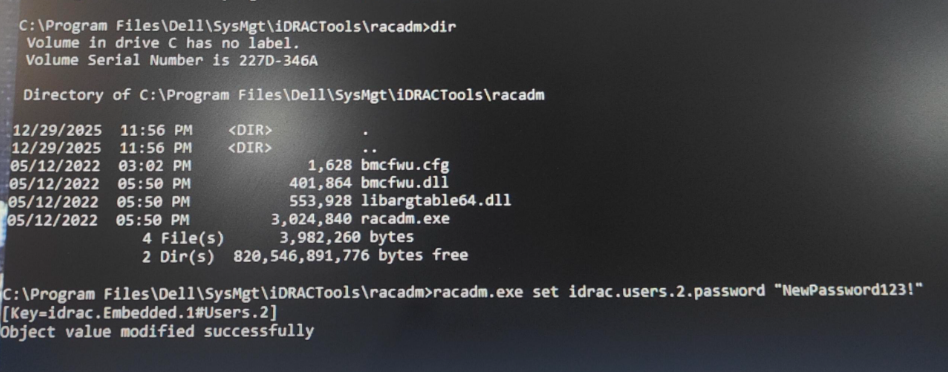
- 執行以下命令以重置使用者 ID 2(缺省 root/admin 帳戶)的密碼:
racadm.exe set idrac.users.2.password "NewPassword123!" (Any password)
- 預期輸出:
已成功修改物件值。
步驟 5:驗證存取權。
- 在瀏覽器中開啟 iDRAC UI。
- 使用更新後的登入資料登入。
- 確認存取和功能成功。
下面共用的輸出範例:
Affected Products
Rack Servers, PowerEdge R350Article Properties
Article Number: 000409855
Article Type: How To
Last Modified: 06 Jan 2026
Version: 1
Find answers to your questions from other Dell users
Support Services
Check if your device is covered by Support Services.