PowerFlex 3.x 如何從 PFxM 尋找 iDRAC IP 位址並重設 iDRAC
Summary: 本文說明如何從 PowerFlex Manager PFxM 尋找 iDRAC IP 位址,以及如何從 iDRAC Web 介面重設 iDRAC 設定。
This article applies to
This article does not apply to
This article is not tied to any specific product.
Not all product versions are identified in this article.
Instructions
如何從 PowerFlex 3.0 Manager 找到 iDRAC IP 位址
1.按一下服務清單中的服務。

2.選取所需 iDRAC 所在地的主機服務。
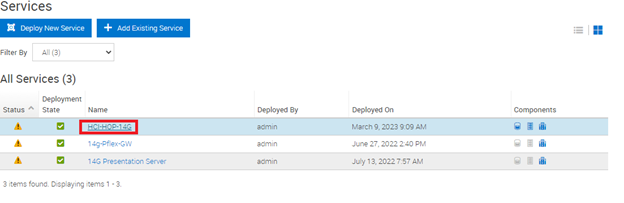
3.選取您想要從其中存取其 iDRAC 的主機,然後按一下。
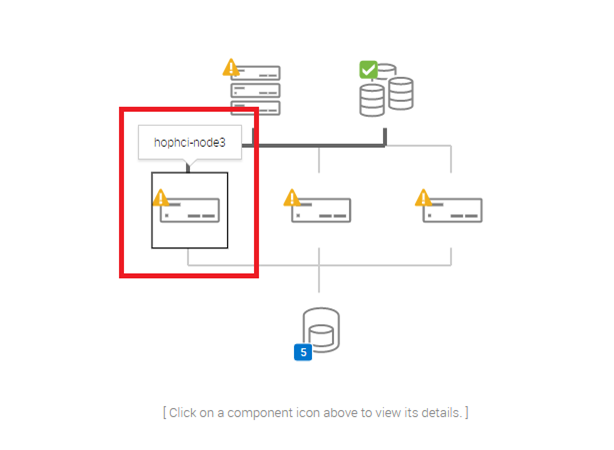
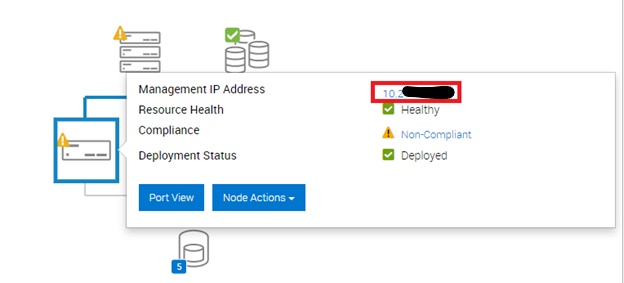
4.在彈出式視窗中,您會看到範例 labnode3 的 iDRAC IP。按兩下它,它將打開一個新視窗。
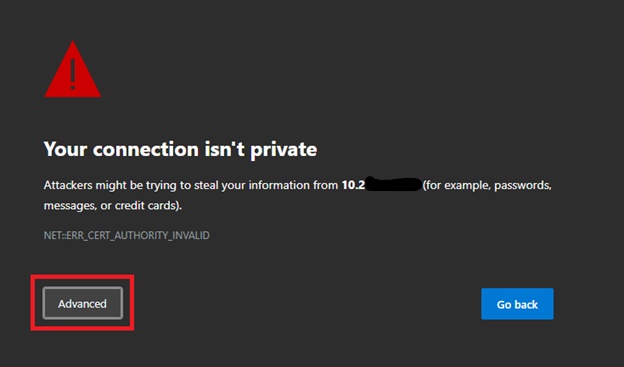
5.如果您看到“您的連接不是私有的”螢幕,請按兩下“高級”,然後按兩下“繼續”。

6.使用您設定的登入資料登入 iDRAC。
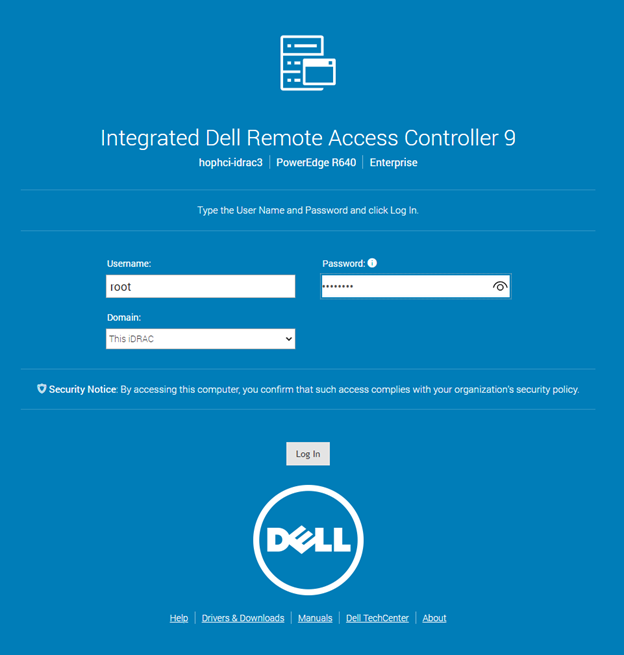
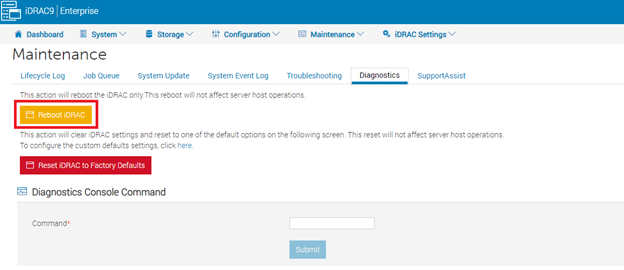
7.進入儀表板後,按一下「Maintenance」,然後點選下一個畫面的「Diagnostics」


8.在此畫面上,按一下顯示「重新開機 iDRAC」的黃色按鈕。
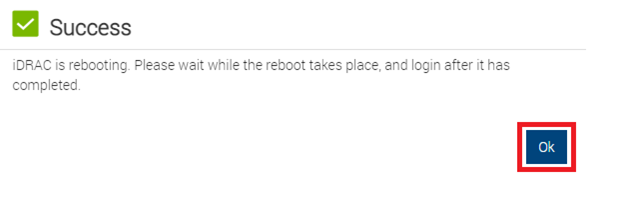
9.在警告頁面上,按一下「確定」,然後在下一個方塊上按一下「確定」

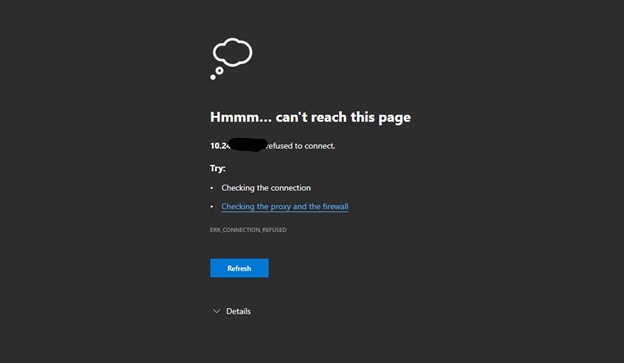
10 每 1-2 分鐘手動刷新一次頁面。您將在幾分鐘內看到「無法顯示」頁面。請持續重新整理頁面,直到您可以再次登入。

重新啟動 iDRAC 的其他方法 -
-
使用 SSH -
-
使用 SSH 工具登入 iDRAC,然後輸入下列命令:

-
-
使用系統識別按鈕 -
-
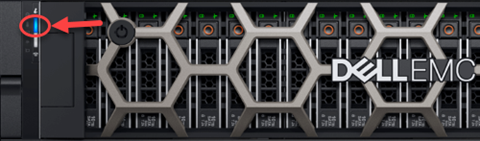
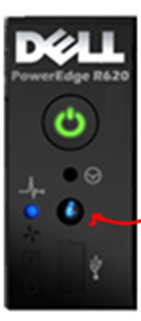
若為配備 iDRAC 的系統,系統識別按鈕是一個標示「i」的小按鈕,通常位於系統正面和背面。若要重設 iDRAC,無需重新啟動作業系統,按住系統識別按鈕至少 16 秒。當冷卻風扇開始全速運轉且前 LCD (若有) 熄滅時,請停止按下按鈕。現在 iDRAC 會重新開機,不會變更任何儲存的設定。遠端控制器可能需要一分鐘或更長的時間,才能重新開機。
-
十四代和當前系統:
- 13 Gen 及更舊版本:
-

Additional Information
Affected Products
PowerFlex rack, ScaleIOArticle Properties
Article Number: 000308021
Article Type: How To
Last Modified: 20 Aug 2025
Version: 4
Find answers to your questions from other Dell users
Support Services
Check if your device is covered by Support Services.