如何在 Outlook 中添加 Gmail
Summary: 本文介绍将 Gmail 添加到 Outlook 账户的步骤。
This article applies to
This article does not apply to
This article is not tied to any specific product.
Not all product versions are identified in this article.
Instructions
在 Outlook 中添加 Gmail 帐户时,需要从 Gmail 网站生成的应用程序密码。应用密码是一次性密码,用于让 Gmail 知道您是访问您电子邮件的人。您可以通过在 Gmail 中激活双重身份验证来获取应用密码。
将 Gmail 帐户添加到 Outlook 取决于您拥有的版本。
将 Gmail 添加到新 Outlook
- 打开 Outlook
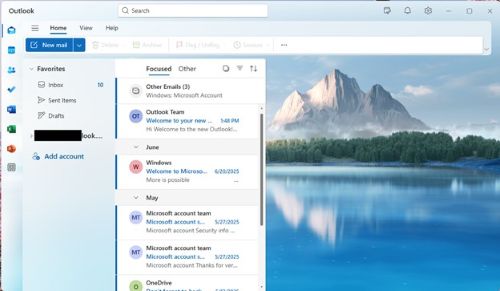
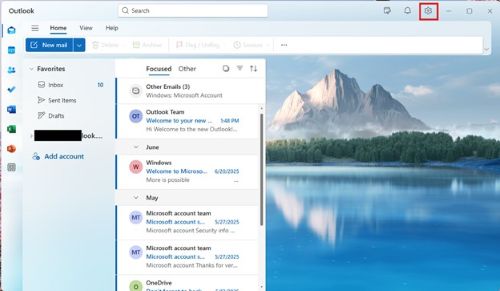
- 单击 齿轮符号 以打开 设置
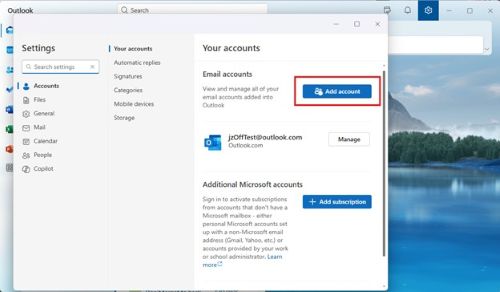
- 在“设置”中,转至 “帐户 >”您的帐户, 然后单击 “添加帐户 ”按钮。
- 在提供的文本框中输入 Gmail 地址 。
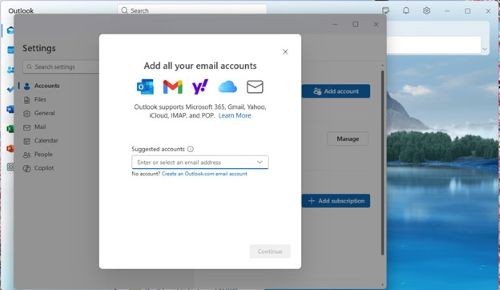
- 单击 “继续 ”以同步您的 Gmail 帐户
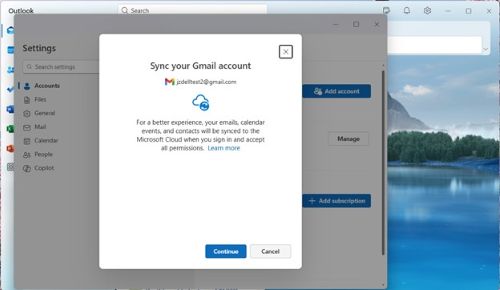
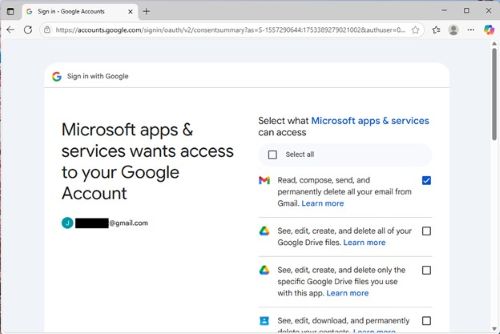
- 浏览器将启动,您必须 登录 Gmail。
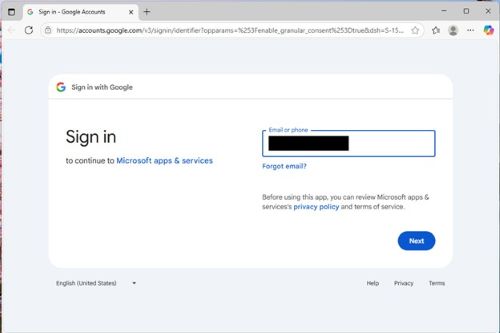
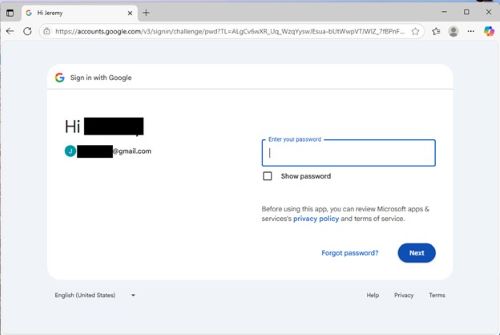
- 在出现提示时提供密码
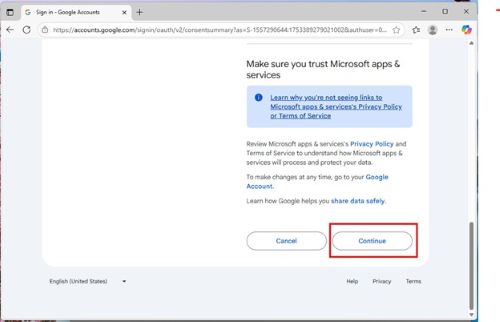
- 通过单击“继续”,允许 Microsoft 应用和服务访问你的帐户
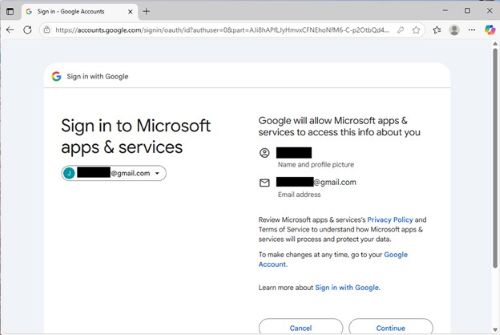
- 通过选中复选框(至少具有 Gmail 访问权限)并点击 继续,选择 Microsoft 可以访问哪些 Google 服务。
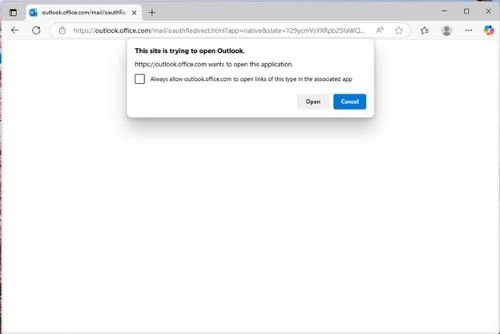
- 浏览器会提示您打开 Outlook。单击打开。
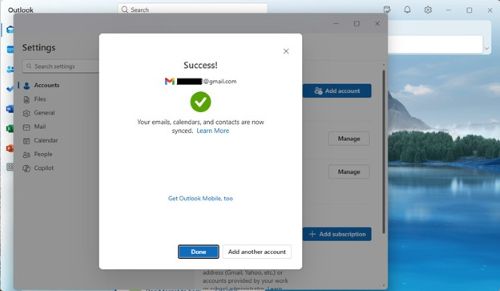
- 前景应该预示着成功。(这可能在某些屏幕后面。)单击 Done。
在 Outlook 2016 中添加 Gmail
要在 Outlook 2016 中添加 Gmail,请执行以下步骤:
- 打开 Outlook 2016。
- 选择文件 > 添加账户。
- 此时将显示“欢迎使用 Outlook”窗口。
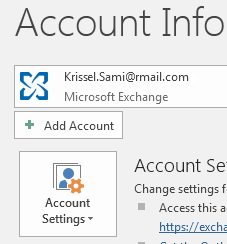
- 此时将显示“欢迎使用 Outlook”窗口。
- 输入 Gmail 电子邮件地址,然后单击连接。
- 如果您的屏幕看起来与此处不同,请输入您的姓名、Gmail 地址和应用程序密码。作为 Windows 安全中心的一部分,系统可能会提示您重新输入生成的密码。
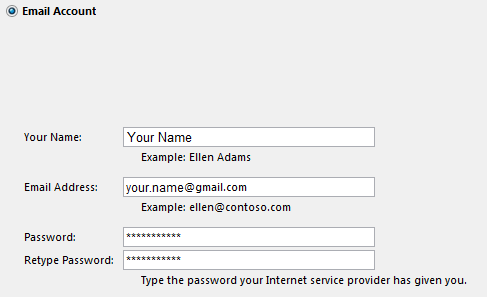
- 如果您的屏幕看起来与此处不同,请输入您的姓名、Gmail 地址和应用程序密码。作为 Windows 安全中心的一部分,系统可能会提示您重新输入生成的密码。
- 单击下一步 > 完成。
Affected Products
Microsoft 365 from DellArticle Properties
Article Number: 000186185
Article Type: How To
Last Modified: 30 Jul 2025
Version: 2
Find answers to your questions from other Dell users
Support Services
Check if your device is covered by Support Services.