在不卸载 Dell Data Protection Personal Edition 的情况下解密 Dell Data Protection Personal Edition
Summary: 本文提供了在不卸载 Dell Data Protection | 的情况下进行解密过程的逐步指导个人版。
This article applies to
This article does not apply to
This article is not tied to any specific product.
Not all product versions are identified in this article.
Instructions
受影响的产品:
- Dell Data Protection | Personal Edition
受影响的版本:
- v8.0 - 8.13
受影响的操作系统:
- Windows
由于各种原因,用户可能希望从计算机中删除加密。如果用户想要在不卸载 Dell Data Protection 软件的情况下解密驱动器,本指南将演示如何删除 Windows 7、8.1 和 10 的软件。
如何在 Windows 中删除加密:
- 启动 Dell Data Protection |加密 软件。
Windows 10
- 转至任务栏上的 开始图标 。

- 转至 所有应用程序。

- 转到 戴尔。

- 打开 Dell Data Protection Encryption
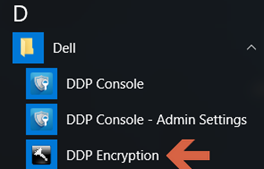
Windows 8.1
- 转至“开始”菜单。

- 选择 箭头 以查看应用程序。

- 转至 Dell 文件夹,然后选择 Dell Data Protection |加密。
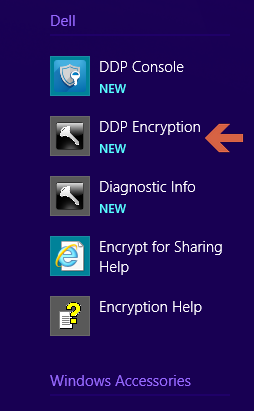
Windows 7
- 转至“开始”菜单。

- 转至 所有程序。

- 转到 戴尔。
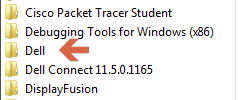
- 打开 Dell Data Protection Encryption

- 转至任务栏上的 开始图标 。
- 选择右下角的高级。
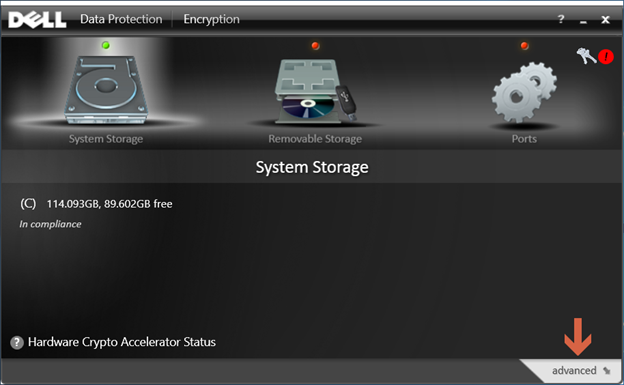
- 选择 默认设置。
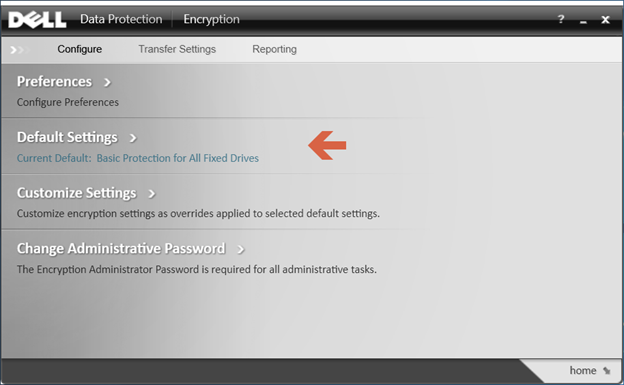
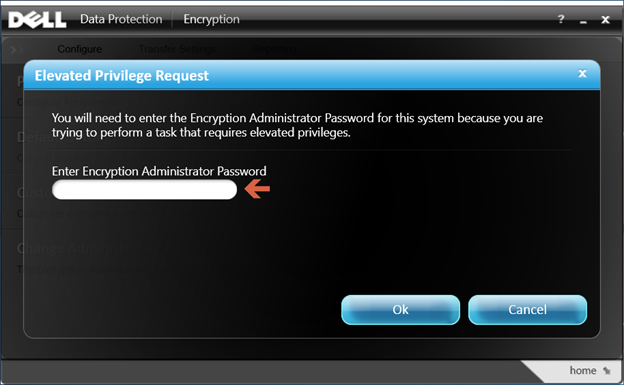
- 输入在设置 Dell Data Protection 软件时创建的 加密管理员密码 。
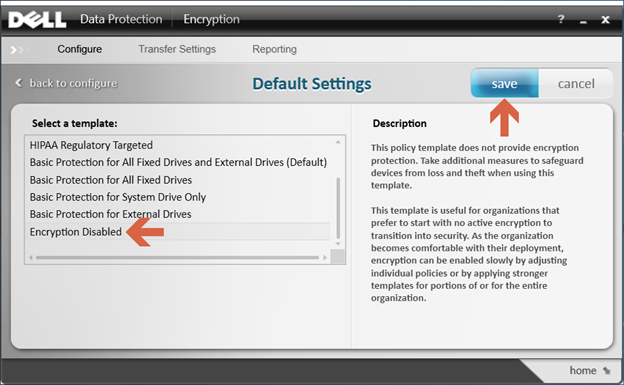
- 在 选择模板下,使用滚动选项转至加密 已禁用 选项,然后选择 保存。
- 选择右下角的“ Go Home ”选项。
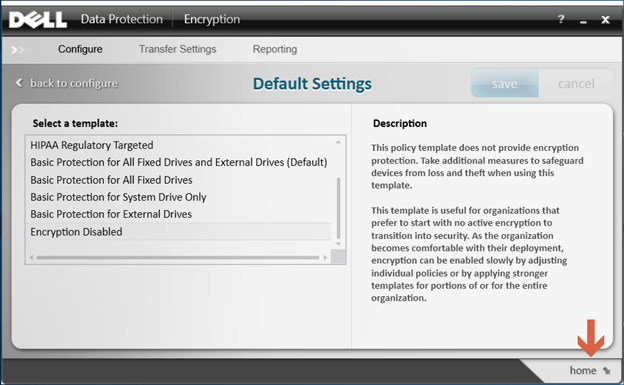
- 恢复过程随即开始。
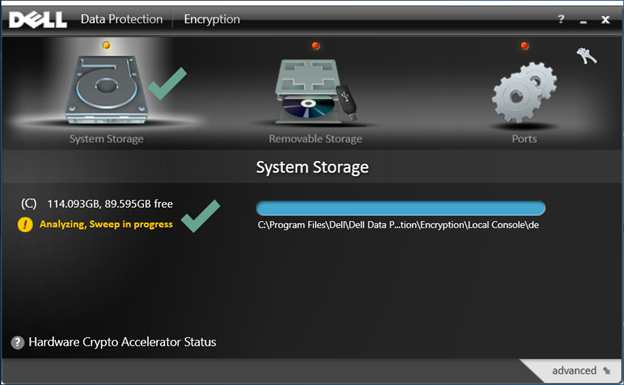 注意: 这可能需要几个小时才能完成,具体取决于计算机和加密的文件数量。
要联系支持部门,请参阅 Dell Data Security 国际支持电话号码。
转至 TechDirect,在线生成技术支持请求。
要获得更多见解和资源,请加入戴尔安全社区论坛。
Affected Products
Dell EncryptionArticle Properties
Article Number: 000125212
Article Type: How To
Last Modified: 19 Apr 2026
Version: 15
Find answers to your questions from other Dell users
Support Services
Check if your device is covered by Support Services.