如何覆盖 Dell Encryption 激活期间的 HTTP 超时值
Summary: 如果在激活期间服务器响应缓慢,可能会因为与服务器通信的超时时间过期而导致激活失败。
This article applies to
This article does not apply to
This article is not tied to any specific product.
Not all product versions are identified in this article.
Instructions
受影响的产品:
- Dell Encryption
- Dell Data Protection | Encryption
提醒:默认情况下,超时时间设置为 30 秒,并且在所有版本的 Dell Encryption 中均不可配置超时时间。
检查 Shield for Windows 日志是否显示超时错误消息
Dell Security Management Server(旧称 Dell Data Protection | Enterprise Edition)的默认连接时间为 60 秒,而 Shield 的发送和接收操作的默认值为 30 秒。
要诊断问题,请在 Shield 日志中查找 HTTP 超时。Shield 日志显示类似于以下消息的错误:
[XmlRpcActivate: 427] HTTP request failed yet again. HTTP error(12002) -
The operation timed out
[Activator: 700] Activation - Verify network connectivity to the CMG Server at "XYZPolicy" and CMG Device Server at "https://XYZpolicy:8083/xapi"
[User: 632] - Device Server Connection error (12002)
提醒:Shield 日志参考的位置, 以及 Dell Encryption Enterprise 和 Dell Data Security 服务器的日志文件目录。
您需要的工具
要解决此问题,您必须安装 Dell Encryption v8.1.0.5744 或更高版本。更新到较新的内部版本后,您可以增加超时时间,以满足您的网络环境需求。
要访问最新版本、安装介质,请转至 Dell Data Protection |加密产品支持。
警告:下一步是 Windows 注册表编辑:
- 在继续作之前备份注册表,请参阅 如何在 Windows
中备份和还原注册表。
- 编辑注册表可能会导致计算机在下次重新启动时无响应。
- 如果您对于执行此步骤感到担忧,请拨打 Dell Data Security 国际支持电话号码联系相关人员以获得帮助。
- 尽可能升级到最新的 Dell Encryption 版本(最低 8.1.0.5744)。
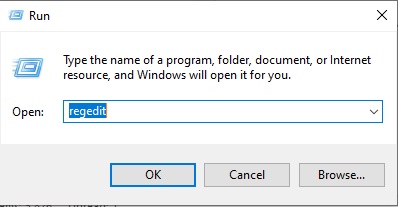
- 通过在“运行”窗口中键入 regedit 并选择 “确定”,在下载密钥材料的端点上打开 Windows 注册表编辑器。
- 请转至
Computer\HKEY_LOCAL_MACHINE\SOFTWARE\Microsoft\Windows NT\CurrentVersion\Winlogon\CMGShield。 - 创建名为
HTTPTimeout。 - 右键单击
HTTPTimeout,然后选择 修改。 - 将值数据设置为 300(十进制)。
此注册表覆盖值将更新 Shield for Windows 的发送和接收操作。对于连接操作,计算机会将注册表覆盖值翻倍。有效注册表值为 30 秒到 300 秒。任何高于或低于的值都将更改为允许的最小值和最大值。
要联系支持部门,请参阅 Dell Data Security 国际支持电话号码。
转至 TechDirect,在线生成技术支持请求。
要获得更多见解和资源,请加入戴尔安全社区论坛。
Affected Products
Dell EncryptionArticle Properties
Article Number: 000125855
Article Type: How To
Last Modified: 03 Feb 2025
Version: 12
Find answers to your questions from other Dell users
Support Services
Check if your device is covered by Support Services.