如何在網域控制站上設定群組原則物件以啟用 Dell Encryption 權益
Summary: 本文說明如何在網域控制站上設定群組原則物件 (GPO),以啟用 Dell Encryption (先前稱為 Dell Data Protection |Encryption) 權益。
This article applies to
This article does not apply to
This article is not tied to any specific product.
Not all product versions are identified in this article.
Symptoms
受影響的產品:
- Dell Security Management Server
- Dell Data Protection | Enterprise Edition
- Dell Security Management Server Virtual
- Dell Data Protection | Virtual Edition
Cause
不適用
Resolution
- 如果您的用戶端獲得 Dell Digital Delivery (DDD) 授權,請依照以下指示在網域控制站上設定 GPO,以啟用權益 (這可能不是執行 Dell Security Management Server [先前稱為 Dell Data Protection |Enterprise Edition] 或 Dell Security Management Server Virtual [先前稱為 Dell Data Protection |虛擬版])。
- 工作站必須是應用 GPO 的 OU 的成員。
注意:確保連出連接埠 443 可用於與 Dell Security Management Server 或 Dell Security Management Server Virtual 通訊。如果埠 443 被阻止(出於任何原因),則權利功能不起作用。
- 登入 網域控制站 或已安裝遠端 伺服器管理工具 (RSAT) 的電腦。
注意:如需 RSAT 的詳細資訊,請參閱下列 Microsoft 網站 https://support.microsoft.com/en-us/help/2693643/remote-server-administration-tools-rsat-for-windows-operating-systems
 。
。
。
- 按下 Windows 鍵並搜尋 群組原則管理。
- 以滑鼠右鍵按 一下應套用原則的組織 單位 ,然後選取 在此網域中建立 GPO,然後將其連結至此處。
- 輸入新 GPO 的名稱,為「源初學者 GPO」選擇“(無),然後按兩下確定”。

圖 1:(僅英文)新的 GPO
- 在建立的 GPO 上按一下滑鼠右鍵,然後選取編輯。
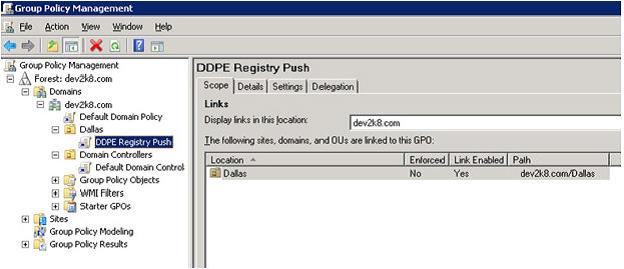
圖 2:(僅英文)群組原則管理
- 展開電腦組態>偏好設定>Windows 設定>登錄。
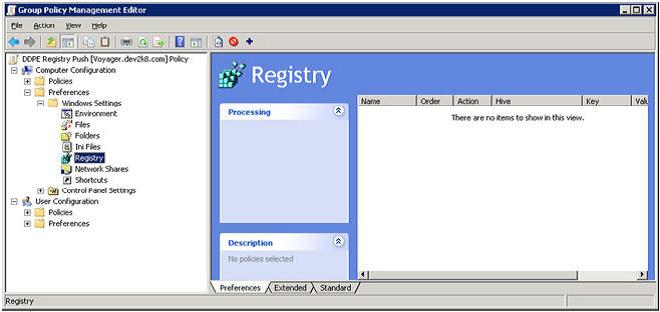
圖 3:(僅英文)群組原則管理編輯器
- 右鍵按下 「註冊表 」,然後選擇 「新建 >註冊表項」。
- 動作:建立
- 蜂巢:HKEY_LOCAL_MACHINE
- 金鑰路徑:軟體\Dell\Dell Data Protection
- 值名稱:伺服器
- 值類型:REG_SZ
- 值資料:輸入 Enterprise 或 Virtual Edition 伺服器的完整網域名稱或 IP 位址。

圖 4:(僅英文)伺服器內容
- 按一下確定。
- 我們現在可以關閉任何視窗,然後登出任何用來執行上述步驟的伺服器。
- 在此 GPO 註銷範圍內的工作站上,並登錄到或執行
gpupdate /force以應用此新的組策略設置。 - 您的機器現在會自動設定為在由 Dell Digital Delivery 安裝後聯絡 DDP 伺服器。
如要聯絡支援部門,請參閱 Dell Data Security 國際支援電話號碼。
請前往 TechDirect,以線上產生技術支援要求。
如需更多深入見解與資源,請加入 Dell 安全性社群論壇。
Affected Products
Dell EncryptionArticle Properties
Article Number: 000130312
Article Type: Solution
Last Modified: 15 Apr 2024
Version: 10
Find answers to your questions from other Dell users
Support Services
Check if your device is covered by Support Services.