명령 프롬프트를 사용하여 Microsoft Windows의 설치 날짜를 확인하는 방법
Summary: Dell 컴퓨터에서 Windows의 원래 설치 날짜를 확인하기 위한 단계별 지침을 살펴봅니다.
This article applies to
This article does not apply to
This article is not tied to any specific product.
Not all product versions are identified in this article.
Symptoms
Cause
컴퓨터 사용자가 Windows의 원래 설치 날짜를 확인하려고 합니다.
Resolution
참고: 도메인의 시스템에 정확한 설치 날짜가 표시되지 않을 수 있습니다. 이 정보는 도메인에 없는 시스템을 위해 제공됩니다.
다음 단계에서는 Windows 설치 날짜를 확인하는 가장 정확한 방법을 제공합니다.
- 파일 탐색기를 열고 C:를 마우스 왼쪽 버튼으로 두 번 클릭합니다. 드라이브.

- Windows 폴더를 찾습니다.
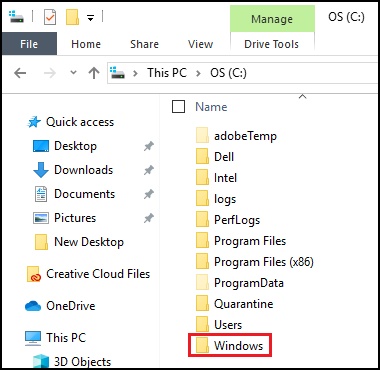
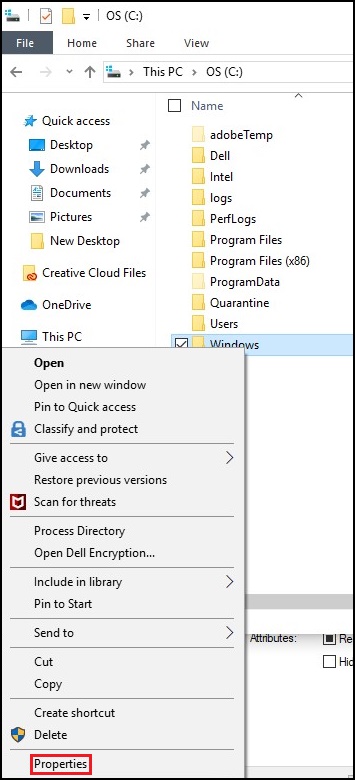
- Windows 폴더를 마우스 오른쪽 버튼으로 클릭하고 속성을 선택합니다.
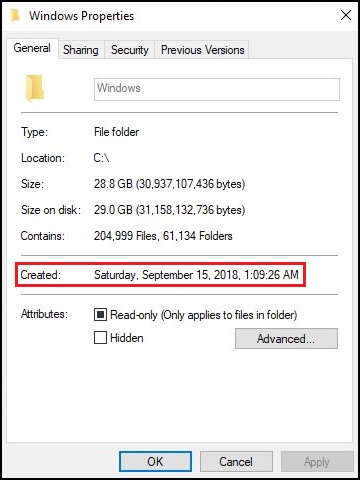
- 폴더의 만든 날짜를 찾습니다.
대체 방법
참고: 시스템 정보에서 제공한 원래 설치 날짜는 "이 PC 초기화" 또는 주요 Window 업데이트를 포함하여 Windows의 주요 변경 사항을 반영합니다. 위의 방법은 설치 날짜를 찾는 기본 방법입니다.
명령 프롬프트의 다음 단계를 사용하여 Dell 시스템에서 Windows 설치 날짜를 확인할 수 있습니다.
- 키보드에서 Windows 로고 + Q 키를 누릅니다.
- 검색 상자에 CMD
- 목록에서 명령 프롬프트 또는 cmd 옵션을 클릭합니다.
- 명령 프롬프트 창에 systeminfo를 입력합니다.
- 원래 설치 날짜를 찾습니다.
- 이 날짜는 PC에 운영 체제가 설치된 날짜입니다.

Additional Information
없음
Affected Products
Alienware, Dell All-in-One, Dell Pro All-in-One, Dell Pro Max Micro, Dell Pro Max Slim, Dell Pro Max Tower, Dell Pro Micro, Dell Pro Slim, Dell Pro Tower, Dell Slim, Dell Tower, Inspiron, OptiPlex, Vostro, XPS, G Series, G Series, Alienware
, Dell Laptops, Dell Plus, Dell Pro, Dell Pro Max, Dell Pro Plus, Dell Pro Premium, Inspiron, Latitude, Dell Pro Rugged, Vostro, XPS, Fixed Workstations, Mobile Workstations, Dell Pro Max Micro XE FCM2250, Dell Pro Max Slim XE FCS1250, Dell Pro Max Tower T2 XE FCT2250, Dell Pro Max 16 XE MC16250, Dell Pro Micro Plus XE QBM1250, Dell Pro Slim Plus XE5 QBS1250, Dell Pro Tower Plus XE5 QBT1250
...
Article Properties
Article Number: 000131940
Article Type: Solution
Last Modified: 11 Jul 2025
Version: 11
Find answers to your questions from other Dell users
Support Services
Check if your device is covered by Support Services.