How to Obtain and Use a Technical Support Provided Microsoft Office Replacement Key
Summary: Some newly purchased Dell computers may experience an issue activating Microsoft Office. For customers who have contacted Dell Technical Support and have been approved to be given a replacement key. This article explains how to obtain and use the key to activate your Microsoft Office software. ...
This article applies to
This article does not apply to
This article is not tied to any specific product.
Not all product versions are identified in this article.
Instructions
Download Process:
- Go to My Account Portal.
- Enter your Email Address and Password.
- Accept the End-User License Agreement (EULA).
- Click Software Licenses.
- Locate and click the Microsoft 365 Basic, Global, PIPC eligible, MSA item the customer purchased.
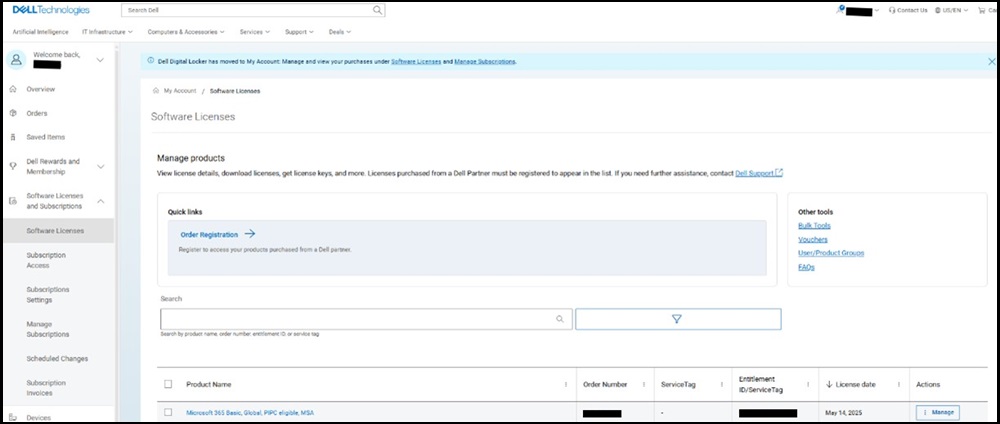
My Account Portal Software Licenses
- Locate the License Key and copy it for pasting into Microsoft Office.
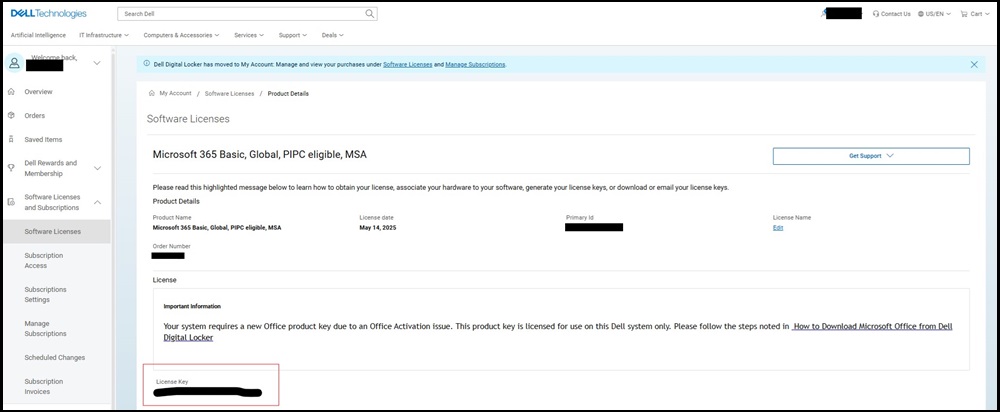
My Account Portal Software Licenses, License Key
- In your web browser, go to https://Account.Microsoft.com
and Login In with your Microsoft Account (MSA).
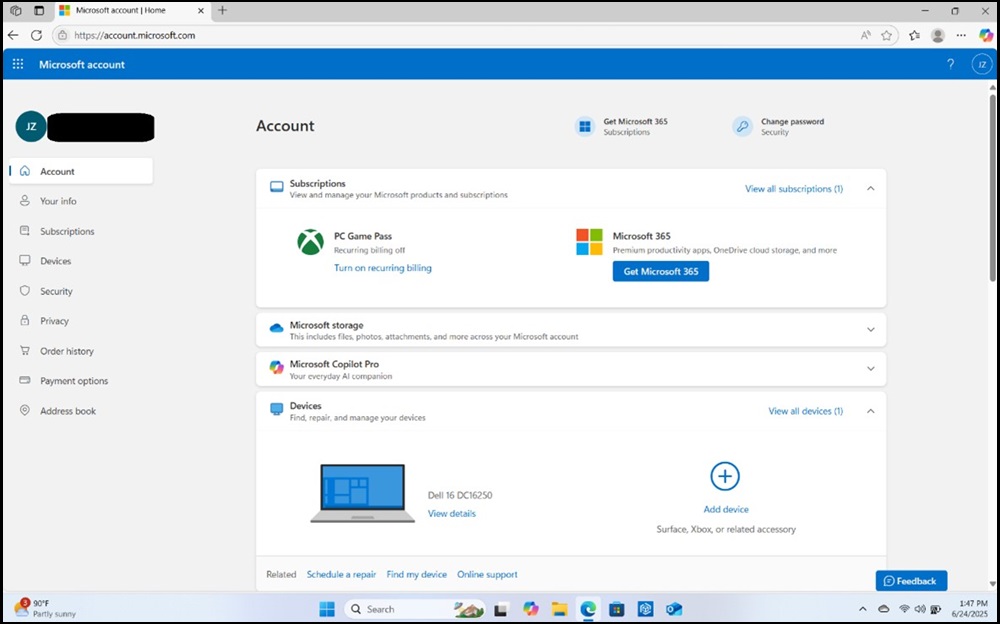
Microsoft Account Example
- In the browser address bar, type Account.Microsoft.com/Billing/Redeem and press Enter, this should bring you to the following page:
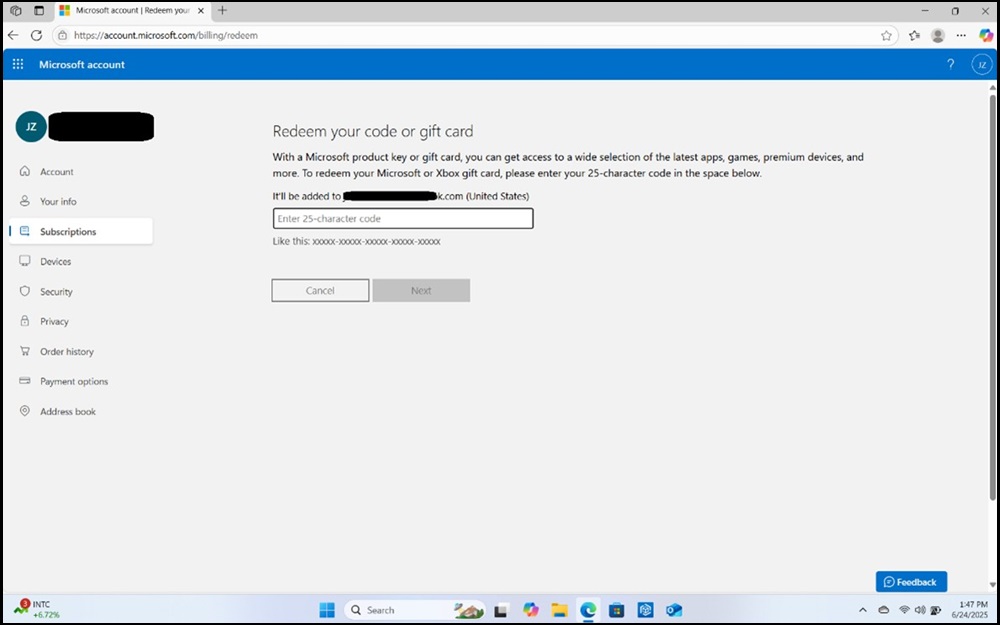
Microsoft Account, Redeem Your Code or Gift Card Example
- Paste the Product Key copied from the My Account Portal in the text box, and click Next.
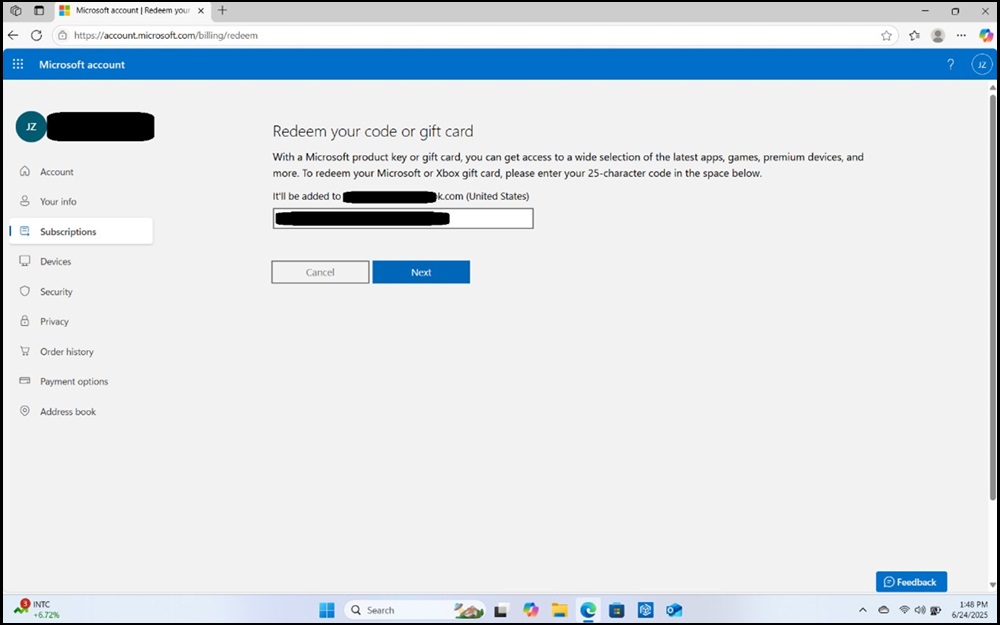
Microsoft Account, Redeem Your Code or Gift Card, Key Entered Example
- The next page will confirm Microsoft Office, click Confirm to proceed.
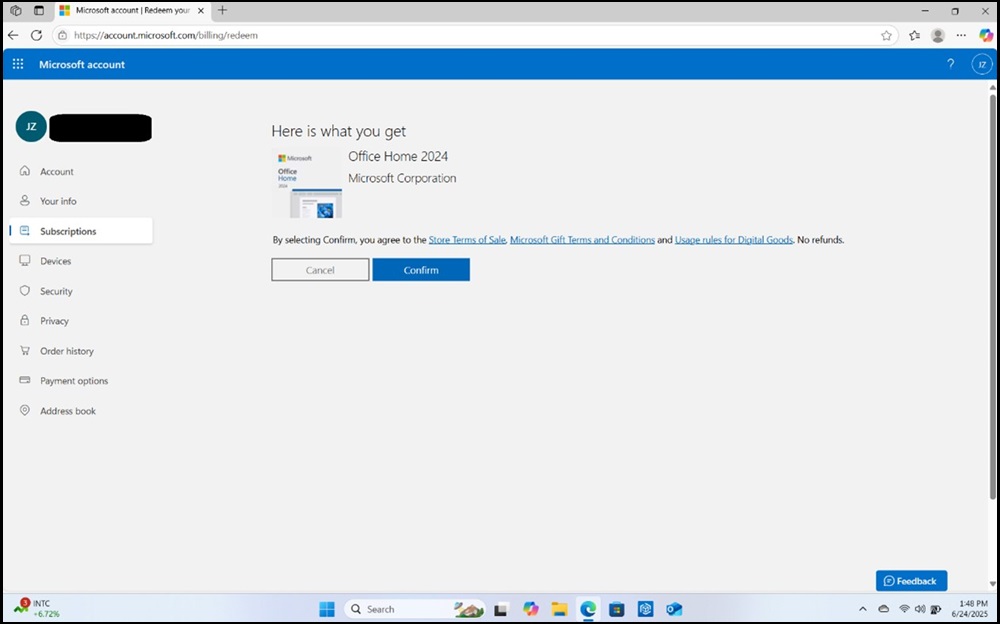
Microsoft Account Here is What You Get Example
- Once is its confirmed, you can double-check the key was accepted by going to the Subscriptions page, and scrolling down to Product you’ve purchased.
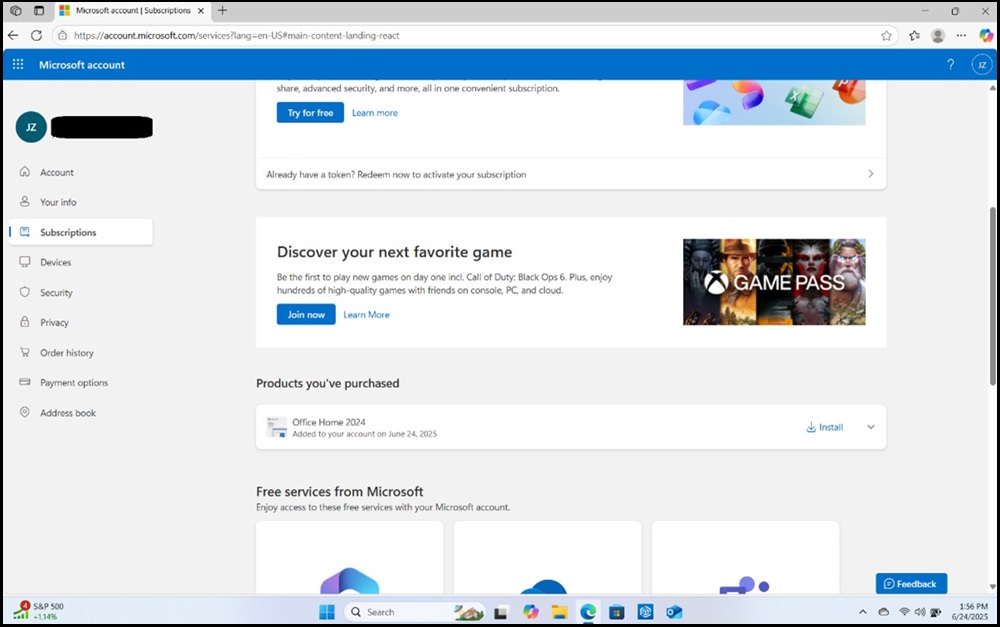
Microsoft Account Subscriptions
- Open a Microsoft Office application like Word. The application might require an update. If it does, perform the update.
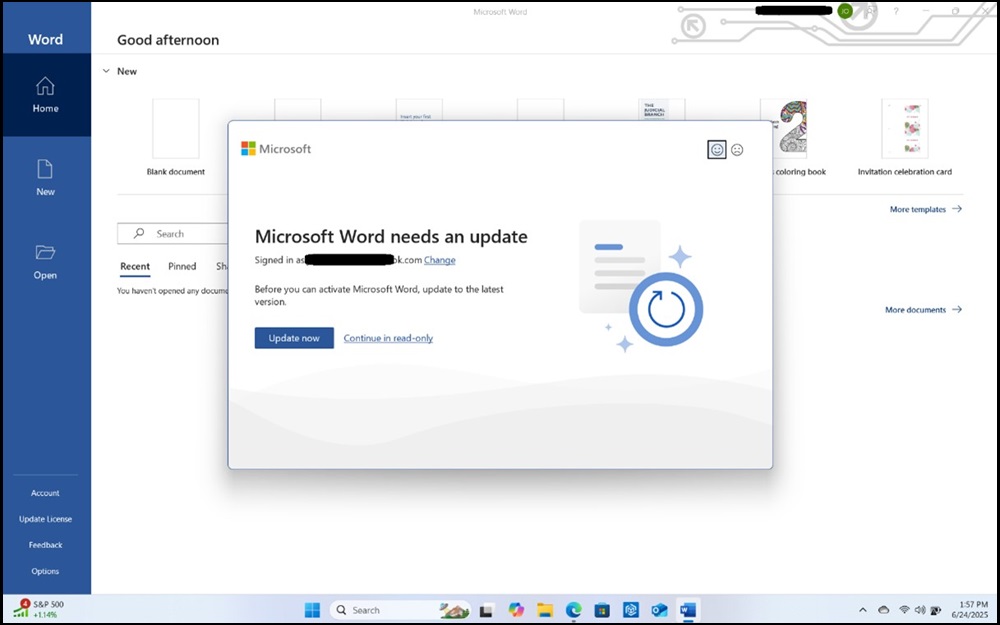
Microsoft Word Needs an Update
- Upon opening or reopening a Microsoft Office application like Word, you see the You’ve got Office message.
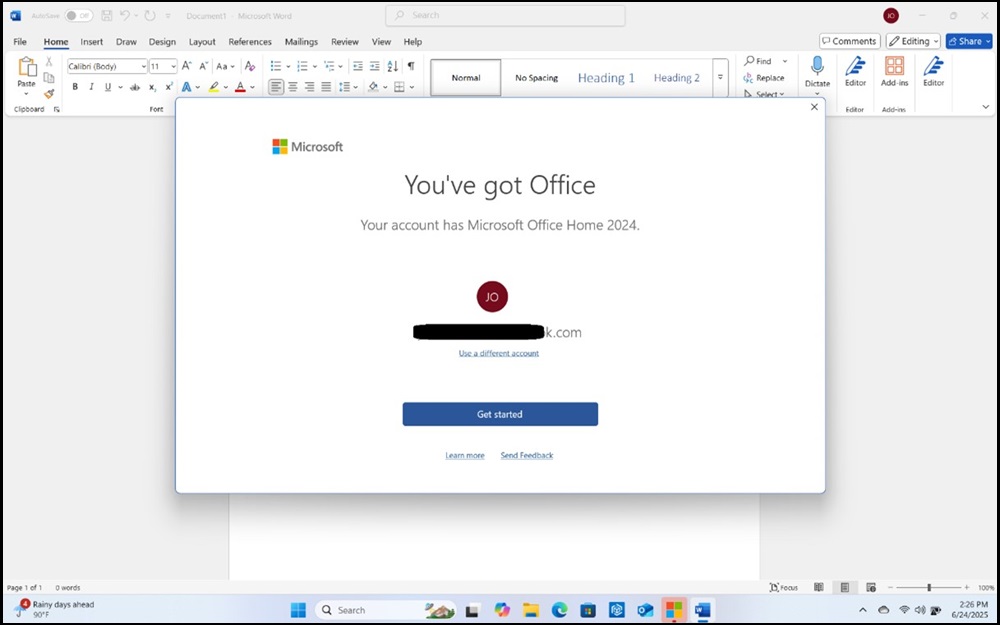
Microsoft Word, You've Got Office
- Once all the Microsoft agreements are accepted, go to File → Account page to confirm Microsoft Office is activated.
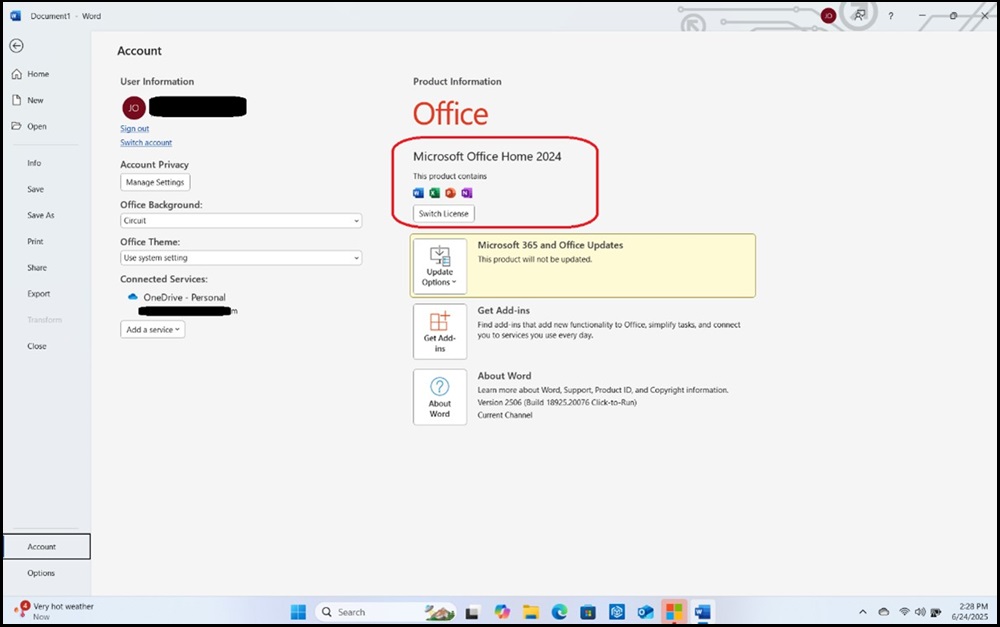
Microsoft Word, Account Menu
Affected Products
Alienware, Dell All-in-One, Dell Pro All-in-One, Dell Pro Max Micro, Dell Pro Max Slim, Dell Pro Max Tower, Dell Pro Micro, Dell Pro Slim, Dell Pro Tower, Dell Slim, Dell Tower, Inspiron, OptiPlex, Vostro, XPS, G Series, G Series, Alienware
, Dell Laptops, Dell Plus, Dell Pro, Dell Pro Max, Dell Pro Plus, Dell Pro Premium, Inspiron, Latitude, Dell Pro Rugged, Vostro, XPS, Fixed Workstations, Mobile Workstations, Dell Pro Max Micro XE FCM2250, Dell Pro Max Slim XE FCS1250, Dell Pro Max Tower T2 XE FCT2250, Dell Pro Max 16 XE MC16250, Dell Pro Micro Plus XE QBM1250, Dell Pro Slim Plus XE5 QBS1250, Dell Pro Tower Plus XE5 QBT1250
...
Article Properties
Article Number: 000340145
Article Type: How To
Last Modified: 03 Jul 2025
Version: 1
Find answers to your questions from other Dell users
Support Services
Check if your device is covered by Support Services.