Dell Unity:如何使用所有功能配置 FTP 和 SFTP
Summary: 本文介绍如何为 Dell Unity 阵列上的 NAS 服务器配置文件传输协议 (FTP) 和安全文件传输协议 (SFTP)。
This article applies to
This article does not apply to
This article is not tied to any specific product.
Not all product versions are identified in this article.
Instructions
要从 Unisphere (UI) 启用和配置 FTP,请执行以下作:
转到UnisphereFile >> NAS ServersEdit >> Sharing ProtocolsFTP>: 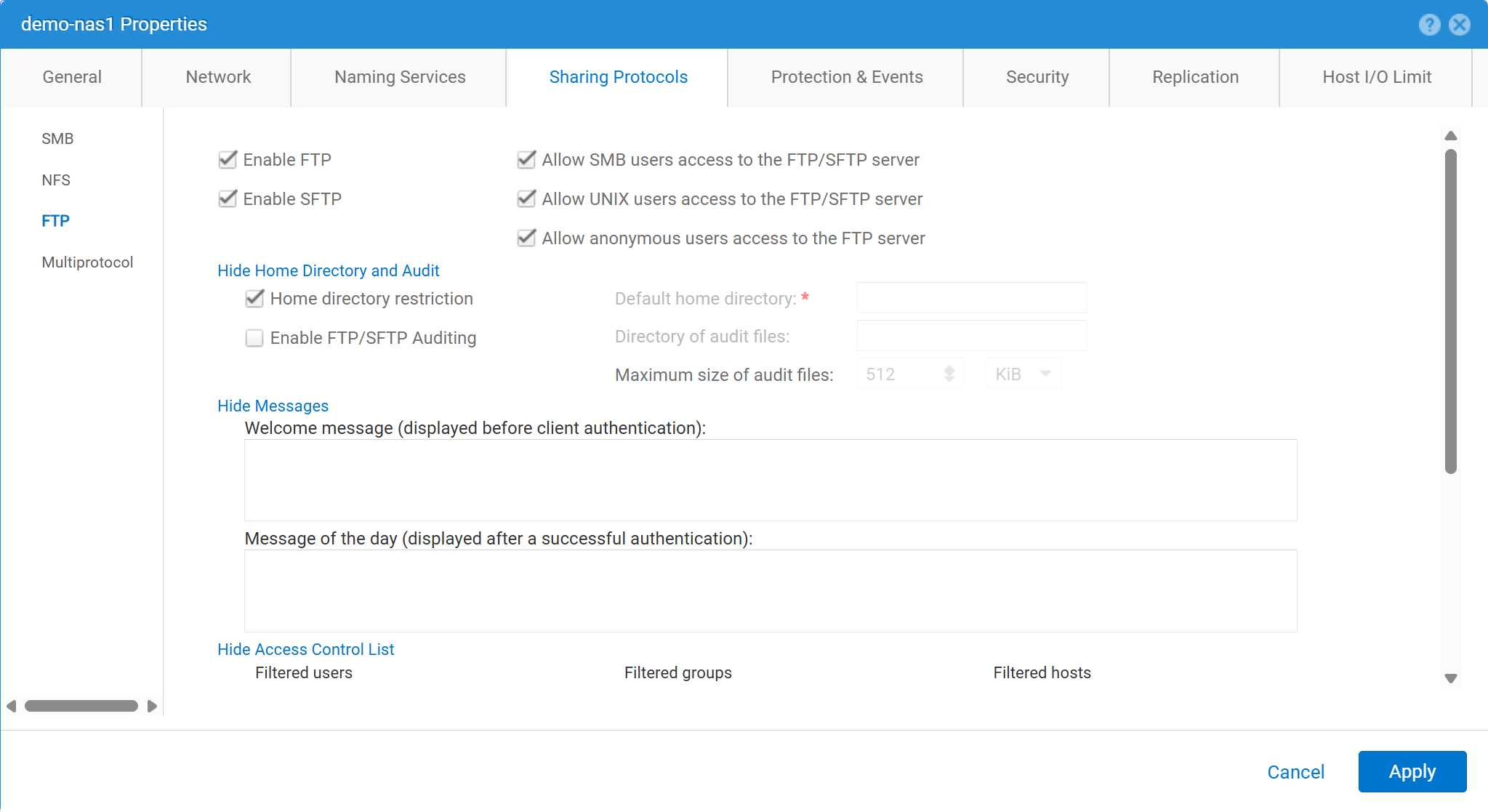
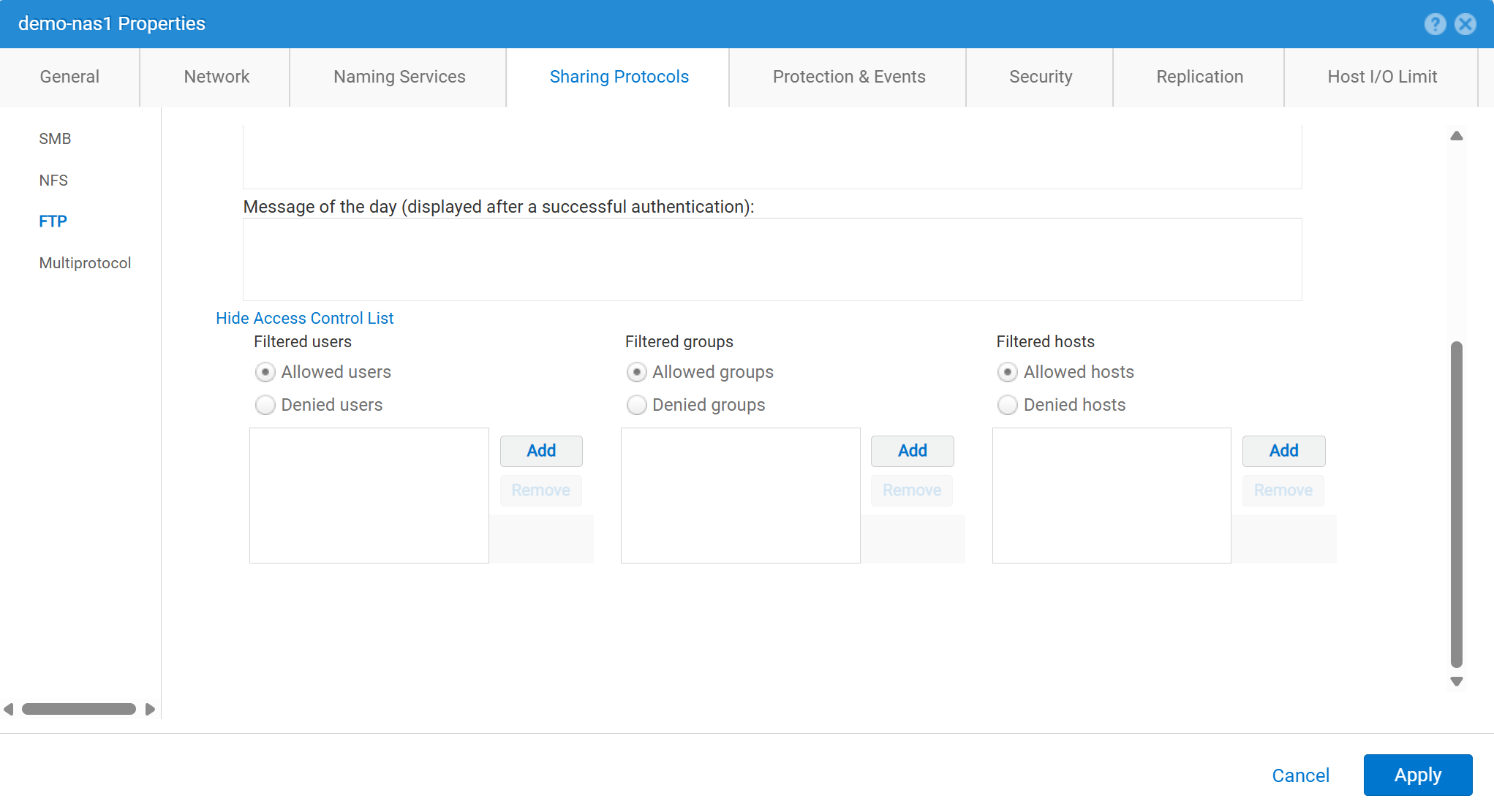
要从 Unisphere (UI) 启用和配置 FTP,请执行以下作:
service@spa spa:~> uemcli -no -u admin -p mypasswd /net/nas/ftp -server nas_8 set -ftpEnabled yes -sftpEnabled yes -anonymousUserEnabled yes -cifsUserEnabled yes -unixUserEnabled yes
Operation completed successfully.


Note : Refer to "uemcli /net/nas/ftp -help" for all other available options
要以 FTP 用户身份登录:
如果 NAS 服务器已加入域 在通用 Internet 文件系统 (CIFS) 服务器中,域用户可以作为以下项之一登录:
domain\user or user@domain

Example (domain name is EXAMPLE):
EXAMPLE\user100 or user100@example.com
如果 NAS 服务器是 Unity 上的独立 CIFS 服务器,则允许使用以下方法登录:
servername\user or user@servername or local\user or user@local

Example (standalone nas server name is MYCIFS):

MYCIFS\user100 or user100@mycifs or local\user100 or user100@local

C:\>ftp ftp02
Connected to ftp02
220 NASFTP FTP server (EMC:upc_Unity_6_HF5_upcBuilder:9328432) ready.
User ( ftp02   :( none)): Local\administrator
331 Password required for Local\administrator.
Password:
230- No directory! Logging in with home=/nasftp_fs01.
230 NT User Local\administrator logged in.
ftp>
如果 NAS 服务器用于 仅限网络文件系统 (NFS),Unity 需要目录服务(如轻量级目录访问协议 (LDAP) 或网络信息服务 (NIS))进行用户身份验证。如果没有可用的 LDAP 或 NIS(需要手动配置用户/密码),也可以使用本地文件。
C:\>ftp ftp02
Connected to ftp02
220 FTP02 FTP server (EMC:upc_Unity_6_HF5_upcBuilder:9328432) ready.
User (ftp02 :(none)): user100
331 Password required for user100.
Password:
230 UNIX User user100 logged in.
ftp> ls
200 PORT command successful.
150 Opening ASCII mode data connection for 'file list'.
lost+found
etc
publicftp
226 Transfer complete.
ftp: 29 bytes received in 0.00Seconds 29000.00Kbytes/sec.
ftp> bye
221 Goodbye.
匿名登录(也称为ftp):
C:\>ftp ftp02
Connected to ftp02
220 FTP02 FTP server (EMC:upc_Unity_6_HF5_upcBuilder:9328432) ready.
User (ftp02  :(none)): anonymous
331 Guest login ok, type your name as password.
Password:
230 Guest login ok, access restrictions apply.
ftp> _
要配置本地用户,请执行以下作:
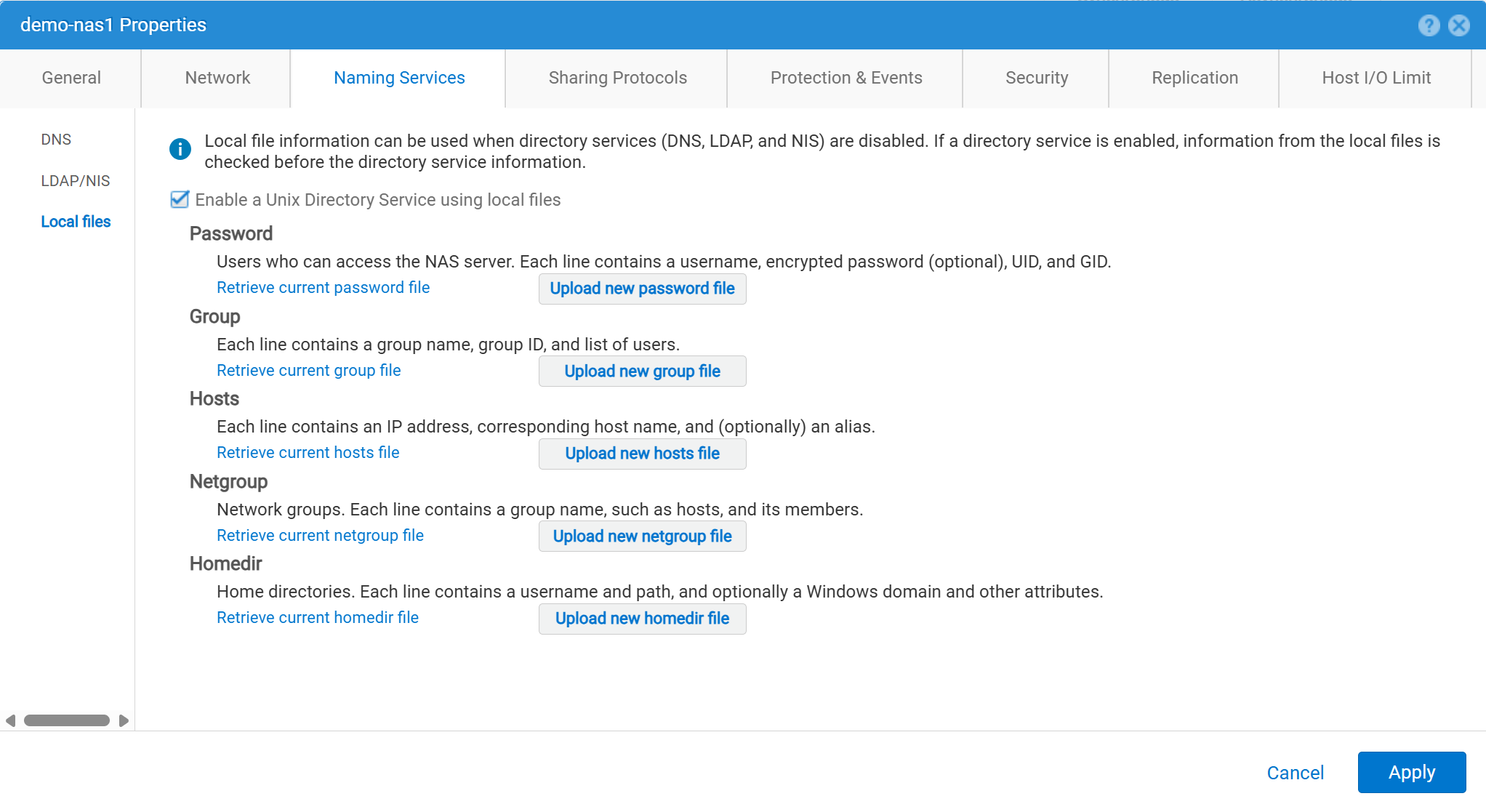
必须按如下方式输入用户详细信息:
01:42:18 service@spa spa:~> cat passwd
# The passwd file contains the users who can access the NAS server.
#
# Each line of the passwd file defines a user and has the format:
#   username:password:uid:gid:gcos
# where:
# - username is the user's login name.
#   When querying for Windows users, the system checks for CIFS usernames without domain extensions.
# - password is an empty field. The encrypted password for the user is in the
# corresponding entry in the shadow file.
# - uid is the user's unique numerical ID for the system.
# - gid is the unique numerical ID of the group to which the user belongs.
#
# user:password:uid:gid:gcos:homedir:
ftp:ffX6M7x34lzYI:2000:2000::/fs01:
user100:ffX6M7x34lzYI:2001:2001::/fs01:
user200:l8Yykofh8ckbU:2002:2002:
user300:ABVmdrEehFnsI:2002:2002:QLs4hM#3w2s1drrYowsXsaPMuz:/fs01/publicftp:
user400:QQueVwnnAFCjc:2003:2003:PZraGM#K321ldrWKowssLaPVgp::
usertest:eeRJFmFoGS4lw:2004:2004::/fs01/publicftp:
usertest2:8II12yC6iqFEY:2004:2004::/fs01/publicftp:
使用 UEMCLI 下载:
uemcli -u admin -p password -download /net/nas/server -name server_name -type passwd


EXAMPLE:
03:37:51 service@spa spa:~> uemcli -u admin -p mypasswd -upload -f /home/service/passwd /net/nas/server -name FTP02 -type passwd

Uploaded 962 byte of 962 byte [ 100.0% ] -PROCESSING-
Operation completed successfully.
使用 UEMCLI 上传:
uemcli -u admin -p password -upload -f /cores/service/passwd /net/nas/server -name server_name -type passwd


EXAMPLE:
03:37:40 service@spa spa:~> uemcli -download -f /cores/service/passwd /net/nas/server -name FTP02 -type passwd

Downloaded 962 byte of 962 byte [ 100.0% ] -STALLED-
Operation completed successfully.
Additional Information
提醒:
- 要使匿名用户正常工作,必须有一个名为
ftp与UID必须在目录提供程序或本地文件中定义。- 本地文件示例:
ftp:*:1000:1000::/fs01/publicftp:
- 本地文件示例:
- 如果使用本地文件,则可以使用以下命令生成密码字段:
openssl(直接从 Unity 下载):- 示例:
User user100, Password to be "Password123#", uid and gid as 3000, homedir as /fshomedir/data - 此命令使用基于 SHA256 的密码算法。在命令提示符下使用命令
'openssl passwd -6 Password123#'是否需要基于 SHA512 的密码算法。
- 示例:
$ openssl passwd Password123#
Warning: truncating password to 8 characters              <-- note, it takes only 1st 8 char
9QWNQEDjvlRog
$ openssl passwd
Password:                     <-- password can be typed here if not to be seen
Verifying - Password:
yT4C/OPx6AHXM
Entry on "passwd" file should be: user100:9QWNQEDjvlRog:3000:3000::/fshomedir/data:- SFTP 要求主目录归登录用户所有。
- 这可能会阻止匿名用户。
- 如果出现以下情况,SFTP 可能会失败
LACP被使用。- 如果端口 22 似乎被阻止,请参阅 Dell Unity:启用 LACP 时,Unity SFTP 不起作用。
Affected Products
Dell EMC Unity, Dell EMC Unity Family |Dell EMC Unity All Flash, Dell EMC Unity HybridProducts
Dell EMC Unity FamilyArticle Properties
Article Number: 000021919
Article Type: How To
Last Modified: 28 Oct 2025
Version: 7
Find answers to your questions from other Dell users
Support Services
Check if your device is covered by Support Services.