Integrated Camera Reflects Brightness Changes From the Dell Laptop Camera
Summary: The following article provides information about the brightness change seen on-screen with Dell laptop integrated cameras. It provides some examples of where this can be perceived as a fault. ...
Symptoms
A camera application shows a brightness change on-screen
Dell laptops integrated cameras instantly reflect any change in brightness on any open Camera applications. Applications such as:
- The webcam application
- The Windows Hello application
- The Zoom application (or any other conferencing tool)
The camera's brightness can increase or decrease automatically whenever the light conditions change in your local environment.
Sometimes this is confused as a fault with the laptop. The following examples show how the camera working as designed can affect your perception:
Example One
The camera preview image goes from dark to bright or bright to dark. This happens whenever opening the camera application, then entering and resuming from Hibernation. (S4)
This is happening on the following products:
| Inspiron | Vostro |
|---|---|
| Inspiron 13 5330 | Vostro 16 5630 |
| Inspiron 14 5430 | Vostro 16 5635 |
| Inspiron 14 5435 | |
| Inspiron 16 5630 | |
| Inspiron 16 5635 | |
| Inspiron 14 7430 2-in-1 | |
| Inspiron 14 7435 2-in-1 | |
| Inspiron 16 7630 2-in-1 | |
| Inspiron 16 7635 2-in-1 |
Example Two
The camera preview image goes from dark to bright or bright to dark during facial recognition. This happens when the light conditions change in your local environment or where you are moving in and out of the camera's pickup area.
This is happening on the following products:
| Mx Series | Xx Series |
|---|---|
| Alienware m15 R4 | Alienware x14 R1 |
| Alienware m15 Ryzen Edition R5 | Alienware x15 R1 |
| Alienware m15 R6 | Alienware x15 R2 |
| Alienware m15 R7 | Alienware x17 R1 |
| Alienware m17 R4 | Alienware x17 R2 |
| Alienware m17 R5 AMD |
Cause
This happens because of the auto exposure (AE) and/or auto white balance (AWB) algorithms that are normal behavior when the cameras are in use. The AE and AWB need time to adjust and meet the current environments (light and color temperature) conditions. This is because it is different from the camera's initial setting.
It does this every time an application uses the camera or starts to stream.
AE and AWB are the core image signal processing (ISP) algorithms in the camera. This feature cannot be enabled or disabled as it is part of the camera firmware.
Facial recognition is a feature of Microsoft's native camera application.
Resolution
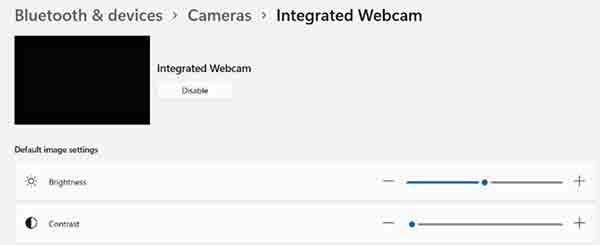
There are settings available in the Operating System that can adjust the brightness or contrast of the camera.
The following steps work in the Windows 11 and Windows 10 operating systems:
-
Open the Settings application by clicking the cog icon from the Start Menu.
-
Open the Devices Page.
-
Click the Bluetooth and Devices page.
-
Click Cameras.
-
Click Integrated webcam.
-
Adjust the brightness and/or contrast using the sliders on-screen.