安裝 Windows 10 後安裝 Intel 晶片組裝置軟體後,裝置管理員中出現錯誤
Summary: 安裝 Intel 晶片組裝置軟體後,裝置管理員錯誤 (黃色驚嘆號) 的相關資訊。
This article applies to
This article does not apply to
This article is not tied to any specific product.
Not all product versions are identified in this article.
Symptoms
在全新安裝 Windows 10 的系統上安裝 Intel 晶片組裝置軟體後,裝置管理員會在「PCI 資料採集與訊號處理控制器」上的裝置管理員中發生錯誤。
受影響的系統:
- Latitude 5340
- Latitude 5440
- Latitude 7340
- Latitude 7440
- Latitude 7640
- Latitude 9440 二合一
- Precision 3580
- Precision 3581
- Precision 5480
- Precision 5680
- Precision 7680
- Precision 7780
Cause
沒有可用的原因資訊。
Resolution
Intel 晶片組裝置軟體驅動程式
下列兩種方法可用來解決此問題。
- 將系統連線至網際網路,並執行「Windows Update」 以安裝最新的驅動程式。
- 解除安裝 Intel 晶片組驅動程式並安裝較舊版本。
- 按下「Windows」鍵搜尋,然後選擇「控制台」。
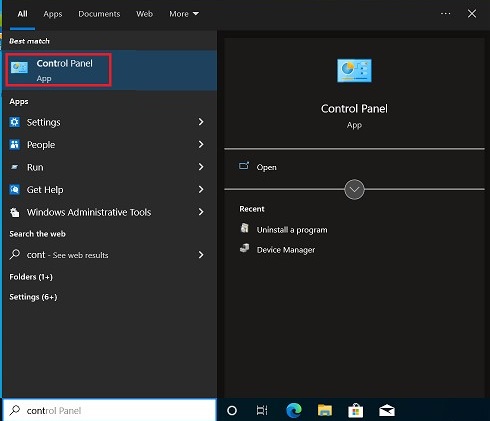
- 選取「卸載程式」。
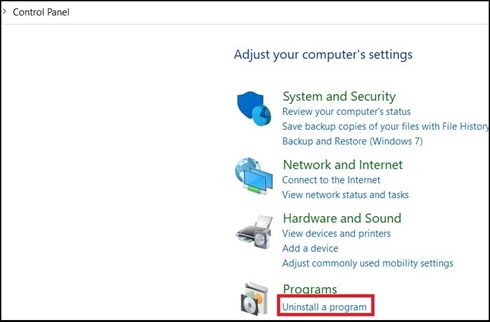
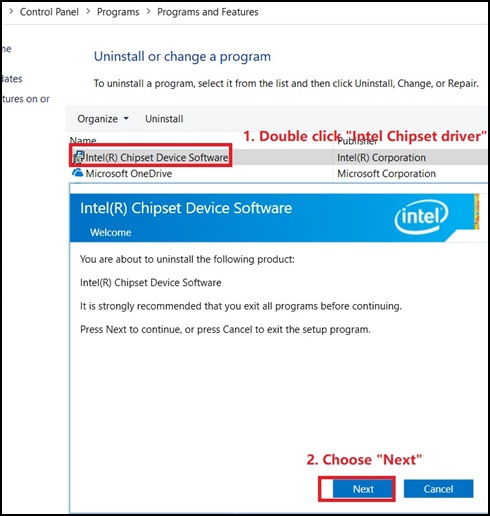
- 按兩下「Intel 晶片組裝置軟體 」,然後在新視窗中選擇「下一步」以解除安裝晶片組驅動程式。
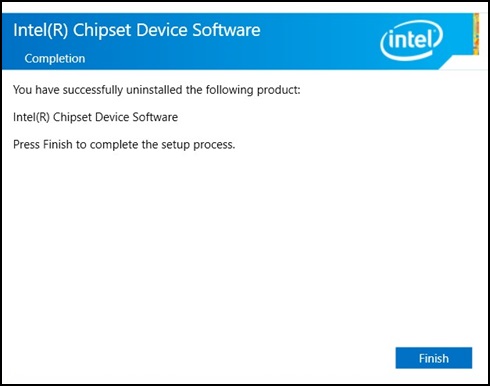
- 在「Intel 晶片組裝置軟體」視窗中,按一下「Finish」
- 控制面板中不應顯示任何「Intel 晶片組驅動程式」。

- 從下列連結下載舊的晶片組驅動程式:Intel 晶片組
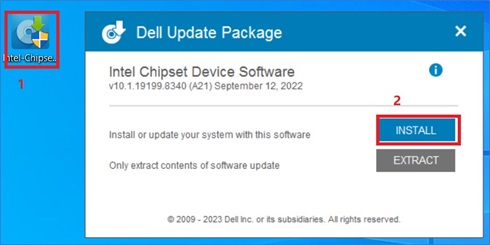
- 按兩下下載的套件,然後按一下「安裝」,開始安裝。
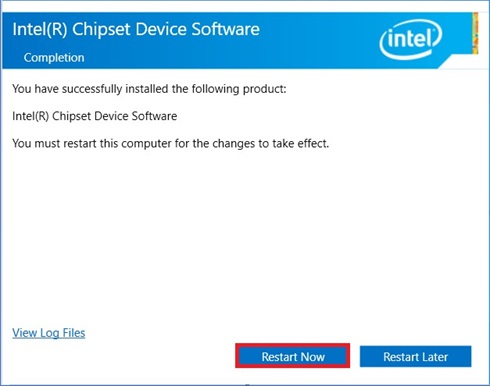
- 按照安裝精靈操作,直到出現彈出式視窗完成訊息,然後選擇「立即重新啟動」。
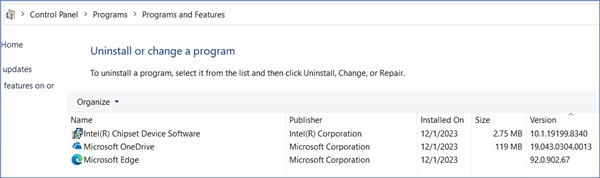
- 系統重新開機後,開啟「控制台」以檢查是否已安裝舊晶片組驅動程式。
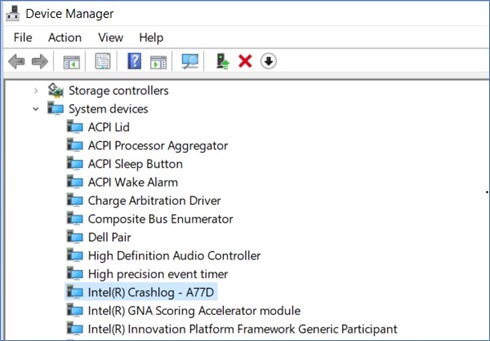
- 裝置管理員中應該不會有任何錯誤。
- 按下「Windows」鍵搜尋,然後選擇「控制台」。
Dell 驅動程式網站應於 2024 年 1 月 16 日推出新的驅動程式版本 10.1.19600.8418 (待定)。
Affected Products
Latitude 5340, Latitude 7340, Latitude 7440, Latitude 9440 2-in-1, Latitude 5540, Latitude 7640, Precision 5480, Precision 3580, Precision 3581, Precision 5680, Precision 7680, Precision 7780Article Properties
Article Number: 000220565
Article Type: Solution
Last Modified: 12 Jan 2026
Version: 3
Find answers to your questions from other Dell users
Support Services
Check if your device is covered by Support Services.