PowerStore: How to Prepare for a PowerStore Non-Disruptive Upgrade
Summary: The following article is intended to provide best practices to follow when performing a PowerStore Non-Disruptive Upgrade (NDU).
Instructions
Table of Contents
Recommended PowerStoreOS versions
Preliminary Checks
General Upgrade Planning Considerations
Host Readiness, Best Practices, Known Issues, and Limitations
Concluding Checks
What to expect during an upgrade
Known Issues and Limitations
Recommended PowerStoreOS Versions
- Download the relevant versions of the PowerStore Release Notes available to determine which version is best suited for your environment.
Preliminary Checks
PowerStore includes various tools to help diagnose and proactively identify various issues which should be remediated before the upgrade.
-
Pre-Upgrade Health Check (PUHC) is an integrated utility that is shipped with every upgrade package, focused on tests aimed at upgrade readiness.
-
Health Checks, Upgrade Extensions, and so on are enhancements of the overall cluster Health Checks (Monitoring > Health Checks) which add more specific checks.
See PowerStore: How to Check the Health of the Cluster Before Software Upgrade Using Pre-Upgrade Health Check and System Check for further guidance before the upgrade.
List of available tools for your current PowerStoreOS version, to be used before the upgrade:
| PowerStoreOS version running | Tool to use before the upgrade |
| 4.x | Pre-Upgrade Health Check |
| 3.x | Pre-Upgrade Health Check |
| 2.1.x | Pre-Upgrade Health Check System Checks Upgrade Extensions |
| 2.0.x | Pre-Upgrade Health Check System Checks |
| 1.x | Pre-Upgrade Health Check |
Dealing with alerts, warnings, errors, and so on
-
Log in to PowerStore Manager of the cluster being upgraded and review any outstanding alerts present from Monitoring > Alerts. Some alerts may be hidden from view if previously acknowledged. To view all active alerts, select both options and Apply:
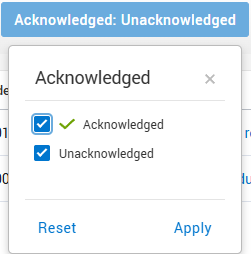
-
Determine if any alerts are outstanding that require attention. Review alerts with a Critical, Major, or Minor severity, and if possible, attempt to rectify any raised alerts reported.
- If specific alerts or health checks are not applicable to your environment, they can be acknowledged or ignored.
- If unsure, contact Dell Technologies Support for assistance with evaluating and addressing any outstanding alerts before proceeding with the upgrade.
General Upgrade Planning Considerations
- For further details about PowerStore upgrades, consult the Software Upgrade Guide.
- Always review the various compatibility matrices for each product to ensure that the version you are upgrading to is compatible with the rest of your environment. Failing to fully validate this may result in components no longer working after the upgrade due to compatibility issues.
- When downloading a PowerStoreOS package from the Dell Support site, ensure that its file name remained intact after the download to the local machine, and that no suffix was automatically appended to it. In this case, an upgrade using such a package may fail.
- For PowerStore X environments, it is recommended to engage Dell Technologies Support for assistance with the upgrade.
- Upgrades from PowerStoreOS versions 3.X to 4.X are restricted if iSCSI transport is used as Remote System Transport Protocol (RSTP). Affected systems must change RSTP to TCP transport before the upgrade to 4.X. See PowerStore: Pre-Upgrade Health Check (PUHC) fails for PowerStore remote system with iSCSI data connection type exists. (0XE1001003001E)
Maintenance Window
- While PowerStore clusters are engineered and tested for fully nondisruptive upgrades, it is recommended to follow IT management best practices when upgrading a PowerStore cluster.
- To the extent possible, leverage maintenance windows rather than production hours, and perform upgrades when the load on the cluster is lightest.
- When the number of file systems is greater than 50, there is a possibility of a longer I/O pause. Consider a maintenance window.
- This helps ensure that the upgrades are completed in the shortest time with the lowest impact.
Support Connectivity
-
It is highly recommended to enable Support Connectivity and Remote Service Credentials (RSC) to simplify and reduce the length of an upgrade failure analysis, in case the software update process fails.
SSH Access and the service account
-
Enable SSH access on the PowerStore Appliance (Settings > SSH Management) to simplify and reduce the length of an upgrade failure analysis, in case the software update fails.
- Verify that you can SSH to the PowerStore cluster and log in with the user service. If this password is not known, it must be reset before the upgrade under Settings > Service Account.
CHAP settings
-
If you change CHAP settings on a PowerStore T model cluster with NAS enabled, such as enabling or disabling CHAP, changing mutual CHAP to single CHAP, or changing single CHAP to mutual CHAP, you must perform the following actions:
-
Reboot the cluster nodes one at a time as soon as possible after changing the CHAP settings.
-
Wait until all the cluster nodes have been rebooted before performing a software update.
-
CAUTION: The software update fails if the nodes on a PowerStore T model cluster with NAS enabled are not rebooted after changes are made to CHAP settings. For instructions on rebooting PowerStore T model nodes, see the PowerStore power off and Reboot Procedures Guide.
Suppressing dial-home alerts
-
The upgrade process automatically disables dial-home alerts so that a Service Request is not created for alerts that occur during the process. However, this may not always activate as intended.
-
For clusters with one or more expansion enclosures, the dial-home suppression may clear prematurely before the expansion enclosure upgrade is completed
- See PowerStore: How to disable support notifications for testing and planned maintenance for details on how to manually suppress dial-home alerts.
Host Readiness, Best Practices, Known Issues, and Limitations
Operating system specific
-
ESXi
-
When upgrading to PowerStoreOS version 2.0 (or later), ESXi host running 8.0 U1 using NVMe/FC and NVMe/TCP datastore may experience I/O errors during PowerStore node reboots/failures. For further details on this issue and how to resolve it, see article PowerStore: I/O error observed on NVMe datastore during NDU
-
-
Solaris
-
For environments with a PowerStoreOS version older than 3.5, the upgrade is supported with Solaris native MPxIO starting at Solaris 11.4 SRU 35. Contact your service provider for PowerStore upgrade support on earlier Solaris versions or Solaris updates.
- For environments already on PowerStore code 3.5 and newer, the upgrade is supported with Solaris native MPxIO 10/11.x
-
General
-
See the Dell Technologies PowerPath Simple Support Matrix for supported multipathing options and their associated versions.
-
For host connectivity best practices, see the corresponding E-Lab Host Connectivity Guide
document per the OS of the connected host.
-
Ensure all hosts accessing the PowerStore appliance are properly configured with redundant paths and properly configured multipathing software.
-
-
See E-Lab Interoperability Navigator
-
For SCSI environments: See E-Lab Simple Support Matrix
-
For NVMe-oF environments: See E-Lab NVMe/FC Host/Storage Interoperability Simple Support Matrix
-
-
Run the PowerStore Host Validation Script (HVS) to scan and validate the host configuration. For instructions on how to download and install HVS for ESXi, see PowerStore: Host Validation Script for ESXi.
Concluding Checks
PowerStore includes various tools to help diagnose and proactively identify various issues. These tools should be performed also after successfully completing the upgrade to confirm that no issues are present of the cluster.
In this step the PowerStore health-check tools that were covered in the Preliminary Checks section should be performed after the upgrade: Pre-Upgrade Health Check (PUHC) and System Health Check (SHC).
Consult the following table to determine, based on your PowerStoreOS version, the tools to use after the upgrade:
| Current PowerStoreOS version | Tools to evaluate system health |
| 4.x | Pre-Upgrade Health Check (operating system integrated and Health Check package) System Checks (operating system integrated and Health Check package) |
| 3.x | Pre-Upgrade Health Check (operating system integrated and Health Check package) System Checks (operating system integrated and Health Check package) |
| 2.1.x | Pre-Upgrade Health Check (operating system integrated) System Checks (operating system integrated and Health Check package) |
| 2.0.x | Pre-Upgrade Health Check (operating system integrated) System Checks (operating system integrated) |
In addition, after the upgrade, upload and install the Health Check package and RxDefinitions package. As the upgrade removes these packages, if they previously existed. For further details on installing the RxDefinitions package, see article PowerStore: Landing Page for RxDefinitions Issues
For instructions on using these PowerStore tools, consult the articles PowerStore: How to use the System Check feature and PowerStore: How to Check the Health of the Cluster Before Software Upgrade Using Pre-Upgrade Health Check and System Check.
What to expect during an upgrade
- Some management operations are blocked during the upgrade.
- Some internal system operations, such as snapshot and replication schedules, may be paused during an upgrade and resume when the upgrade is complete.
- During the update process, you may be disconnected from PowerStore Manager temporarily, retry logging into the PowerStore Manager after several minutes (up to 15 minutes).
Known Issues and Limitations
- Number of NVMe/TCP ports (when upgrading to PowerStoreOS 3.2 or later)
- When storage networks are scaled to a substantial number of NVMe/TCP ports (that is greater than 50), with 'Auto Discovery of CDC' option enabled, the upgrade process may lead to deficiency of resources in the PowerStore cluster. This scenario can result in CDC connection state on all NVMe/TCP ports that appear 'Uninitialized'. In addition, subsequent upgrade requests may fail.
- For further details on this issue and how to avoid it before upgrading to PowerStoreOS version 3.2, see article PowerStore: When storage networks scaled to 50 (or more), PowerStoreOS upgrades may fail with "Uninitialized" ports
- Pause all Metro sessions if upgrading from 3.6.1.0 only.
- For additional information, see PowerStore: Overlapping I/O on a Metro volume may lead to unexpected reboot or increased latency
PowerStore X Models
- PowerStore X upgrades should be done with the assistance of Dell Technologies Support.
-
PowerStoreOS versions 3.5 (or later) are not supported on PowerStore X.
-
Verify that SSH is started on both ESXi nodes, and SSH is enabled at boot prior to starting any upgrade. See PowerStore: PowerStoreX-SSH disabled may lead to node failure for additional information.
-
If VMware NSX-T Data Center is deployed on the PowerStore X model cluster, do not proceed with the upgrade before reviewing the article PowerStore: PowerStoreX: If NSX-T-managed Virtual Distributed Switches are migrated to the vSphere Distributed Switches during vSphere upgrade, the connection will be lost after PowerStore management network reconfiguration for additional information.
-
After upgrading the PowerStore X to PowerStoreOS version 2.1.1.0, go to vCenter Server and check the PowerStore X esxi_node's licensing. Ensure that the status of the VMware vSphere 7 license is OK.
-
All external ESXi hosts on the vSphere cluster should be running the same ESXi version as the internal hosts.