Waves MaxxAudio Pro Application Issues on Vostro 3400, Vostro 3405, Vostro 3500, Inspiron 3501, or Inspiron 3505
Summary: Information about two audio issues on the Vostro 3400, Vostro 3405, Vostro 3500, Inspiron 3501, and Inspiron 3505
This article applies to
This article does not apply to
This article is not tied to any specific product.
Not all product versions are identified in this article.
Symptoms
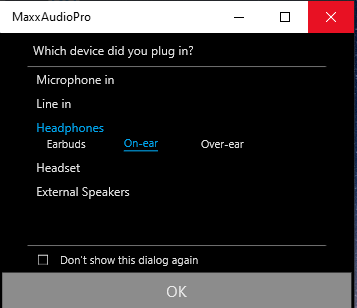
Issue 1: No audio device selected message appears after inserting an external audio device.
The example message for the Realtek audio codec.
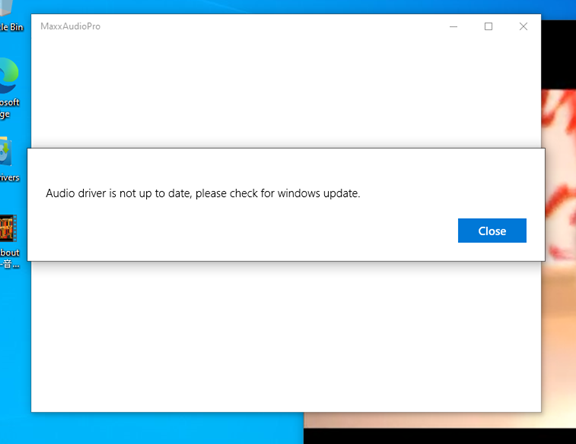
Issue 2: Cannot launch the Waves MaxxAudio Pro Application with "Audio driver is not up to date, please check for Windows update" error.
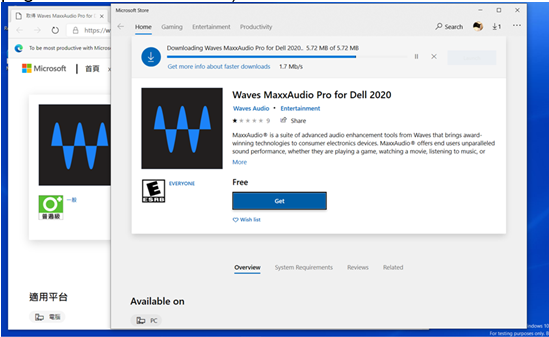
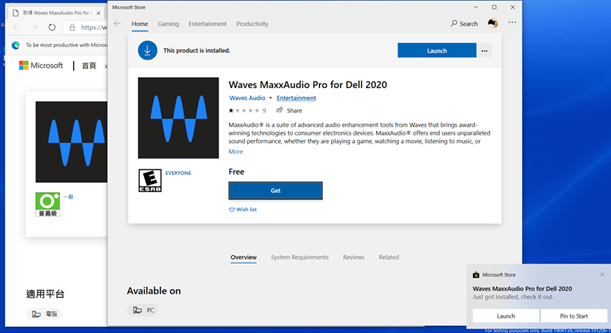
Note: This Application is an UWP, so after clicking the installation file it links to the download page from the Microsoft Store.
Cause
How to Identify the Audio Codec Vendor
Click the Speaker icon in the system tray and check the vendor information.
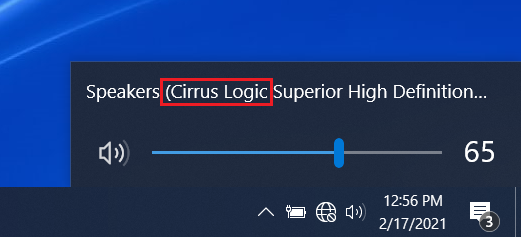
Cirrus Logic
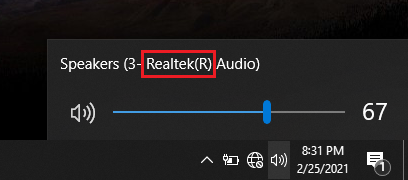
Realtek
Resolution
Issue 1:
It is a design limitation and an expected behavior if you purchase a computer with the Cirrus logic audio codec solution. Follow this guide to setup the device manually.
- Set the external microphone device to use.
- Right-click the Speaker Icon in the system tray and select Sounds.
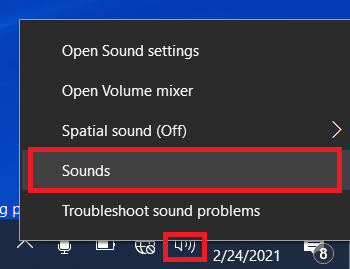
- Right-click the device which you want to use under Recording and select Set as Default Device.
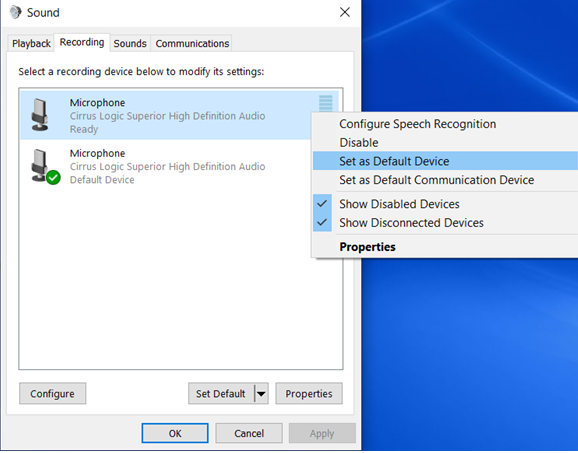
- Right-click the Speaker Icon in the system tray and select Sounds.
- Set the headphones device to use.
- Right-click the Speaker Icon in the system tray and select Sounds.

- Right-click the device which you want to use under Playback and select Set as Default Device.
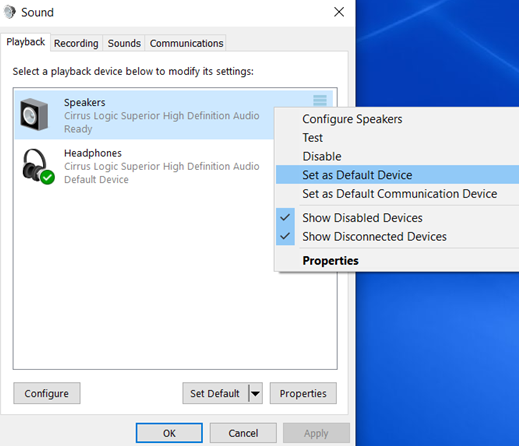
- Right-click the Speaker Icon in the system tray and select Sounds.
Issue 2:
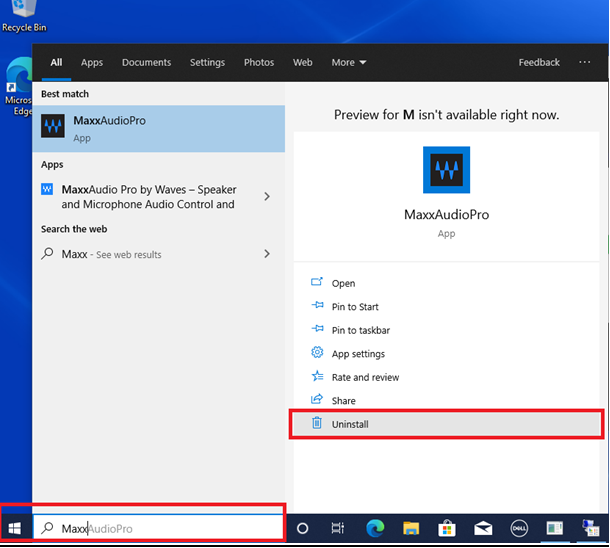
The Realtek audio codec supports the Waves MaxxAudio Pro Application, but the Cirrus logic audio codec does not. Use this guide to uninstall the Waves MaxxAudio Pro Application manually on Cirrus Logic audio codec-installed computers.
- Type MaxxAudioPro as a keyword in the Windows Search Bar to find the application and click Uninstall to remove the application.
Affected Products
Inspiron 3501, Inspiron 3505, Vostro 3400, Vostro 3405, Vostro 3500Article Properties
Article Number: 000184958
Article Type: Solution
Last Modified: 09 May 2026
Version: 6
Find answers to your questions from other Dell users
Support Services
Check if your device is covered by Support Services.