secadminパスワードが使用可能な場合に紛失したCloudlinkコンソール パスワードをリセットする方法
Summary: この記事では、REST APIを使用してCloudLinkコンソールのパスワードを紛失した場合にリセットする方法について説明します。 パスワードのリセットは、Cloudlink WebGUIから実行できます。ユーザーはsecadminとしてWebGUIにログインできる必要があります。
This article applies to
This article does not apply to
This article is not tied to any specific product.
Not all product versions are identified in this article.
Instructions
1.左側のペインで [バージョン情報 ]セクションを開きます。
2.[REST Documentation]ページ
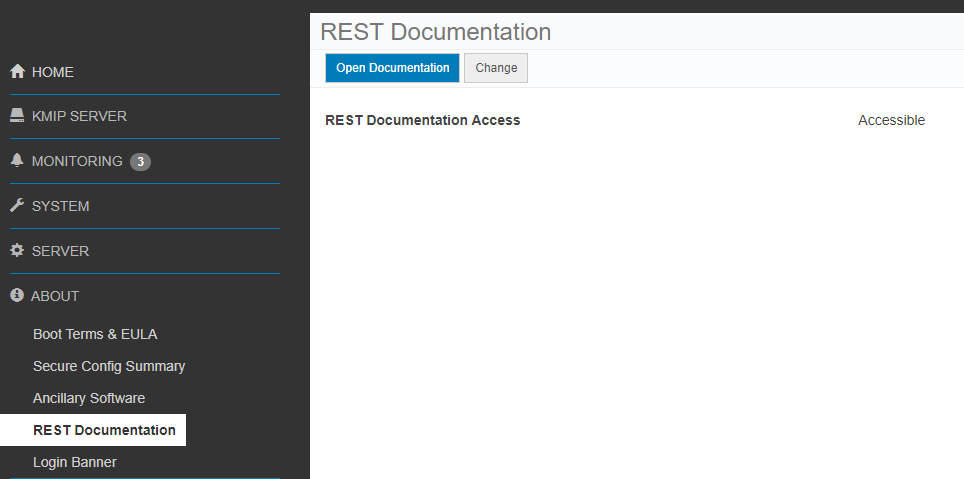
3を選択します。[ ドキュメントを開く ]ボタンをクリックします
CloudLink Center REST APIのドキュメント ページが新しいタブで開きます。
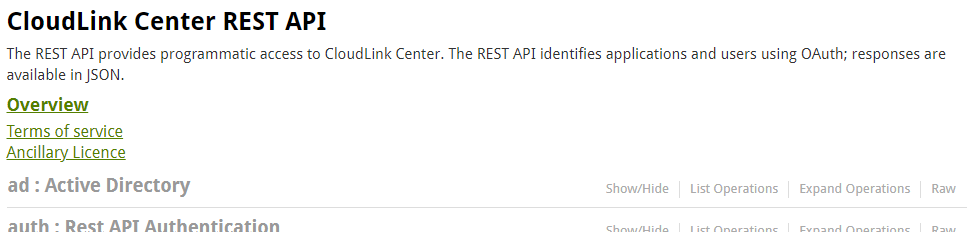
4.[server:Server Configuration]セクションまで下にスクロールします
5.[表示/非表示]をクリックしてセクションを展開します。
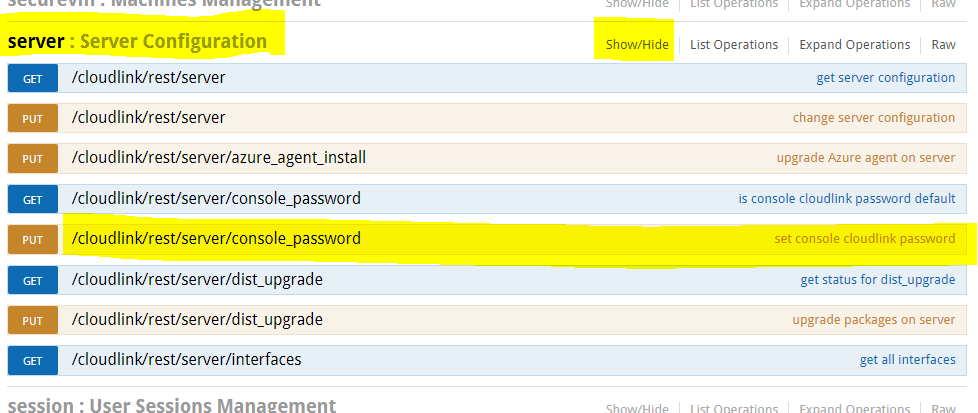
6.[Set Console CloudLink Password]をクリックします
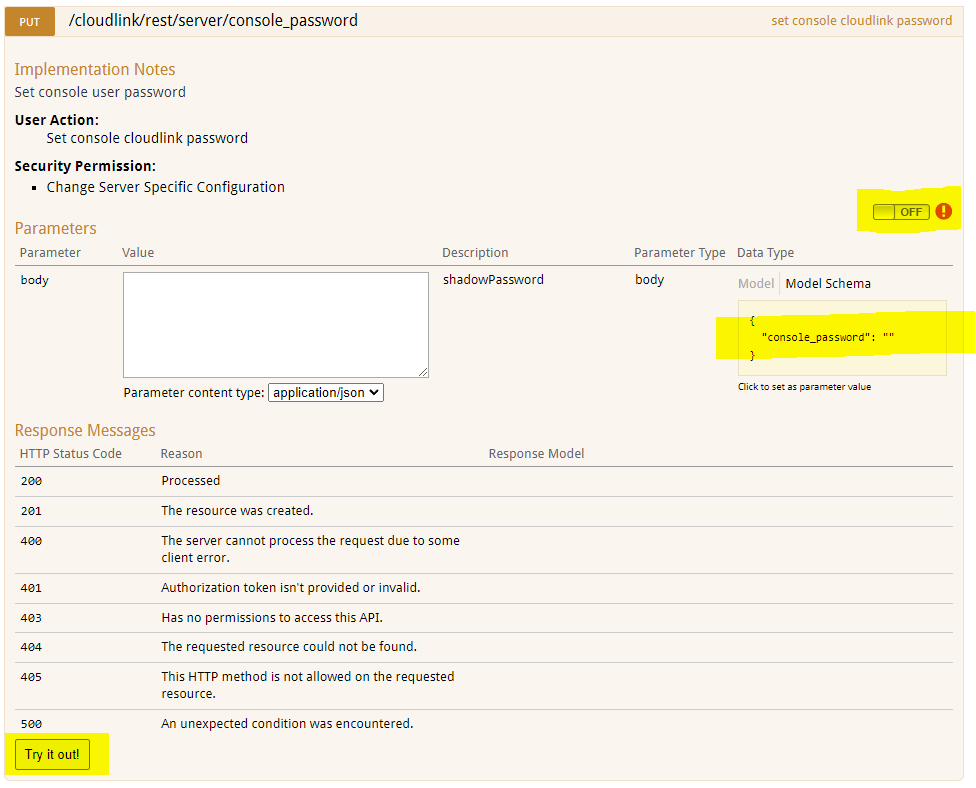
7.OFFスイッチをクリックして認証します。OAuth2.0スコープ選択ダイアログがポップアップ表示されます
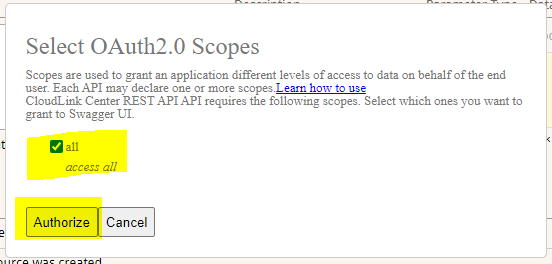
8.すべて選択し、[Authorize]をクリックします
9.ログイン画面が表示されます。ユーザーはsecadmin認証情報を入力する必要があります。(7.1.x以降には存在しません。)
10.Model Schemaの黄色いボックスをクリックします。ボックスの内容が白いボックス 本体にコピーされます。
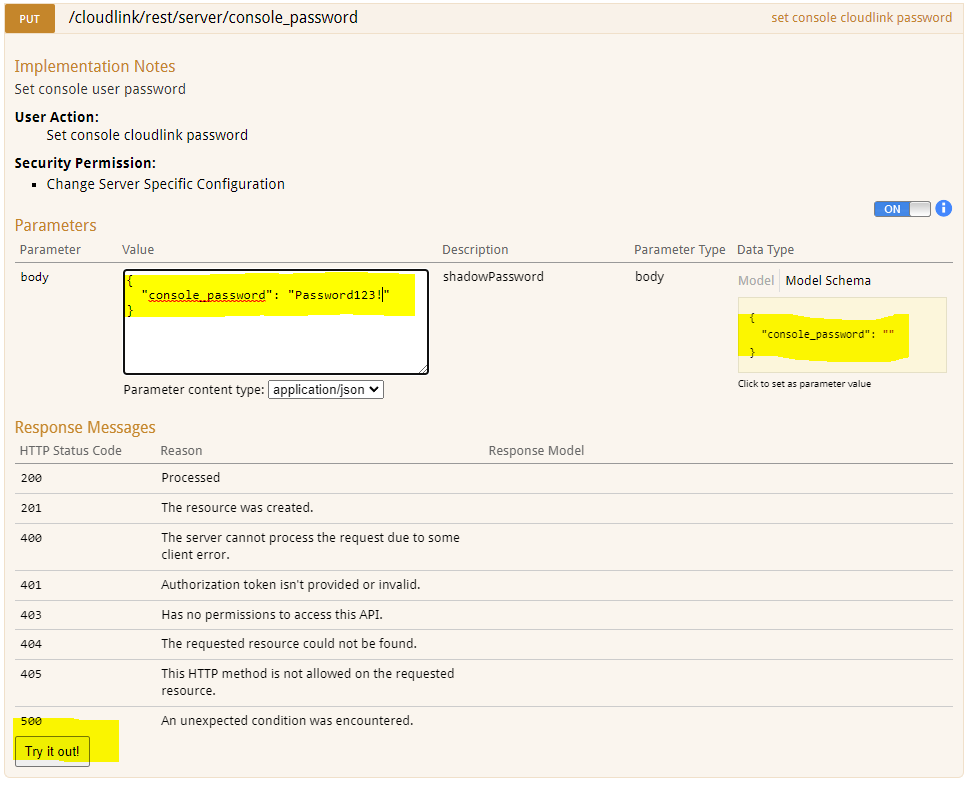
11.本文ボックスに新しいCloudlinkコンソール パスワードを入力します。
12.[Try it out!]ボタンをクリックします
13.アクションの結果が表示されます
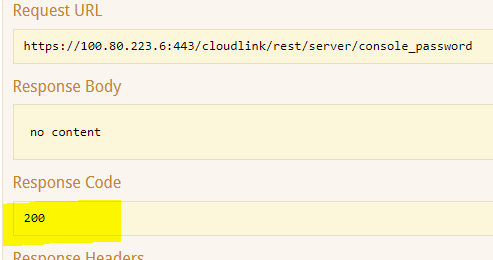
応答コード 200 は、パスワードの変更が成功したことを示します。
2.[REST Documentation]ページ
3を選択します。[ ドキュメントを開く ]ボタンをクリックします
CloudLink Center REST APIのドキュメント ページが新しいタブで開きます。
4.[server:Server Configuration]セクションまで下にスクロールします
5.[表示/非表示]をクリックしてセクションを展開します。
6.[Set Console CloudLink Password]をクリックします
7.OFFスイッチをクリックして認証します。OAuth2.0スコープ選択ダイアログがポップアップ表示されます
8.すべて選択し、[Authorize]をクリックします
9.ログイン画面が表示されます。ユーザーはsecadmin認証情報を入力する必要があります。(7.1.x以降には存在しません。)
10.Model Schemaの黄色いボックスをクリックします。ボックスの内容が白いボックス 本体にコピーされます。
11.本文ボックスに新しいCloudlinkコンソール パスワードを入力します。
12.[Try it out!]ボタンをクリックします
13.アクションの結果が表示されます
応答コード 200 は、パスワードの変更が成功したことを示します。
Affected Products
CloudLink SecureVM, CloudLinkArticle Properties
Article Number: 000203931
Article Type: How To
Last Modified: 23 Feb 2023
Version: 5
Find answers to your questions from other Dell users
Support Services
Check if your device is covered by Support Services.