PowerProtect DP4400:部署在 10% 時失敗
Summary: DP4400 部署在 10% 失敗,PowerProtect 整合和驗證在 15% 失敗。
This article applies to
This article does not apply to
This article is not tied to any specific product.
Not all product versions are identified in this article.
Symptoms
DP4400 部署在 10% 時失敗。
PowerProtect 整合和驗證在 15% 停止。
按一下 ACM 部署 UI 中的 診斷報告,以確認失敗是否符合以下錯誤:
FAILED: Started Hypervisor Manager Server configuration
Error: Failed to add Hypervisor host to datacenter
Cause
Ping 或 SSH 至 ESXi 伺服器,以確認您是否可以連線。如果您無法連線,可能是因為未指派 ESXi IP 位址。
不正確的 IPv4 位址、子網路遮罩、閘道或 DNS 伺服器
Resolution
- 登入 iDRAC
- 按一下 虛擬主控台。
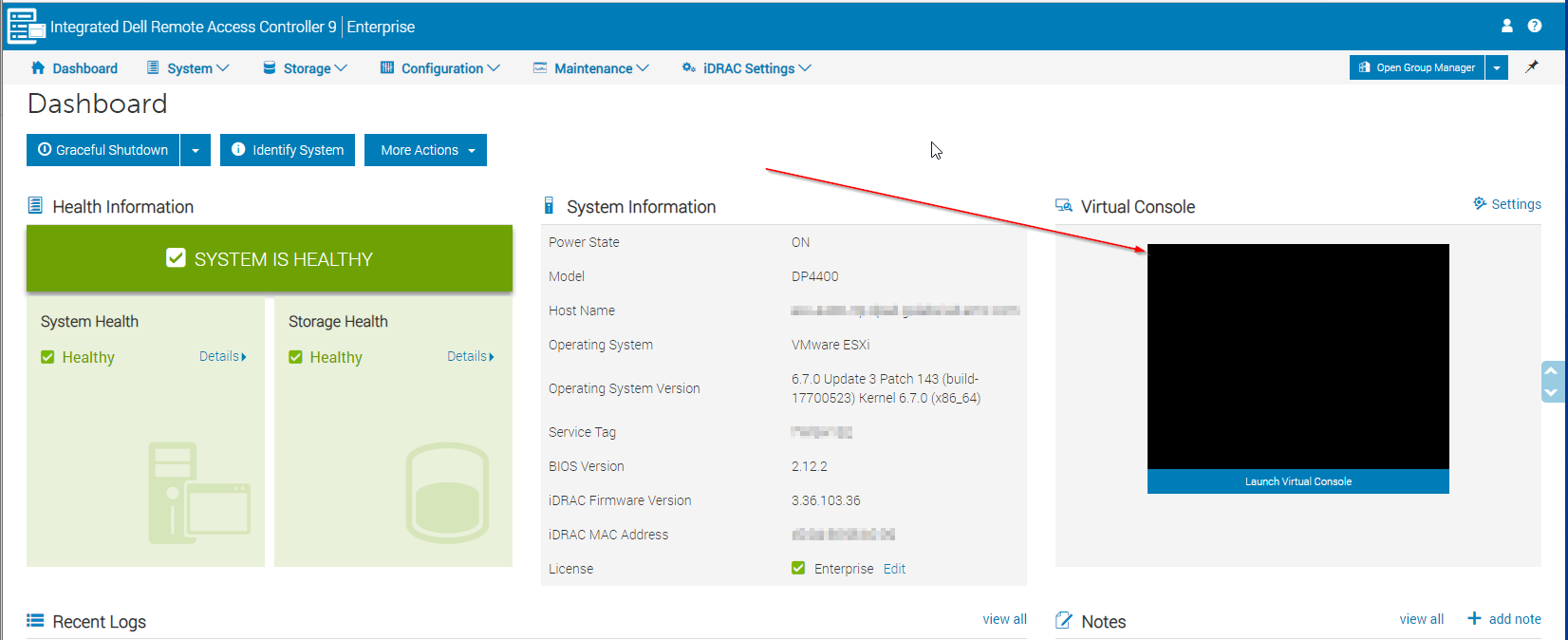
圖 1:iDRAC 的虛擬主控台螢幕擷取畫面
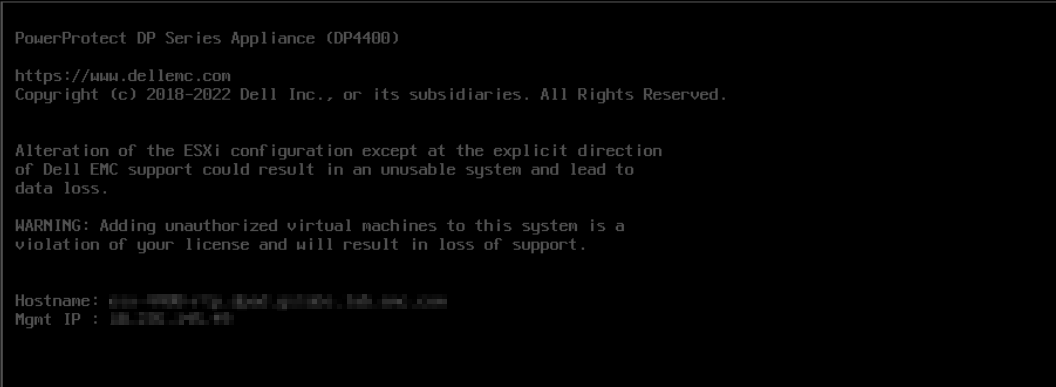
圖 2:PowerProtect Data Protection Appliance 機型的螢幕截圖
- 同時按下鍵盤上的
F2或ALT+F2若要登入 ESXi DCUI - 輸入預設密碼
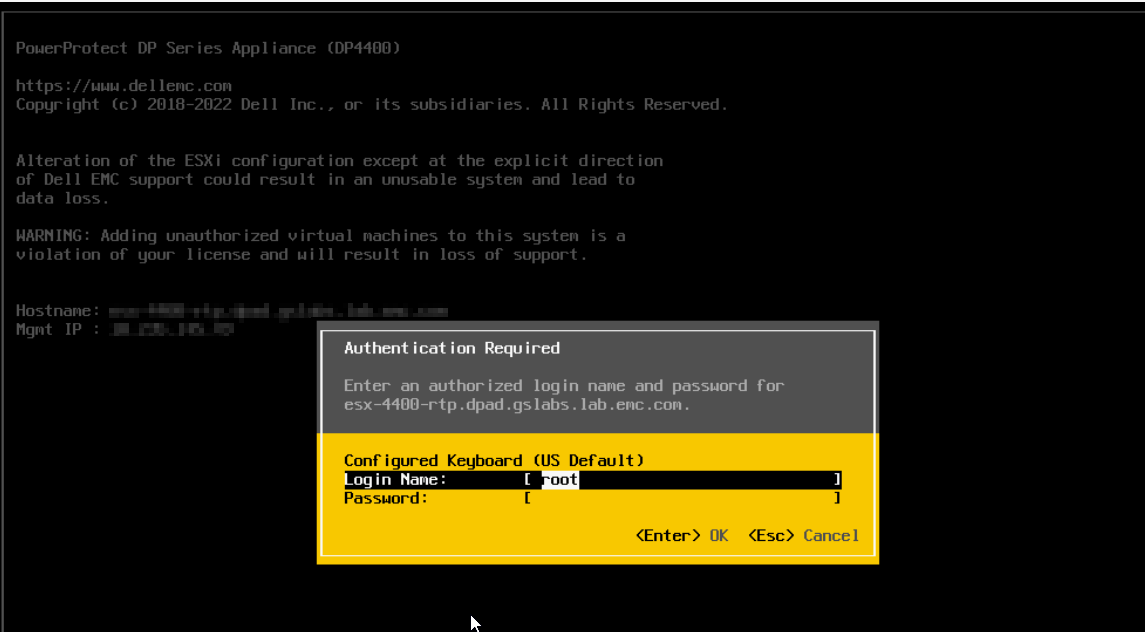
圖 3:輸入 PowerProtect Data Protection Appliance 機型的預設密碼。
- 前往 設定管理網路
- 確認已指派 IPv4 位址。
- 如果已指派 IP 且主機名稱正確,則可能有其他問題。
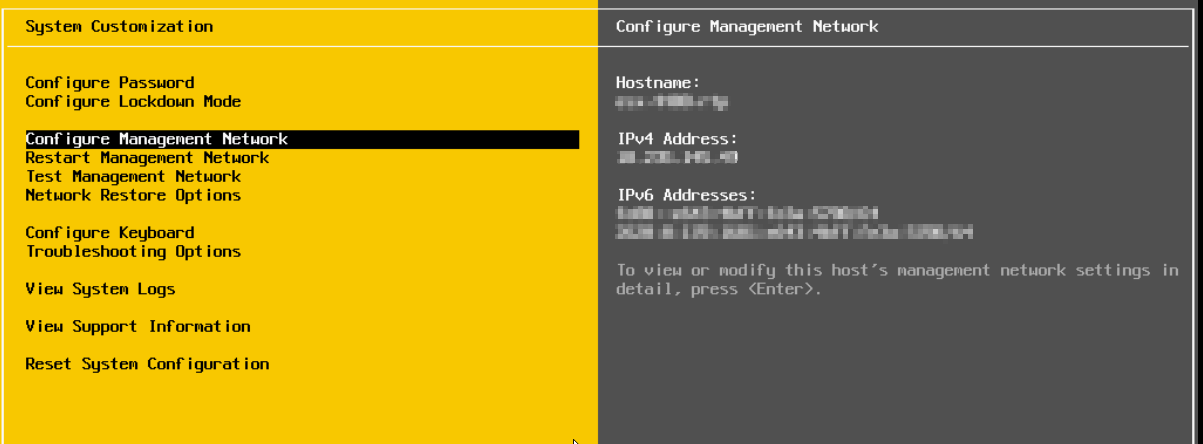
圖 4:確認已指派 IP,且主機名稱正確無誤。
- 如果 IP 位址尚未指派或需要進一步驗證,請按下 Enter 鍵,然後前往 IPv4 組態,然後按下 Enter 鍵
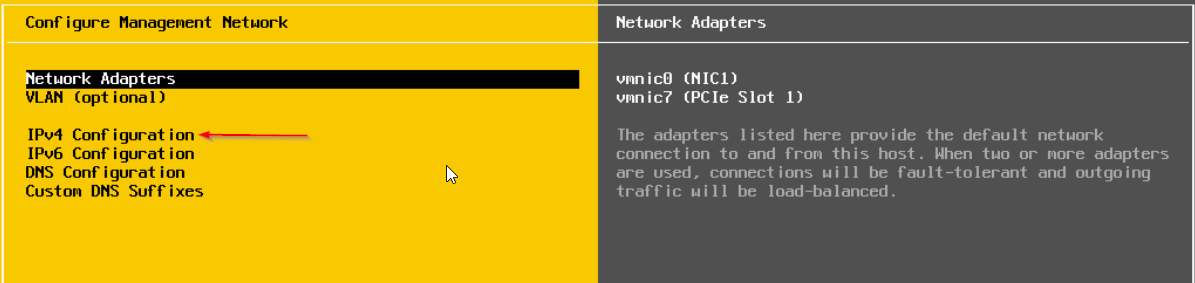
圖 5:IP 位址未指派,或需要進一步驗證。
-
前往 設定靜態 IPv4 位址和網路組態。按下 空白鍵 前往所需的選項

圖 6:設定所需的 IP 位址和網路組態。 - 輸入正確的 IPv4 位址、子網路遮罩和閘道。使用方向鍵移至每個選取項目。
- 新增選項後,請按下 Enter 鍵,然後按 Esc 鍵結束
- Ping 和 SSH 登入至 ESXi 現在應該可運作了
- 登入 ESXi UI,並確認已配置正確的 DNS 伺服器。
- 在 IDPA 部署 UI 中按「重試」以繼續部署。
Affected Products
PowerProtect DP4400Article Properties
Article Number: 000210793
Article Type: Solution
Last Modified: 14 Aug 2025
Version: 5
Find answers to your questions from other Dell users
Support Services
Check if your device is covered by Support Services.