Latitude 5420 Rugged, Latitude 5424 Rugged, and Latitude 7424 Rugged Extreme u-blox device not holding configuration settings
Summary: Steps to resolve an issue with the u-blox device losing configuration settings on the Latitude 5424 Rugged laptop.
Symptoms
The Latitude 5420 Rugged, Latitude 5424 Rugged, and Latitude 7424 Rugged Extreme laptops may experience an issue with the u-blox device not holding configuration settings. Follow the guidelines below to identify and resolve this issue.
Latitude Rugged u-blox configuration settings issue
The Latitude 5420 Rugged, Latitude 5424 Rugged, and Latitude 7424 Rugged Extreme laptops may experience an issue with the u-blox device not holding configuration settings (such as turning off UBX messages) after two shut-downs. After two full shut-downs of the laptop, the module may revert to its previous configuration and the UBX messages will again be enabled. This causes certain applications to be unable to work with the GPS module since those applications are not able to read UBX messages.
This issue may not be seen on all Latitude 5420 Rugged, Latitude 5424 Rugged, and Latitude 7424 Rugged Extreme laptops with the u-blox device, and has only been seen with the Dell u-blox driver versions 2.24.0.0 and 2.1.0.5, as well as on the u-blox standard driver version 1.2.0.8 and the Microsoft Windows 10 native USB serial port driver.
Cause
Not Applicable
Resolution
To resolve this issue, follow the steps below to clear the SOS backup using the u-blox u-center application:
- Open the u-center application and go to View->Messages View (Figure 1):
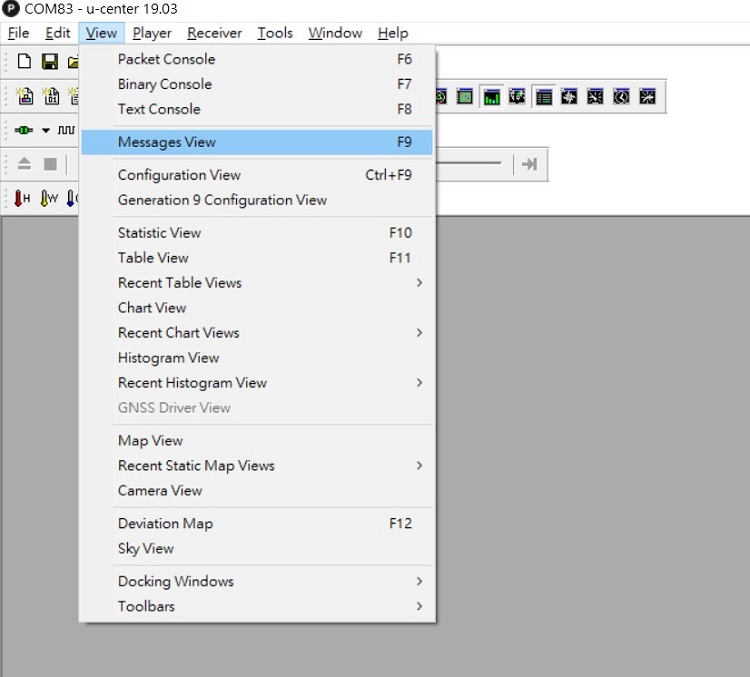
Figure 1: Go to View->Messages View in the u-center application - Go to RST (Reset), select Reset Options->Controlled and Startup Option->Hotstart in the UBX-CFG(Config)-RST (Reset) settings and click Send (Figure 2):
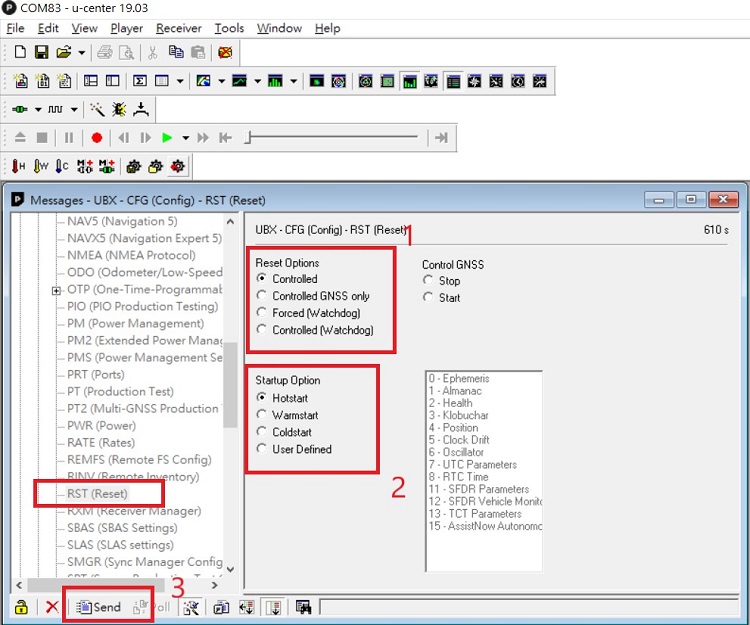
Figure 2: Reset UBX-CFG devices - Go to Save on Shutdown (SOS) under the UPD (Firmware Update Messages) menu, select Poll under the Acknowledgments settings and click Poll at the bottom of the screen and ensure that the Status is Restore: Succeeded (Figure 3):
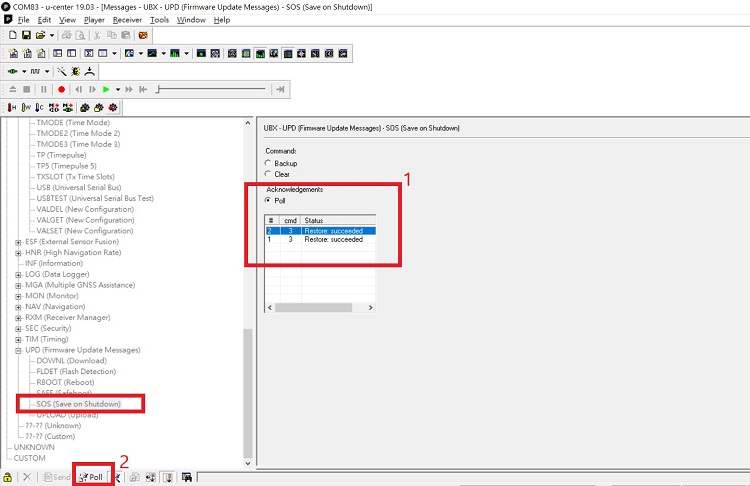
Figure 3: Poll the SOS (Save on Shutdown) and ensure that the restore succeeds - Next, select Clear under the SOS (Save on Shutdown)->Command settings and click Send at the bottom of the screen (Figure 4):
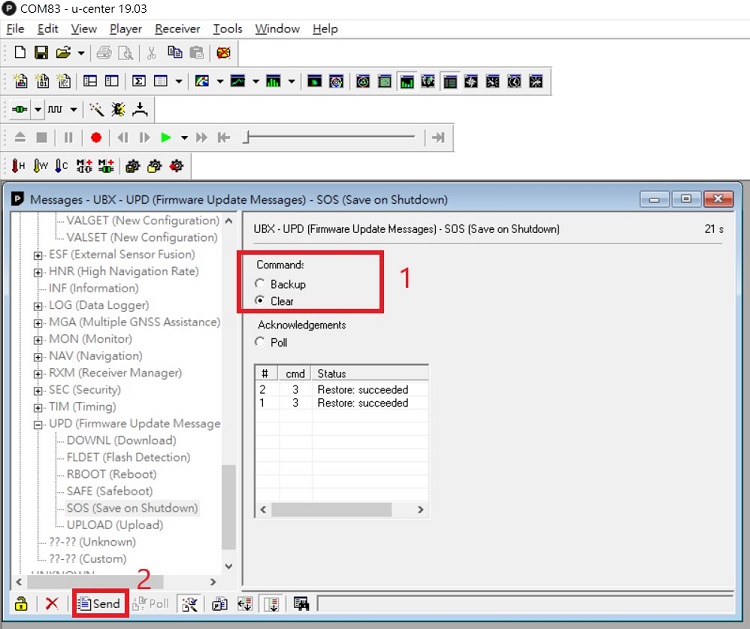
Figure 4: Clear SOS (Save on Shutdown) - Perform the RST (Reset) again from Step 2: Go to RST (Reset), select Reset Options->Controlled and Startup Option->Hotstart in the UBX-CFG(Config)-RST (Reset) settings and click Send (Figure 5):
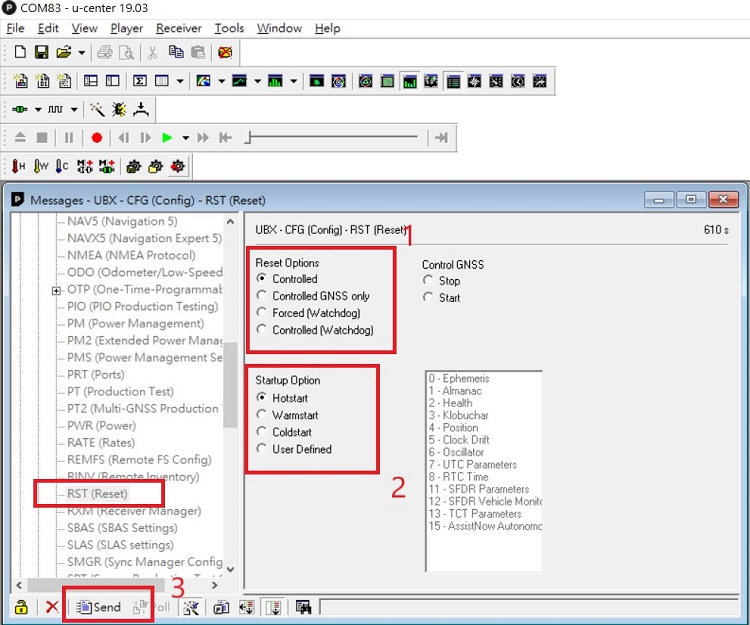
Figure 5: Perform the RST (Reset) again - Go to SOS (Save on Shutdown) under the UPD (Firmware Update Messages) menu, select Poll under the Acknowledgments settings and click Poll at the bottom of the screen and ensure that the Status is Restore: No backup(Figure 6):
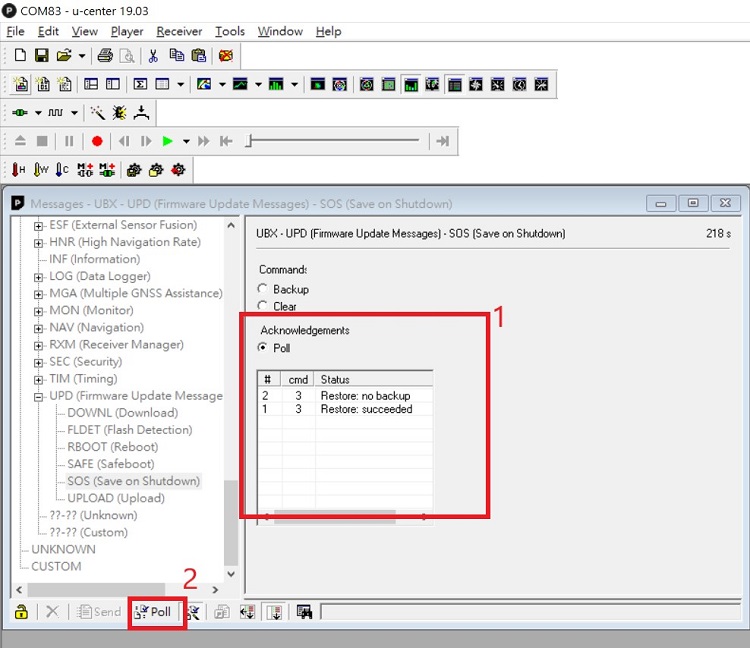
Figure 6:Poll SOS (Save on Shutdown) again and ensure that the status is Restore: No backup