How to Resolve the X:\windows\system32\logfiles\Srt\SrtTrail.txt Error
Summary: Learn how to resolve the C:\windows\system32\logfiles\Srt\SrtTrail.txt or D:\windows\system32\logfiles\Srt\SrtTrail.txt error.
Instructions
The C:\ or D:\Windows\System32\LogFiles\Srt\SrtTrail.txt error indicates a Windows startup repair failure, usually caused by corrupted system files, driver issues, or boot record problems.
This error may prevent the computer from booting into Windows. The following steps use the Windows Recovery Environment (WinRE) to bypass the normal Windows startup process.
Perform the steps outlined below to help resolve the issue.
Step 1: Run CHKDSK
CHKDSK is a Windows command-line utility that checks a drive for errors and fixes file system issues.
- Access Command Prompt in Recovery Environment
- Access the Windows Recovery Environment (WinRE) (instructions are located at bottom of the article).
- Select Troubleshoot > Advanced Options > Command Prompt.
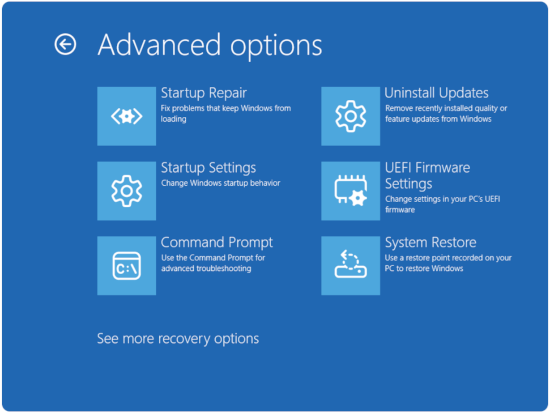
- If your computer is encrypted with BitLocker, enter the recovery key when asked. You can find the key by logging into your account at account.microsoft.com
and checking the Devices section.
- In the command prompt, type the following command and then press the Enter key:
chkdsk /f /r c: - In the command prompt, type the following command and then press the Enter key:
exit - Select Turn off your PC. Restart your computer and check whether the issue is resolved. If not, return to this Knowledge Base article, access the Command Prompt in the Windows Recovery Environment (WinRE) again, and proceed Step 2.
Step 2: Run System File Checker (SFC)
System File Checker (SFC) checks Windows system files and repairs any that are missing or corrupted.
- In the command prompt, type the following command and then press the Enter key:
sfc /scannowNote: The process takes some time, plan accordingly. - In the command prompt, type the following command and then press the Enter key:
exit - Select Turn off your PC. Restart your computer and check whether the issue is resolved. If not, return to this Knowledge Base article, access the Command Prompt in the Windows Recovery Environment (WinRE) again, and proceed with Step 3.
Step 3: Repair Boot Records
When the start-up files become corrupted, Windows cannot start properly. Here is how to rebuild them:
- Rebuild the Boot Configuration Data (BCD).
- In the command prompt, type the following command and then press the Enter key:
bootrec /fixmbr - In the command prompt, type the following command and then press the Enter key:
bootrec /fixbootNOTE: You may get an access denied message, if so, go to the next command. - In the command prompt, type the following command and then press the Enter key:
bootrec /scanos - In the command prompt, type the following command and then press the Enter key:
bootrec /rebuildbcd
- In the command prompt, type the following command and then press the Enter key:
- Verify the repair.
- In the command prompt, type the following command and then press the Enter key:
exit - Select Turn off your PC. Restart your computer and check whether the issue is resolved. If not, return to this Knowledge Base article, and proceed with Step 4.
- In the command prompt, type the following command and then press the Enter key:
Step 4: Reset Windows While Keeping Files
When the issue persists, it is recommended to reset your computer to resolve the issue.
This option reinstalls Windows while preserving your personal data:
- Access Reset Options.
- Access the Windows Recovery Environment (WinRE) (instructions are located at bottom of the article).
- Select Troubleshoot > Reset this PC.

- Choose Keep my files.
- If your computer is encrypted with BitLocker, enter the recovery key when asked. You can find the key by logging into your account at account.microsoft.com
- Select additional options.
- Select Local reinstall (faster) or Cloud download (gets latest Windows version).
- Complete the reset.
- Follow the on-screen prompts.
- The process takes 1-3 hours depending on your computer.
Note: This process keeps personal files but removes installed programs and resets settings to defaults.
How to access the Windows Recovery Environment (WinRE)
- Starting with the computer off. Press the Power button on the computer and immediately start pressing the F12 key once a second to access the System Boot menu.
- Select SupportAssist OS Recovery to boot to SupportAssist OS Recovery.
- In SupportAssist OS Recovery, click the three dots
 at the upper right side of the OS Recovery Home screen and this provides a dropdown menu.
 - Select Windows recovery.
- The computer reboots into the Windows Recovery Environment (WinRE).