AlienwareおよびDellのゲーミング モニターでマウスの位置がずれる
Summary: ビデオ ゲームをプレイ中のAlienwareおよびDell Gamingモニターでのマウス ポインタの問題に関する情報。
This article applies to
This article does not apply to
This article is not tied to any specific product.
Not all product versions are identified in this article.
Symptoms
マウスの位置がずれています。つまり、マウス ポインターの位置が、ユーザーが画面を操作している場所と異なります。これは、次のシナリオで一部のビデオゲームで発生する可能性があります。
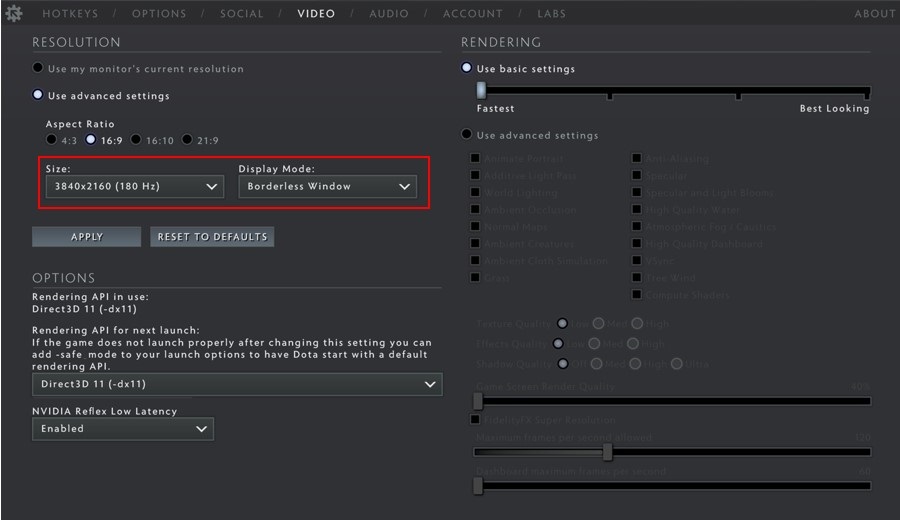
ビデオゲームの設定で、次の操作を行います。
- 解像度が変更され、...
- 表示モードがウィンドウから全画面表示、またはその逆に変更されます。
影響を受けるモニター
- DPI(ドット/インチ)が高いAlienwareまたはDell Gamingモニター(通常は4Kモニター)。
Cause
マウスの位置がずれるのは、Windowsと一部のビデオ ゲームの間のスケーリングの不整合が原因です(これはモニターの問題 ではありません )。
Resolution
Windowsのスケーリングを上書きする
この動作の回避策は、次の手順を使用して、ビデオ ゲーム アプリケーションのビデオ ゲーム実行可能バイナリ ファイルを構成して、Windows スケーリングをオーバーライドすることです。
Windows 10および11
- ビデオ ゲームの実行可能バイナリ ファイルを見つけます。たとえば、Steamの場合、ビデオゲームのデフォルトのインストールパスは次のとおりです。C:\ Program Files(x86)\ Steam \ steamapps \ common
- ビデオ ゲームのバイナリを右クリックし、[ プロパティ]を選択します。
- 「互換性」タブをクリックします。
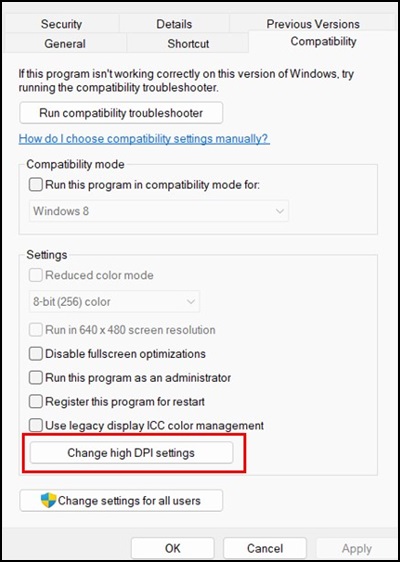
- [高DPI設定の変更]をクリックします。
- Override high DPI scaling behaviorチェックボックスをオンにします。ドロップダウンで [Application ]が選択されていることを確認します。
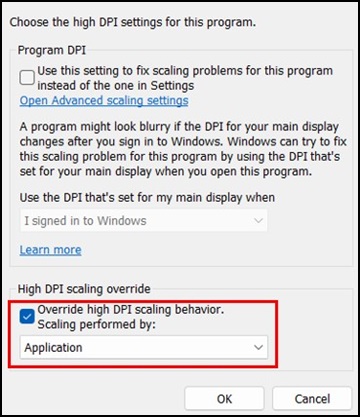
- [OK]をクリックして、[高DPI設定]ウィンドウを閉じます。もう一度[ OK ]をクリックして、[ プロパティ ]ウィンドウを閉じます。
注:上記の回避策は、ビデオ ゲームのバイナリ ファイルごとに1回だけ必要であり、この動作を持つ各ビデオ ゲームに対して実行する必要があります。
Affected Products
Alienware Advanced Gaming Mouse – AW558, Alienware Elite Gaming Mouse – AW958, Alienware Wireless Gaming Mouse AW310M, Alienware RGB Gaming Mouse AW510M, Alienware Wired/Wireless Gaming Mouse AW610M, Alienware Tri-Mode Wireless Gaming Mouse AW720M
, Alienware Elite Gaming Mouse - AW959, Alienware and Dell Gaming Monitors, Alienware Wired Gaming Mouse AW320M, Alienware Pro Wireless Gaming Mouse, Alienware Wireless Gaming Mouse AW620M
...
Article Properties
Article Number: 000226094
Article Type: Solution
Last Modified: 13 May 2025
Version: 2
Find answers to your questions from other Dell users
Support Services
Check if your device is covered by Support Services.