PowerEdge: Windows Server 2022 LBFO 또는 Set 팀을 사용하여 가상 스위치를 생성할 수 없음
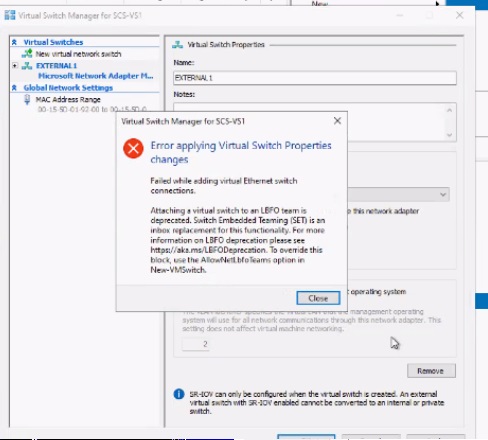
Summary: Windows 2022는 Hyper-V 또는 네트워킹에서 어떠한 기능도 제거하지 않았습니다. 그러나 생성을 위해 LBFO 가상 스위치를 명령줄로 강제 적용했습니다. 변경된 사항이 없으면 Vmswitch가 정상적으로 생성되지 않습니다. 가상 이더넷 스위치 연결을 추가하는 동안 오류가 실패했습니다. LBFO 팀에 가상 스위치를 연결하는 기능은 더 이상 사용되지 않습니다. 이 오류를 해결하는 유일한 방법은 "-AllowNetLbfoTeams $true"를 추가하는 것입니다. 이를 위해서는 PowerShell이 필요하며 호출 생성기가 될 수 있습니다. ...
Instructions
Windows 2022가 제거
바뀐 것은 없지만 Vmswitch 정상적으로 생성하지 못합니다. 가상 이더넷 스위치 연결을 추가하는 동안 오류가 실패했습니다. LBFO 팀에 가상 스위치를 연결하는 기능은 더 이상 사용되지 않습니다.
이 오류를 해결하는 유일한 방법은 "-AllowNetLbfoTeams $true"
PowerShell이 필요하며 호출 생성기가 될 수 있습니다.
Hyper-V 멀티플렉서 Vswitch
LBFO 가상 스위치를 생성합니다.
- 대신 Set Team 사용을 재고하도록 고객에게 조언합니다. 기사 끝에 있는 단계
- 일반적으로 (set switch) new-vmswitch 명령을 사용하여 Hyper-v로 이동하면 가상 스위치가 있습니다.
- 즉, 세트 스위치를 만들 때 팀을 만들지 않습니다.
- LBFO Vmswitch를 사용하는 경우 서버 관리자를 사용하여 팀을 생성한 다음 Create VMSwitch 명령을 실행해야 합니다.
- 세트는 더 간단하고 유연합니다.
고객이 계속해서 LBFO VM 스위치를 생성하려는 경우:
- Windows Server 관리자를
- 일단 생성하고 나면
VMSwitchHyper-v와 함께. 명령줄을 사용해야 합니다
Get-Netadapter
Verify the creation of Teams
$Team1 = Get-NetAdapter -Name Team1
$Team2= Get-NetAdapter -Name Team2
New-VmSwitch -Name External1 -NetAdapterName $Team1.Name -AllowManagementOS $true -Notes 'External Network 1' -AllowNetLbfoTeams $true
New-VmSwitch -Name External2 -NetAdapterName $Team2.Name -AllowManagementOS $true -Notes 'External Network 2' -AllowNetLbfoTeams $true
대신 Set 팀을 만들려면:
Server 2022는 get-netadapter 명령을 더 이상 사용하지 않습니다. 즉, 아래 명령은 이전 버전에서 작동하지만 OS 및 패치 버전에 따라 작동하거나 작동하지 않을 수 있습니다.
22H2 Server 2022 및 새 OS 버전의 기본 세트 팀 예시입니다.
간편함
New-VMSwitch -Name "SETswitch" -NetAdapterName "Ethernet 1", "Ethernet 2" -EnableEmbeddedTeaming $true

New-VMSwitch -Name "SetSwitch" -NetAdapterName "Ethernet1", "Ethernet2" -EnableEmbeddedTeaming:$True -AllowManagementOS:$True -MinimumBandwidthMode "Weight"
아래 명령에서 Get-NetAdapterName을 형성하기 위해 Get-NetAdapter에 "name"이라는 단어를 추가할 수 있다고 가정하지만 랩에서 테스트하거나 ChatGPt를 확인하여 확인할 수 있습니다.
더 복잡함
 $S2DSwitchName = "Mgmt_Vswitch"
New-VMSwitch -Name $S2DSwitchName -AllowManagementOS 0 -NetAdapterName $S2DpNIC1, $S2DpNIC2 -MinimumBandwidthMode Weight -Verbose

Add-VMNetworkAdapter -ManagementOS -Name $ManagementvNICName -SwitchName $S2DSwitchName -Passthru | Set-VMNetworkAdapterVlan -Access -VlanId $ManagementvNICVLAN –Verbose

Add-VMNetworkAdapter -ManagementOS -Name $S2DvNIC1Name -SwitchName $S2DSwitchName -Passthru | SetVMNetworkAdapterVlan -Access -VlanId $S2DvNIC1VLAN -Verbose
Add-VMNetworkAdapter -ManagementOS -Name $S2DvNIC2Name -SwitchName $S2DSwitchName -Passthru | SetVMNetworkAdapterVlan -Access -VlanId $S2DvNIC2VLAN –Verbose
다른 예
New-VMSwitch -Name SETswitch -NetAdapterName "SLOT 2","SLOT 3" -EnableEmbeddedTeaming $true
#
# Add host vNICs and make them RDMA capable
#
Add-VMNetworkAdapter -SwitchName SETswitch -Name SMB_1 -managementOS
Add-VMNetworkAdapter -SwitchName SETswitch -Name SMB_2 -managementOS
Enable-NetAdapterRDMA "vEthernet (SMB_1)","vEthernet (SMB_2)"
누군가 전화를 받으면 도움이 되길 바랍니다.