PowerStore:如何設定 WinSCP 以維護服務指令檔上傳的可執行權限
Summary: 本文提供逐步指示,說明在使用 WinSCP 將可注入服務指令檔上傳至 PowerStore 裝置時,如何維護其可執行權限。
This article applies to
This article does not apply to
This article is not tied to any specific product.
Not all product versions are identified in this article.
Instructions
注意:僅當上傳的包是 ZIP 格式時,才需要這樣做。如果要上傳的套裝是 TAR 檔案,則不需要此動作。
請執行下列步驟,設定 WinSCP,以在上傳可注入服務指令檔至 PowerStore 裝置時,維護其可執行權限。
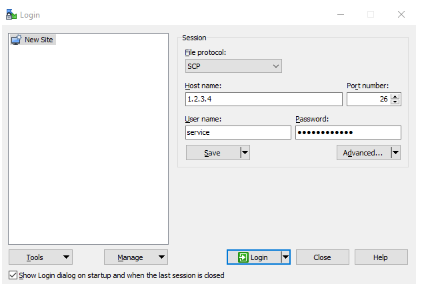
- 使用 WinSCP 與 PowerStore 裝置上的節點建立安全複製通訊協定 (SCP) 連線做為 (服務)。
- 前往 WinSCP 的左窗格,前往包含要上傳的檔案的資料夾,然後選取一或多個檔案。
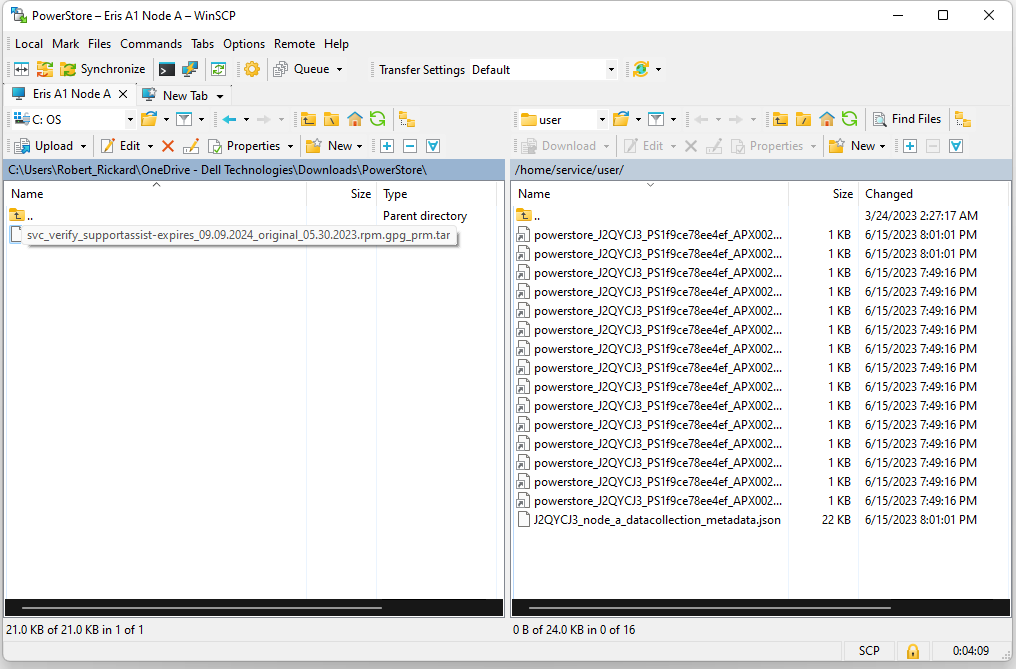
- 按一下左窗格上方的 上傳 按鈕,開啟 上傳對話方塊。
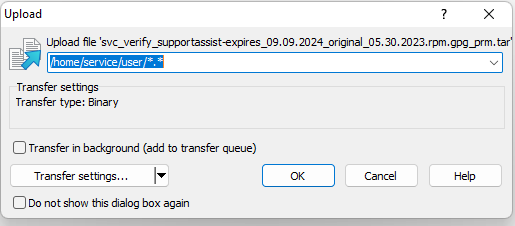
- 按一下 傳輸設定:
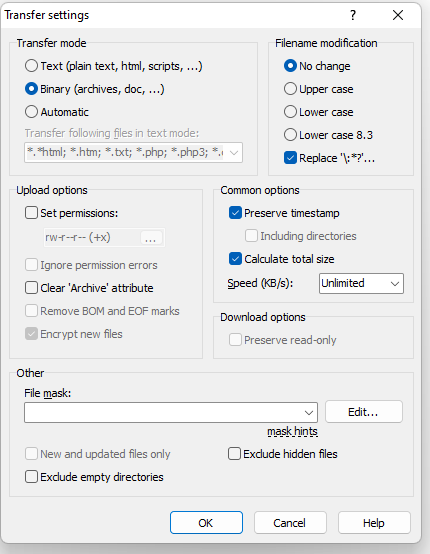
- 勾選 設定權限 的方塊,並將 rw-r--r-- (+x) 替換為 0777。當在視窗中按兩下其他任何位置時,它會更改為 rwxrwxrwx 。
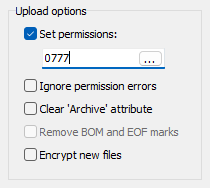
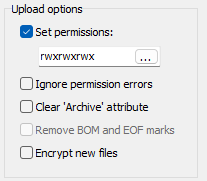
- 在傳輸設定視窗和上傳選項視窗上按一下確定,以上傳具有適當權限的檔案。
- 確認 檔案已在右窗格中以完整權限上傳。
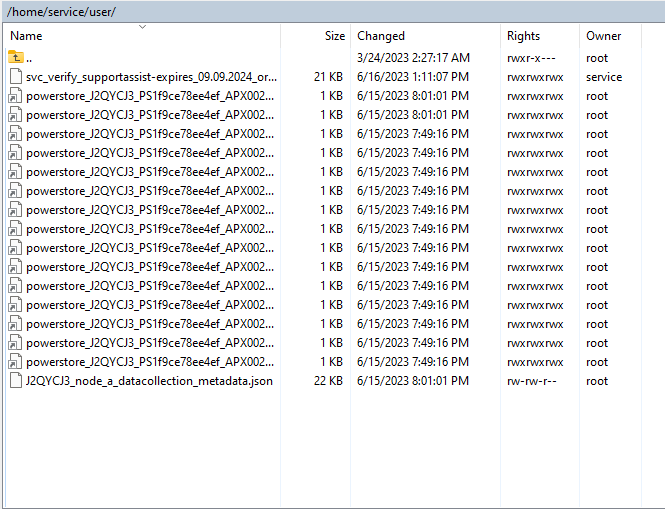
這會上傳選取的一或多個檔案,而不會對必須還原的 WinSCP 應用程式進行永久變更。
Affected Products
PowerStore, PowerStore 1000X, PowerStore 1000T, PowerStore 3000X, PowerStore 3000T, PowerStore 5000X, PowerStore 5000T, PowerStore 500T, PowerStore 7000X, PowerStore 7000TProducts
PowerStore 9000X, PowerStore 9000T, PowerStore Employee and PartnerArticle Properties
Article Number: 000197471
Article Type: How To
Last Modified: 04 Sept 2024
Version: 4
Find answers to your questions from other Dell users
Support Services
Check if your device is covered by Support Services.