PowerProtect Data Manager Server DR failing for Search Cluster
Summary: The following article provides the steps to fix a partial server DR failure for the Search Cluster component.
Symptoms
Scheduled or manual server DR backup is reported as failed and completes partially.
Search Node component is failing to be protected.
Server DR backup is reported as failed after 2 hours.
Cause
Incorrect permissions assigned for DR file system structure under /data01/server_backups directory.
Example:
sky8:/data01/server_backups # ls -ltr drwxrwxrwx 14 admin 1000 2969 05-27 13:04 sky8_17fde745-a7d7-4de6-8047-dfe8096a55a3rrr- 1 root root 76 05-27 14:12 .boostfs_sysinforrr- 1 root root 75 05-27 14:12 .boostfs_streaminforrr- 1 root root 868 05-27 14:12 .boostfs_nodesrrr- 1 root root 0 05-27 14:12 .boostfs_logspecialrrr- 1 root root 30 05-27 14:12 .boostfs_connectionsrrr- 1 root root 102 05-27 14:12 .boostfs_cache
On this example, the PowerProtect Data Manager name is sky8, and there is a directory with the name of ppdm + id which is what is protected as server DR.
Go to the ppdm + id folder and check permissions of the different components:
sky8:/data01/server_backups/sky8_17fde745-a7d7-4de6-8047-dfe8096a55a3 # ls -ltr drwx------ 3 512 users 154 05-20 15:54 a00fe1c7-eb60-4b99-b251-f9b2a8bb6f97rw------ 1 512 users 0 05-20 15:56 a00fe1c7-eb60-4b99-b251-f9b2a8bb6f97.SearchCluster.existsrw------ 1 512 users 1770 05-20 15:56 a00fe1c7-eb60-4b99-b251-f9b2a8bb6f97.manifest drwx------ 3 512 users 154 05-21 15:54 f6fe1cf3-8a92-4383-9692-9a90b2d00f45rw------ 1 512 users 0 05-21 17:54 f6fe1cf3-8a92-4383-9692-9a90b2d00f45.SearchCluster.existsrw------ 1 512 users 1825 05-21 17:54 f6fe1cf3-8a92-4383-9692-9a90b2d00f45.manifest drwx------ 3 512 users 154 05-22 15:54 e1223ced-7e9f-4a0d-9a6d-d14d8b38bcb4rw------ 1 512 users 0 05-22 17:54 e1223ced-7e9f-4a0d-9a6d-d14d8b38bcb4.SearchCluster.existsrw------ 1 512 users 1825 05-22 17:54 e1223ced-7e9f-4a0d-9a6d-d14d8b38bcb4.manifest drwx------ 3 512 users 154 05-23 15:54 7b1ee84d-3d1f-45bd-9b21-964549c3b622rw------ 1 512 users 0 05-23 15:56 7b1ee84d-3d1f-45bd-9b21-964549c3b622.SearchCluster.existsrw------ 1 512 users 1770 05-23 15:56 7b1ee84d-3d1f-45bd-9b21-964549c3b622.manifest drwx------ 3 512 users 154 05-24 15:54 015e3bbb-1033-403b-8057-f58b8de093b7rw------ 1 512 users 0 05-24 17:54 015e3bbb-1033-403b-8057-f58b8de093b7.SearchCluster.existsrw------ 1 512 users 1825 05-24 17:54 015e3bbb-1033-403b-8057-f58b8de093b7.manifest drwx------ 3 512 users 154 05-25 15:54 4a492a8b-1d1f-408e-8316-fb338e1c6b00rw------ 1 512 users 0 05-25 17:54 4a492a8b-1d1f-408e-8316-fb338e1c6b00.SearchCluster.existsrw------ 1 512 users 1825 05-25 17:54 4a492a8b-1d1f-408e-8316-fb338e1c6b00.manifest drwx------ 3 512 users 154 05-26 15:54 c6fe1e5e-5315-4615-8b7a-f24442601794rw------ 1 512 users 0 05-26 17:54 c6fe1e5e-5315-4615-8b7a-f24442601794.SearchCluster.existsrw------ 1 512 users 1825 05-26 17:54 c6fe1e5e-5315-4615-8b7a-f24442601794.manifest drwx------ 3 512 users 154 05-27 10:12 44222884-0191-49da-8317-b850041fa4f1rw------ 1 512 users 0 05-27 12:12 44222884-0191-49da-8317-b850041fa4f1.SearchCluster.existsrw------ 1 512 users 1804 05-27 12:12 44222884-0191-49da-8317-b850041fa4f1.manifest drwx------ 3 512 users 154 05-27 12:32 b1001655-e3c7-42a6-9fa5-84730444dfcc drwxrwxrwx 3 admin root 275 05-27 12:33 SearchClusterrw------ 1 512 users 1989 05-27 12:34 b1001655-e3c7-42a6-9fa5-84730444dfcc.manifest drwx------ 3 512 users 154 05-27 13:02 795c38f3-ae56-450f-b6ec-22931d9e4ff9 drwx------ 12 512 users 951 05-27 13:02 SupportAssistrw------ 1 512 users 0 05-27 13:04 795c38f3-ae56-450f-b6ec-22931d9e4ff9.SearchCluster.existsrw------ 1 512 users 2092 05-27 13:04 795c38f3-ae56-450f-b6ec-22931d9e4ff9.manifest
From the above output, we can identify Search Cluster component is having incorrect permissions assigned as admin:root, whereas correct permissions should be either admin:1000 or admin:app.
Another potential reason for failure might be due to predefined max time for server DR of 2 hours. If a server DR backup takes more than 2 hours while running snapshots operations, the backup fails. See last step on resolution section to run a manual backup operation for search Cluster component.
Resolution
Connect over ssh to the PowerProtect Data Manager appliance and go to /data01/server_backups/ppdm_name_id folder.
Check permissions as specified on previous example.
STEP 1: FIX PERMISSIONS FROM SEARCH NODE
- Obtain the search node credentials from the PowerProtect Data Manager
- As root / su
source /opt/emc/vmdirect/unit/vmdirect.env && /opt/emc/vmdirect/bin/infranodemgmt get -secret -node_type SearchNode
- Then ssh as admin to a search node.
- Elevate permissions to root/su on the search node using the credentials obtained above
- Change the directory to the mount point on the search node
cd /mnt/PPDM_Snapshots/sky8_17fde745-a7d7-4de6-8047-dfe8096a55a3
- chown the directory to 'admin:app'
chown admin:app SearchCluster/
STEP 2: FIX PERMISSIONS FROM SEARCH NODE
On the PowerProtect Data Manager appliance, as the ADMIN user, perform the following steps:
- Run the command
 ps -aux | grep boost

admin@sky8:~> ps -aux | grep boost

admin     76282  0.0  0.0   8212   776 pts/0    S+   16:47   0:00 grep --color=auto boost

admin    112747  0.2  0.4 805504 142100 ?       Ssl  Jun11   3:50 /opt/emc/boostfs/bin/boostfs mount -d 10.241.216.52 -s SysDR_sky8 -o local-user-security=false -o allow-others=true /data01/server_backups -l /opt/emc/boostfs/lockbox/boostfs-serverdr.lockbox
You SHOULD see the following attribute as part of the mount command that is returned:local-user-security=false
If you do not, DO NOT PROCEED. - Copy the mount command to a notepad, as we must edit it.
/opt/emc/boostfs/bin/boostfs mount -d 10.241.216.52 -s SysDR_sky8 -o local-user-security=false -o allow-others=true /data01/server_backups -l /opt/emc/boostfs/lockbox/boostfs-serverdr.lockbox
- Perform the following commands on the PowerProtect Data Manager appliance (still as the admin user)
cd /data01
mkdir temp_mount
admin@sky8:~> cd /data01
admin@sky8:/data01> mkdir temp_mount
- Modify the mount command as follows:
- Mount on the temp_mount directory
- Remove the
local-user-security-flag/opt/emc/boostfs/bin/boostfs mount -d 10.241.216.52 -s SysDR_sky8 - -o allow-others=true /data01/temp_mount -l /opt/emc/boostfs/lockbox/boostfs-serverdr.lockbox
o local-user-security=falsehas been removed, and the mount point has been modified from/data01/server_backupsto/data01/temp_mount - Run the command as the admin user. The output should look like:
admin@sky8:/data01> /opt/emc/boostfs/bin/boostfs mount -d 10.241.216.52 -s SysDR_sky8 -o allow-others=true /data01/temp_mount -l /opt/emc/boostfs/lockbox/boostfs-serverdr.lockbox
mount: Mounting 10.241.216.52:SysDR_sky8 on /data01/temp_mount
- Check that the mount shows the serverdr backup directory. The directory name starts with the ppdm's FQDN.
admin@sky8:/data01> ls -ltr /data01/temp_mount/
total 11
drwxrwxrwx 624 admin 1000 177121 Jun 15  2024 sky8_f3374f11-178d-472f-9c34-865450ceebda
- You will need the root password to run the next SUDO command. Once you have the root password, then run:
sudo chown -R elasticsearch:elasticsearch /data01/temp_mount/*/SearchCluster/ &
The "&" at the end of this command runs the command in the background. The reason for this is that it may take a little time to complete, and we do not want a network timeout to prevent it from completing.
The expected output would look like:
admin@sky8:/data01> sudo chown -R elasticsearch:elasticsearch /data01/temp_mount/*/SearchCluster/ &

[1] 119872
Where 119872 is the PID for this command.
This shows that the command is running in the background.
Monitor it this way:
admin@sky8:/data01> ps -ef | grep 119872

root     119872  75298  0 17:00 pts/0    00:00:00 sudo chown -R elasticsearch:elasticsearch /data01/temp_mount/sky8_f3374f11-178d-472f-9c34-865450ceebda/SearchCluster/
root     119874 119872  0 17:00 pts/0    00:00:00 chown -R elasticsearch:elasticsearch /data01/temp_mount/sky8_f3374f11-178d-472f-9c34-865450ceebda/SearchCluster/
admin    121679  75298  0 17:00 pts/0    00:00:00 grep --color=auto 119872
Allow time for this process to complete.
- Once this is completed, you can look at
/data01/server_backups/*/SearchCluster/and you should see that the files are owned byelasticsearch:elasticsearch.
The actual/data01/server_backups/*/SearchClusterdirectory should be owned by admin 1000 - UNMOUNT the temp_mount directory.
Run the command:umount /data01/temp_mount
STEP 3: MANUAL SEARCH CLUSTER DR BACKUP
- Get Search node credentials by running the following command as root from the PowerProtect Data Manager appliance over ssh:
source /opt/emc/vmdirect/unit/vmdirect.env && /opt/emc/vmdirect/bin/infranodemgmt get -secret -node_type SearchNode
- Connect to Search node as admin over ssh and run a manual full snapshot:
curl -XPUT 'http://search_node_name:9200/_snapshot/PPDM_SnapshotRepo_1/full-backup'
- Check status to confirm the snapshot is running and repeat this step periodically until it reports SUCCESS:
curl -XGET 'http://search_node_name:9200/_snapshot/PPDM_SnapshotRepo_1/full-backup?pretty'
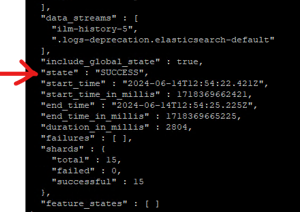
- Run a manual server DR from PowerProtect Data Manager UI to confirm the issue is fixed.