如何导出 Windows 事件日志
Summary: 了解如何使用事件查看器导出 Windows 事件日志并保存系统、应用程序或安全日志以用于故障处理和技术支持。
This article applies to
This article does not apply to
This article is not tied to any specific product.
Not all product versions are identified in this article.
Instructions
- 按Windows () 键。
- 类型
Event Viewer,然后从列表中选择 Event Viewer 。 - 从左侧窗格中,选择要导出的日志类型。

- 单击 操作 ,然后单击 所有事件另存为,以保存日志。
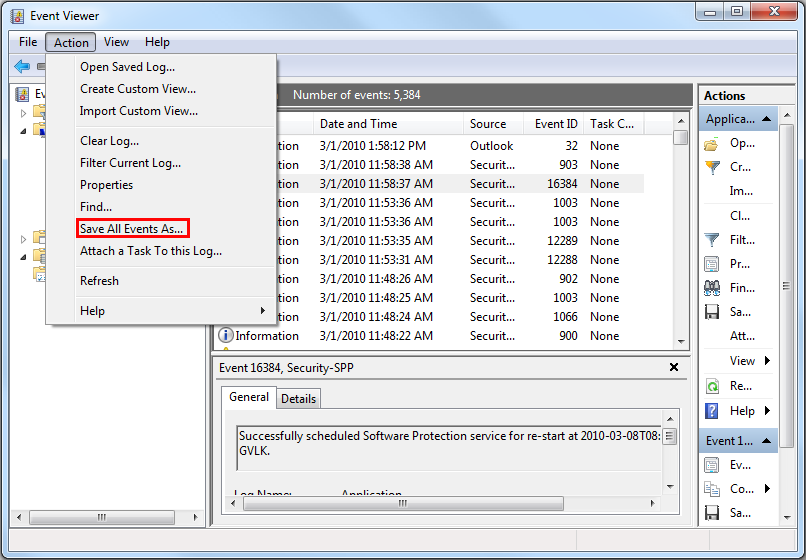
有关更多信息,请参阅 如何保存事件日志
有关戴尔笔记本电脑的 BIOS 事件日志的信息,请参阅 Dell 笔记本电脑上的 BIOS 事件日志和诊断日志记录。
Additional Information
Affected Products
Alienware, Dell All-in-One, Dell Pro All-in-One, Dell Pro Max Micro, Dell Pro Max Slim, Dell Pro Max Tower, Dell Pro Micro, Dell Pro Slim, Dell Pro Tower, Dell Slim, Dell Tower, Inspiron, Legacy Desktop Models, OptiPlex, Vostro, XPS, G Series
, G Series, Alienware, Dell Plus, Dell Pro, Dell Pro Max, Dell Pro Plus, Dell Pro Premium, Inspiron, Latitude, Dell Pro Rugged, Vostro, XPS, Legacy Laptop Models, Fixed Workstations, Mobile Workstations, Dell Pro Max Micro XE FCM2250, Dell Pro Max Slim XE FCS1250, Dell Pro Max Tower T2 XE FCT2250, Dell Pro Max 16 XE MC16250, Dell Pro Micro Plus XE QBM1250, Dell Pro Slim Plus XE5 QBS1250, Dell Pro Tower Plus XE5 QBT1250
...
Article Properties
Article Number: 000124382
Article Type: How To
Last Modified: 10 Aug 2026
Version: 10
Find answers to your questions from other Dell users
Support Services
Check if your device is covered by Support Services.