Dell Endpoint Security Suite Enterprise for Linuxをインストールする方法
Summary: 次の手順に従って、ターミナル コマンドライン インターフェイス(CLI)からDell Data Security Endpoint Security Suite Enterprise for Linuxをインストールする方法について説明します。
This article applies to
This article does not apply to
This article is not tied to any specific product.
Not all product versions are identified in this article.
Instructions
Dell Data Security Endpoint Security Suite Enterprise for Linuxのインストールは、コマンド ラインを使用して行います。
製品のシステム要件の詳細については、「Dell Endpoint Security Suite Enterpriseのシステム要件」を参照してください。
- ターミナルを開きます。

- ターミナルで、次のコマンドを入力し、Enterを押します。
sudo tar –xvf '/FilePathA/DellESSE.tar.gz' –C /FilePathB 注:
注:- 上記の例では次のようになります。
FilePathAは、TAR ファイルが存在するパスです。FilePathA例/home/admin/Desktop/Downloads/
FilePathBは、TAR ファイルの解凍先のパスです。FilePathB例/home/admin/Desktop/ESSE
- コマンドでは大文字と小文字が区別されます。
- この例のパスは、ご使用の環境では異なる場合があります。
- 上記の例では次のようになります。
- タイプ
sudo 'filepath/install.sh'「」と解凍したインストーラー パッケージからターミナルに入力して、Enterを押します。

- 使用されているアカウントのパスワードを入力し、Enterを押します。

- Dell Security Management ServerのIPまたはDNSを入力して、Enterを押します。

- Dell Security Management Serverのコア サーバー サービスのポートを入力して、Enterを押します。
 デフォルトでは、コア サーバー サービスは8888で実行されます。
 - DellESSEパッケージと依存関係のインストールを求めるプロンプトが表示されたらYを押して、Enterを押します。
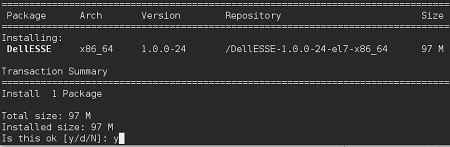
- 指紋認証のプロンプトが表示されたらYを押して、それ以外の場合は手順9に進みます。

- Yを押してCylanceDellATPPluginパッケージをインストールし、Enterを押します。
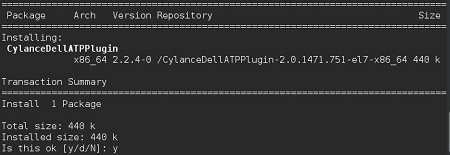
- Yを押してDellAdvancedThreatProtectionパッケージをインストールし、Enterを押します。
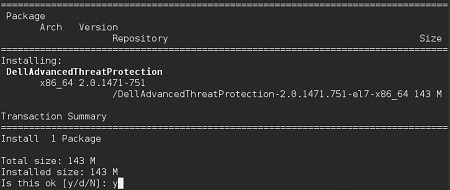
- インストールが完了したら、次のコマンドを入力してEnterを押します。
exit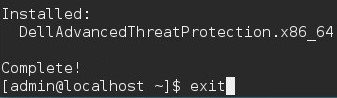
Additional Information
Videos
Affected Products
Dell Endpoint Security Suite EnterpriseArticle Properties
Article Number: 000124563
Article Type: How To
Last Modified: 05 Aug 2026
Version: 17
Find answers to your questions from other Dell users
Support Services
Check if your device is covered by Support Services.