How to Uninstall Dell Security Management Server
Summary: Learn how to uninstall Dell Security Management Server or Dell Data Protection Enterprise Edition Server by following these instructions.
This article applies to
This article does not apply to
This article is not tied to any specific product.
Not all product versions are identified in this article.
Instructions
Dell Security Management Server (formerly Dell Data Protection Enterprise Edition Server) may require uninstallation to:
- Troubleshoot the product.
- Address operating system incompatibility.
- Migrate the server.
This article covers the steps to uninstall the product.
Affected Products:
- Dell Security Management Server
- Dell Data Protection Enterprise Edition Server
Affected Versions:
- 8.0.0 and later
Affected Operating Systems:
- Windows
The uninstallation of Dell Security Management Server varies based on version.
Click the appropriate version for specific steps. For versioning information, reference How to Identify the Dell Data Security Server Version.
Warning: Dell Security Management Server should be backed up before uninstalling. For more information about performing a backup, reference How to Back Up and Restore Dell Security Management Server.
Version 9.8.0 and Later
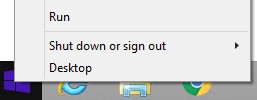
- As an administrator, right-click the Windows Start menu and then click Run.
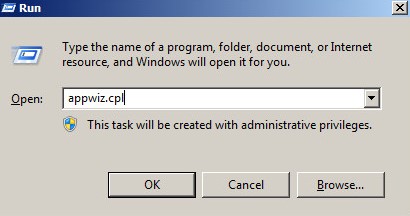
- In the Run UI, type
appwiz.cpl. - Press OK.
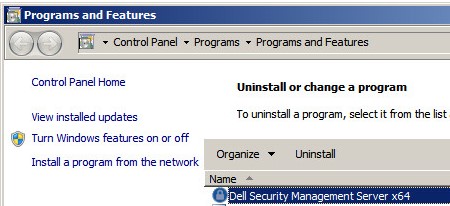
- In Programs and Features, double-click Dell Security Management Server x64.
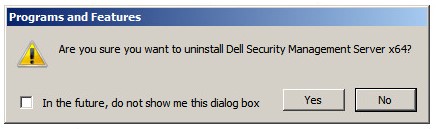
- Click Yes.
Version 8.3.0 to 9.7.0
- As an administrator, right-click the Windows Start menu and then click Run.
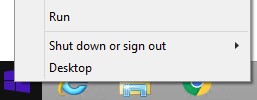
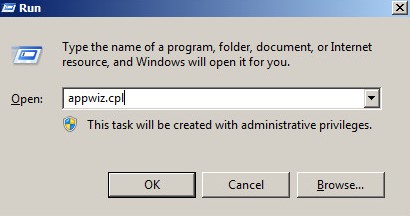
- In the Run UI, type
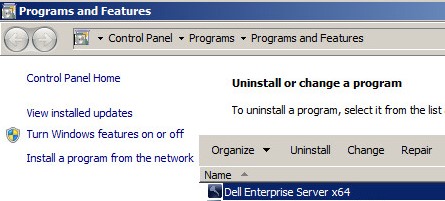
appwiz.cpl. - Press OK. This opens Programs and Features.
- Double-click Dell Enterprise Server x64 or Dell Enterprise Server x86.
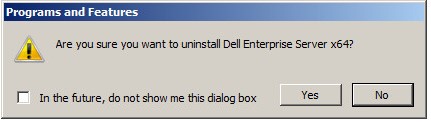
- Click Yes.
Version 8.0.0 to 8.1.0
- As an administrator, right-click the Windows Start menu and then click Run.
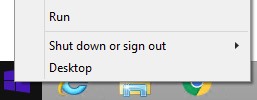
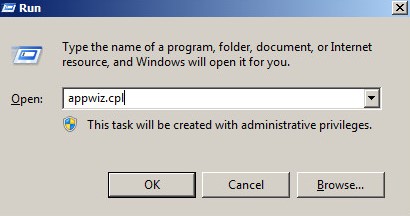
- In the Run UI, type
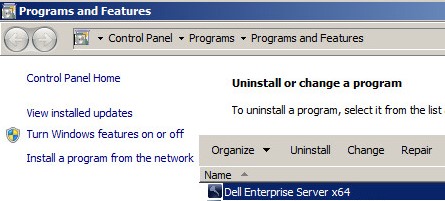
appwiz.cpl. - Press OK. This opens Programs and Features.
- Double-click Dell Enterprise Server x64 or Dell Enterprise Server x86.
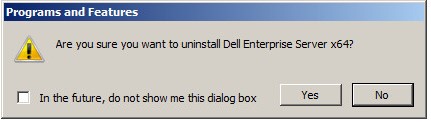
- Click Yes.
- Click OK.
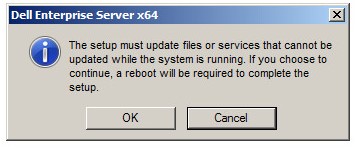
- Reboot the Windows server.
To contact support, reference Dell Data Security International Support Phone Numbers.
Go to TechDirect to generate a technical support request online.
For additional insights and resources, join the Dell Security Community Forum.
Affected Products
Dell EncryptionArticle Properties
Article Number: 000124927
Article Type: How To
Last Modified: 04 Jun 2026
Version: 16
Find answers to your questions from other Dell users
Support Services
Check if your device is covered by Support Services.