VxRail: How to Update the time zone of the VxRail Manager After Build
Summary: This article describes how to update the VxRail Manager's time zone using CLI after the VxRail has been deployed. This article does NOT cover how to update the Network Time Protocol (NTP) settings of the VxRail Manager. See the Solve procedure for changing the NTP settings/IP of the VxRail Manager if the NTP settings must be updated. ...
This article applies to
This article does not apply to
This article is not tied to any specific product.
Not all product versions are identified in this article.
Instructions
NOTE: You can view the current time zone of the VxRail by running the date command using CLI to the VxRail Manager.

NOTE: You can temporarily modify the time zone output with the export TZ=<Time Zone> command. However, this change will only remain until the current user is logged into the CLI. Follow the steps of this KB to permanently modify the time zone.
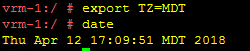
How to Permanently Update the time zone of the VxRail Manager Virtual Machine (VM):
- Take a snapshot of the VxRail Manager VM.
- The time zone setting resides in the
/etc/localtimefile. As seen in the below screenshot, this file points at a time zone in/usr/share/zoneinfo/
3. To update the time zone, remove the existing localtime file and create a new file that points at the correct time zone, using the following command as a reference. *The following command updates the time zone to MDT.# rm /etc/localtime; ln -s /usr/share/zoneinfo/America/Denver /etc/localtime
4. You can confirm the time zone setting by running the command: date
5. Restart the vmware-marvin service to ensure that it uses the correct time zone settings. Run the following command:
systemctl restart vmware-marvin
Affected Products
VxRail, VxRail Appliance Series, VxRail SoftwareArticle Properties
Article Number: 000009890
Article Type: How To
Last Modified: 28 Mar 2025
Version: 5
Find answers to your questions from other Dell users
Support Services
Check if your device is covered by Support Services.