PowerFlex 3.X:如何执行系统的完全关机或开机
Summary: 本文介绍对在 ESXi 或双层环境中运行的 PowerFlex 系统执行干净关闭或启动的过程。
This article applies to
This article does not apply to
This article is not tied to any specific product.
Not all product versions are identified in this article.
Instructions
此过程概述了如何在 PowerFlex HCI 和双层环境中执行干净关机或开机。
提醒:在保护域停用之前,必须正常关闭使用 PowerFlex 存储的所有虚拟机和应用程序。例外情况是存储虚拟机,它们会一直运行到关闭步骤结束。
关机步骤:
PowerFlex CLI:- 验证客户端或 SDC 的活动:
ScaleIO-:~ # scli --query_all_sdc
MDM restricted SDC mode: Disabled
Query all SDC returned 3 SDC nodes.
SDC ID: bb292e1300000000 Name: ESX-10.1.2.33 IP: 10.1.2.33 State: Connected GUID: 9126907D-8830-44BC-8ECE-178852394E76
    Read bandwidth:  0 IOPS 0 Bytes per-second
    Write bandwidth:  0 IOPS 0 Bytes per-second
SDC ID: bb292e1400000001 Name: ESX-10.1.2.34 IP: 10.1.2.34 State: Connected GUID: 500D185D-E0F6-4257-9C24-65BCAAC5B50B
    Read bandwidth:  0 IOPS 0 Bytes per-second
    Write bandwidth:  0 IOPS 0 Bytes per-second
SDC ID: bb29552300000002 Name: ESX-10.1.2.35 IP: 10.1.2.35 State: Connected GUID: CF3CA597-BD9A-46E5-A08F-F6BBB9433A83
    Read bandwidth:  0 IOPS 0 Bytes per-second
    Write bandwidth:  0 IOPS 0 Bytes per-second
- 使用 CLI 或 UI 验证系统运行状况:
PowerFlex CLI:
watch -n 1 "scli --query_all | grep 'capacity\|IOPS'"

 Maximum capacity: Unlimited
        24.5 TB (25087 GB) total capacity
        15.8 TB (16157 GB) unused capacity
        0 Bytes snapshots capacity
        400.0 GB (409600 MB) in-use capacity
        0 Bytes thin capacity
        400.0 GB (409600 MB) protected capacity
        0 Bytes failed capacity
        0 Bytes degraded-failed capacity
        0 Bytes degraded-healthy capacity
        0 Bytes unreachable-unused capacity
        0 Bytes active rebalance capacity
        0 Bytes pending rebalance capacity
        0 Bytes active fwd-rebuild capacity
        0 Bytes pending fwd-rebuild capacity
        0 Bytes active bck-rebuild capacity
        0 Bytes pending bck-rebuild capacity
        0 Bytes rebalance capacity
        0 Bytes fwd-rebuild capacity
        0 Bytes bck-rebuild capacity
        0 Bytes active moving capacity
        0 Bytes pending moving capacity
        0 Bytes total moving capacity
        8.3 TB (8529 GB) spare capacity
        400.0 GB (409600 MB) at-rest capacity
        0 Bytes decreased capacity
        Primary-reads                            0 IOPS 0 Bytes per-second
        Primary-writes                           0 IOPS 0 Bytes per-second
        Secondary-reads                          0 IOPS 0 Bytes per-second
        Secondary-writes                         0 IOPS 0 Bytes per-second
        Backward-rebuild-reads                   0 IOPS 0 Bytes per-second
        Backward-rebuild-writes                  0 IOPS 0 Bytes per-second
        Forward-rebuild-reads                    0 IOPS 0 Bytes per-second
        Forward-rebuild-writes                   0 IOPS 0 Bytes per-second
        Rebalance-reads                          0 IOPS 0 Bytes per-second
        Rebalance-writes                         0 IOPS 0 Bytes per-second
提醒:表示系统处于空闲状态的指示是零 IOPS 或每秒零字节。
3.0 用户界面:
还可以在 UI 中看到系统活动和数据可用性:
还可以在 UI 中看到系统活动和数据可用性:
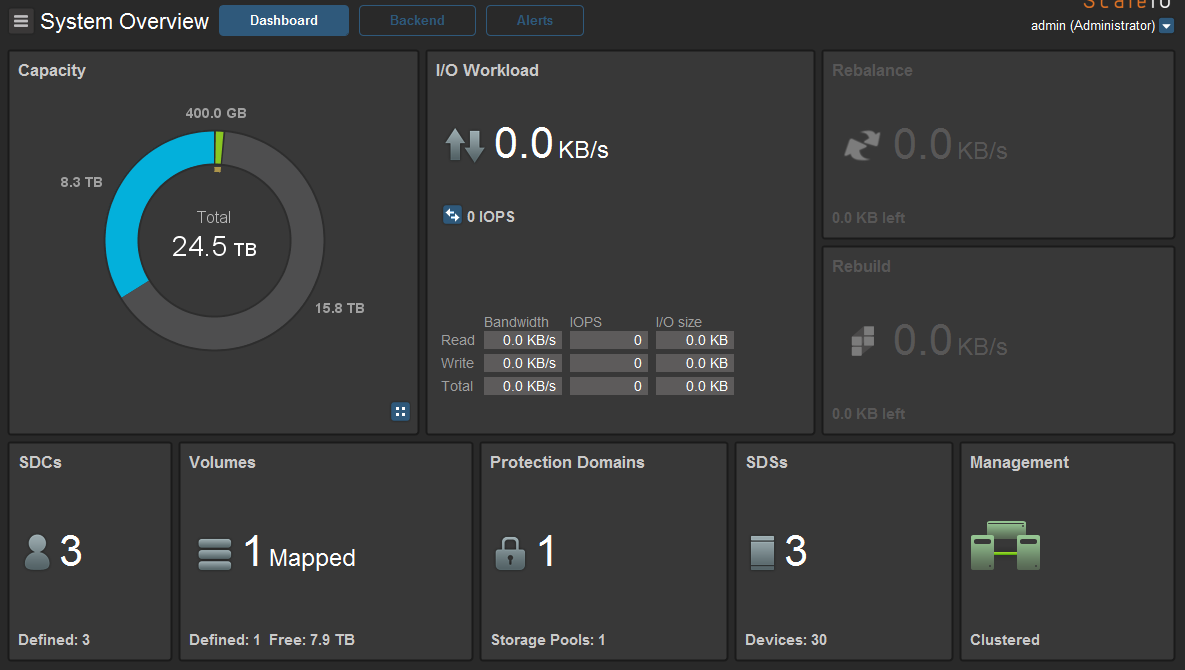
提醒:系统闲置且运行状况良好的指示是零 IOPS 或每秒零字节。
3.5+ 演示服务器:

- 关闭除 SVM 以外的 所有虚拟机。
- 卸载相关数据存储区。
提醒:如果此步骤因任何原因失败,请转至下一步。重新扫描数据存储区后重新装载数据存储区时,应该会成功。如果没有,则主机重新启动将解决所有数据存储区装载问题。
在 PowerFlex 上:
- 从 SDC 取消映射卷。
提醒:如果并非所有卷都映射到所有 SDC, 请确保在继续执行此步骤之前记下SDC <-> 卷映射。
- 使用 CLI 或 UI 停用保护域:
提醒:停用保护域会导致所有 IOPS 停止(需要停机)
CLI:
ScaleIO:~ # scli --inactivate_protection_domain --protection_domain_name PD00
All application IOs will not be serviced. Press 'y' to confirm.
Protection Domain PD00 is being shutdown asynchronously
Please wait for the operational state of the Protection Domain to become 'Inactive'
3.0 用户界面:
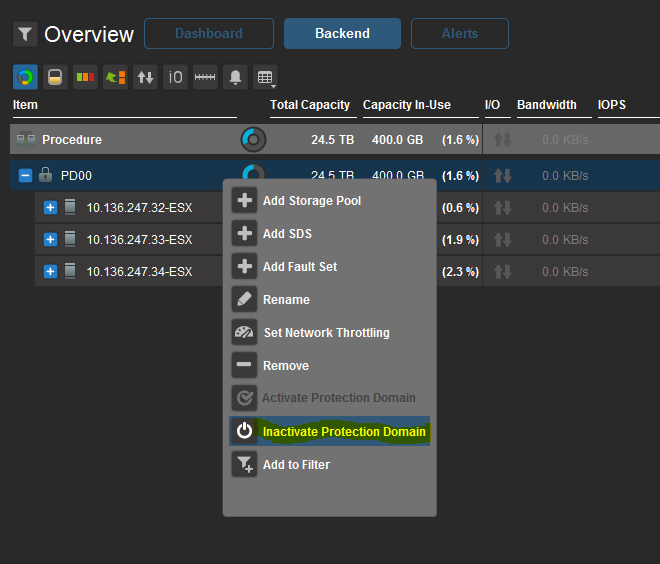
右键单击 Protection Domain (在Backed部分 > ),选择 Inactivate Protection Domain, 然后选择Confirm Operation with Password。
3.5+ 演示服务器:
单击Protection Domains>,单击该复选框以选择与要关闭>的系统关联的保护域,然后单击More>,单击Inactivate。

通过输入密码确认您想要停用保护域,>单击INACTIVATE。

- 验证保护域是否已停用:
ScaleIO:~ # scli --query_protection_domain --protection_domain_name PD00 | grep Oper
Operational state is Inactive
在 ESXi 上:
- 关闭具有仅 SDS角色的 SVM,但首先记下托管 MDM 角色的 SVM 名称,然后关闭具有 MDM/SDS 角色的其余 SVM。
- 将群集中的所有 ESXi 主机 置于 维护模式 ,并关闭物理主机。
HCI 存储和计算组件应完全关闭。
两层关闭过程。
仅计算层:
- 关闭 使用 PowerFlex 存储的计算群集中的所有虚拟机。
- 卸载所有相关的 PowerFlex 数据存储区。请参阅 VMware 文章 VMware vSphere 7.0 存储
以获得帮助。
- 将 ESXi 主机 置于 维护模式 并关闭
- 从计算到存储后端的所有 I/O 都应停止。请参阅文章开头的步骤 1 和 2 进行验证。
- 将 保护域 设置为 非活动。
- 登录到 主 MDM 并运行:
scli --query_cluster.
- 记下主机名和角色。您需要此信息才能完成启动订单过程。
- 首先关闭所有具有仅 SDS 角色的 SO 节点。
- 关闭 具有 TB 角色的 SO 节点。
- 关闭 具有辅助 MDM 角色的 SO 节点。
- 关闭拥有主 MDM 角色的 SO 节点。
存储和计算组件层应完全关闭。
两层开机步骤:
有关 SDC 和卷重新扫描示例,请参阅 HCI 开机步骤 。
在仅存储层上:
- 打开 拥有主 MDM 角色的 SO 节点。
- 打开电源 具有辅助 MDM 角色的 SO 节点
- 打开电源 具有 TB 角色的 SO 节点
- 全部开机 具有仅 SDS 角色的 SO 节点
- 激活 保护域。
仅计算层:
- 打开 所有计算主机并退出 ESXi 维护模式
- 将 PowerFlex 卷装载到 ESXi 主机。请参阅 VMware 文章 VMware vSphere 7.0 存储
- 打开计算托管的虚拟机的电源。
HCI 开机步骤:
在 ESXi 上:
- 打开 所有 ESXi 主机并退出维护模式。
- 首先打开具有 MDM 角色的所有五个 SVM。然后打开具有“仅 SDS”角色的其余 SVM。
在 PowerFlex 上:
- 使用 CLI 验证系统运行状况并确保所有 PowerFlex 系统组件均已启动并运行。
SDS:
ScaleIO-10-136-243-8:~ # scli --query_all_sds
Query-all-SDS returned 3 SDS nodes.
Protection Domain 9d4a73f100000000 Name: PD00
SDS ID: a764dbaf00000002 Name: 10.136.247.32-ESX State: Connected, Joined IP: 10.10.10.132,10.10.100.132 Port: 7072
SDS ID: a764b4a000000001 Name: 10.136.247.34-ESX State: Connected, Joined IP: 10.10.10.134,10.10.100.134 Port: 7072
SDS ID: a764b49f00000000 Name: 10.136.247.33-ESX State: Connected, Joined IP: 10.10.10.133,10.10.100.133 Port: 7072
SDC:
ScaleIO-10-136-243-8:~ # scli --query_all_sdc
MDM restricted SDC mode: Disabled
Query all SDC returned 3 SDC nodes.
SDC ID: bb292e1300000000 Name: ESX-10.136.247.33 IP: 10.10.100.33 State: Connected GUID: 9126907D-8830-44BC-8ECE-178852394E76
    Read bandwidth:  0 IOPS 0 Bytes per-second
    Write bandwidth:  0 IOPS 0 Bytes per-second
SDC ID: bb292e1400000001 Name: ESX-10.136.247.34 IP: 10.10.100.34 State: Connected GUID: 500D185D-E0F6-4257-9C24-65BCAAC5B50B
    Read bandwidth:  0 IOPS 0 Bytes per-second
    Write bandwidth:  0 IOPS 0 Bytes per-second
SDC ID: bb29552300000002 Name: ESX-10.136.247.32 IP: 10.10.10.32 State: Connected GUID: CF3CA597-BD9A-46E5-A08F-F6BBB9433A83
    Read bandwidth:  0 IOPS 0 Bytes per-second
    Write bandwidth:  0 IOPS 0 Bytes per-second
- 激活 保护域:
PowerFlex CLI:
ScaleIO-10-136-243-8:~ # scli --activate_protection_domain --protection_domain_name PD00
Protection Domain PD00 is active
3.0 用户界面:
- 右键单击 Protection Domain (在Backed部分 > ),选择 Activate Protection Domain

- 使用密码确认作
3.5+ 演示服务器:
- 单击Protection Domains>,单击复选框以选择与正在启动>的系统关联的保护域,然后单击More>,单击Activate。


- 驗證 保护域状态:
ScaleIO-10-136-243-8:~ # scli --query_protection_domain --protection_domain_name PD00 | grep -i Oper
Operational state is Active
- 映射所有卷(如果并非所有卷都映射到 SDC,请确保遵循在取消映射之前记下的注释)
- 装载相关数据存储区。
- 验证客户端和 SDC 的连接状态
提醒:完成完整的系统重新启动后,PowerFlex 卷上托管的虚拟机处于 无法访问 状态。要重新获得对数据存储区的完全访问权限,请使用 UI 或 vSphere Client 或 ESXCLI 执行数据存储区重新扫描。如果不成功,则主机重新启动将解决所有数据存储区装载问题。
UI 或 vSphere Client:
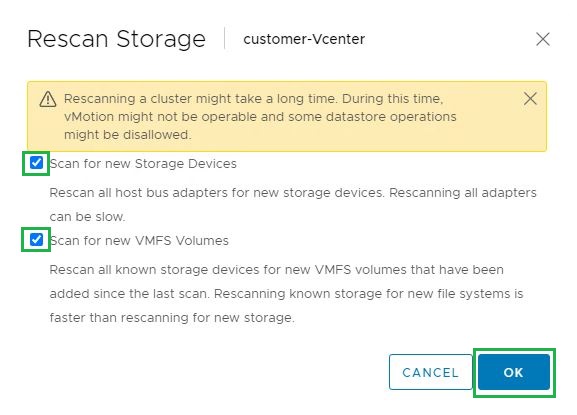
- 右键单击群集级别或数据中心级别>存储 >重新扫描存储。

- 默认情况下,这两个复选框都处于选中状态。单击确定
ESXCLI:
~ # esxcli storage filesystem rescan
~ # esxcli storage filesystem list
Mount Point                                        Volume Name   UUID                                 Mounted  Type            Size          Free
-------------------------------------------------  ------------  -----------------------------------  -------  ------  ------------  ------------
/vmfs/volumes/56b34f54-26baa940-9c22-90e2ba7db974  datastore1    56b34f54-26baa940-9c22-90e2ba7db974     true  VMFS-5  890937278464  869082857472
/vmfs/volumes/56b88587-b128dfa0-bae3-90e2ba7db974  Scaleio-VOL0  56b88587-b128dfa0-bae3-90e2ba7db974     true  VMFS-5  214479929344  159767330816
/vmfs/volumes/56b34f59-17132a1c-c5ab-90e2ba7db974                56b34f59-17132a1c-c5ab-90e2ba7db974     true  vfat      4293591040    4283039744
/vmfs/volumes/8c458879-8851767e-1bfc-1bc275a81828                8c458879-8851767e-1bfc-1bc275a81828     true  vfat       261853184      96518144
/vmfs/volumes/4291fa71-b2e69ac1-2a3d-467dc1160ff0                4291fa71-b2e69ac1-2a3d-467dc1160ff0     true  vfat       261853184      96346112
/vmfs/volumes/56b34f44-ee30fc1f-8426-90e2ba7db974                56b34f44-ee30fc1f-8426-90e2ba7db974     true  vfat       299712512      96813056
PowerFlex 机架或设备计算和存储应完全正常运行。您可以继续虚拟机开机。
Products
PowerFlex rack, VxFlex Ready Nodes, PowerFlex custom node, PowerFlex appliance R650, PowerFlex appliance R6525, PowerFlex appliance R760, PowerFlex appliance R640, PowerFlex appliance R740XD, PowerFlex appliance R7525, PowerFlex appliance R840Article Properties
Article Number: 000021739
Article Type: How To
Last Modified: 10 Oct 2025
Version: 12
Find answers to your questions from other Dell users
Support Services
Check if your device is covered by Support Services.