Error message "Video_TDR_Failure" on XPS 9550 and Precision 5510
Summary: How to resolve this error message and/or screen flickering on these XPS 9550/Precision 5510 systems.
This article applies to
This article does not apply to
This article is not tied to any specific product.
Not all product versions are identified in this article.
Symptoms
On the XPS 9550 or Precision 5510 you may encounter the following issues:
- VIDEO_TDR_FAILURE Error (Crash Screen)
- Screen Flickering or Flashing
- BSOD( igdkmd64.sys)
Resolution
Re-install the video driver once again from the Dell Drivers and Downloads site and then perform the following steps
1.Follow the path C:\Windows\System32\Drivers & locate the file with the name nvlddmkm.sys
2. Right click to Rename it as nvlddmkm.sys.old
 3. If you see this notification, just press OK to continue

4. Then go to NVIDIA directory (usually in C:\Nvidia or C:\drvvganVidia) and find the file nvlddmkm.sy_. Or you can just type the name into the search box. Copy this file and Paste it to your Desktop or C:\\ drive.
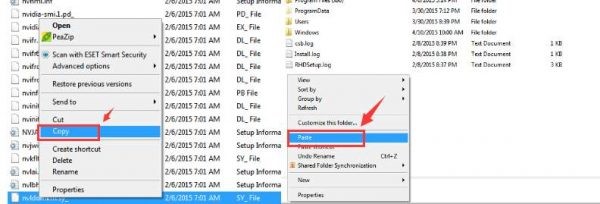
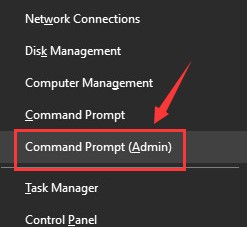
5. Press Windows key and X at the same time, then choose Command Prompt (Admin)
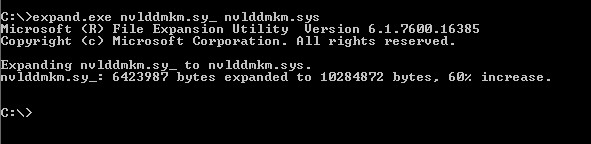
6. In Command Prompt window, type the instruction "cd.. " then "cd.." again, then type in the command: expand.exe nvlddmkm.sy_ nvlddmkm.sys
7. Hit Enter
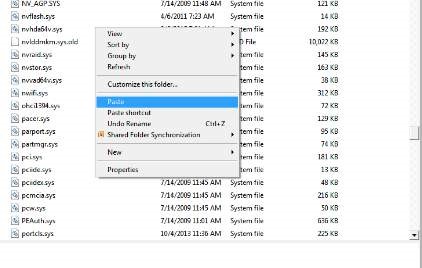
8. Go to C:\ drive again and copy the newly created file nvlddmkm.sys

9. Then paste into the C:\Windows\System32\Drivers folder
In case, the nvlddmkm.sys file is not found under C:\Windows\System32\Drivers, follow the steps below to copy the file to the desired location.
1.Follow the path C:\Windows\System32\Drivers & locate the file with the name nvlddmkm.sys
2. Right click to Rename it as nvlddmkm.sys.old
7. Hit Enter
- Browse to C:\ProgramFiles\Nvidia Corporation & search for nvlddmkm.sy_ . Copy the file & paste it to C: Drive
- Open Command Prompt & select C:\ ( Type the instruction "cd.. " then "cd.." again )
- Type "expand.exe nvlddmkm.sy_ nvlddmkm.sys"
- Copy the nvlddmkm.sys file which will be created on the C Drive
- Paste the File to C:\Windows\System32\Drivers & restart the system
- If you still experience a flickering issue please also re-install your graphics card driver from the Dell Drivers and Downloads site.
Affected Products
Precision 5510, XPS 15 9550Article Properties
Article Number: 000143121
Article Type: Solution
Last Modified: 20 Nov 2020
Version: 2
Find answers to your questions from other Dell users
Support Services
Check if your device is covered by Support Services.