如何从带外获得对 Dell Command Intel vPro 的支持
Summary: 本文介绍如何获得对 Dell Command |英特尔博锐带外。
This article applies to
This article does not apply to
This article is not tied to any specific product.
Not all product versions are identified in this article.
Instructions
受影响的产品:
- Dell Command | Intel vPro Out of Band
受影响的操作系统:
- Windows Server 2011
- Windows Server 2012
- Windows Server 2012 R2
- Windows Server 2016
- Windows Server 2019 Essentials
Dell Command |适用于 Windows Server 2011/2012/2012 R2/2016/2019 Essentials 的英特尔博锐带外应用程序是一款易于使用的应用程序,可提供带外管理解决方案。该应用程序允许您远程管理客户端计算机,而不管计算机的电源状态如何。
自助选项
大多数技术信息可以通过参考以下项找到:
自助选项
大多数技术信息可以通过参考戴尔知识库找到。
要获得支持:
- 转至 https://www.dell.com/support/home。
- 在页面右侧,选择 Contact Support ,然后单击以下任一项:
- Contact Technical Support:如果有可用的戴尔服务编号。
- Contact Order Support:如果没有戴尔服务编号且需要帮助才能访问软件。
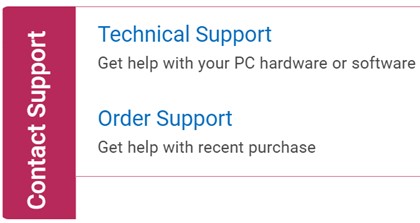
图 1:(仅限英文)单击“Contact Us”
- 单击 Enter service tag。
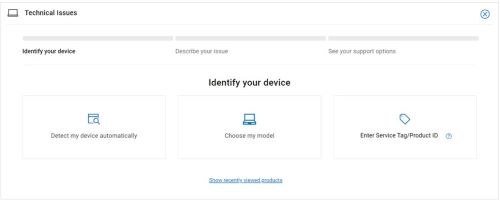
图 2:(仅限英文)识别您的设备
- 键入客户端(而非服务器)服务编号 ,然后单击 Submit。
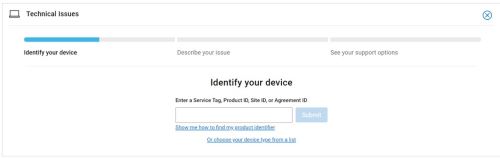
图 3:(仅限英文)输入您的服务编号并单击“Submit”
- 确认您的 型号 和服务 编号,然后单击 下一步。
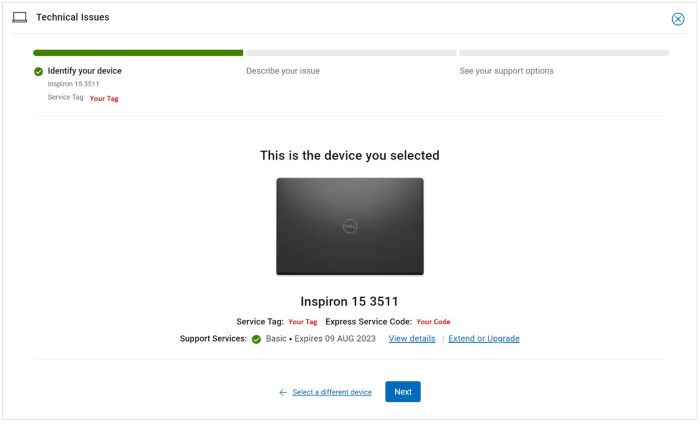
图 4:(仅限英文)确认您的型号和服务编号
- 从下拉菜单中,选择 Software and 3rd party applications,然后单击 Next。
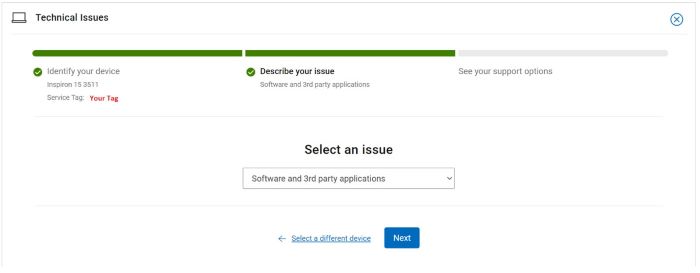
图 5:(仅限英文)选择“Software and 3rd party applications”
- 选择可用的联系人选项。
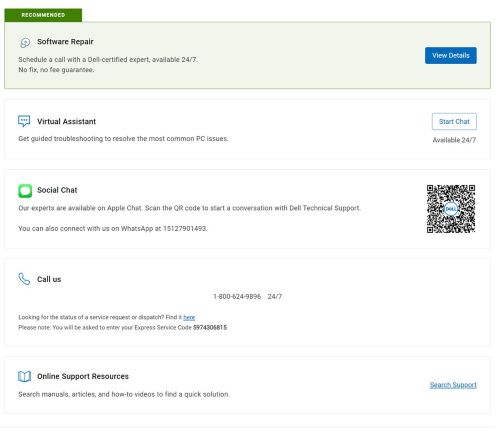
图 6:(仅限英文)选择联系人选项
- 键入您的订单编号,然后单击 Find My Order。
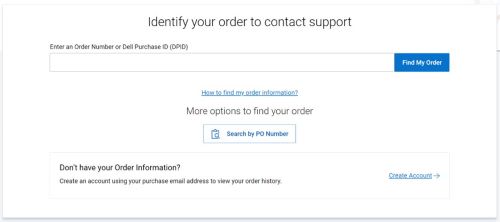
图 7:(仅限英文)单击“Find My Order”
- 在页面右侧,单击 Contact Customer Support。

图 8:(仅限英文)单击“Contact Customer Support”
- 从下拉列表中,选择 Missing Items。
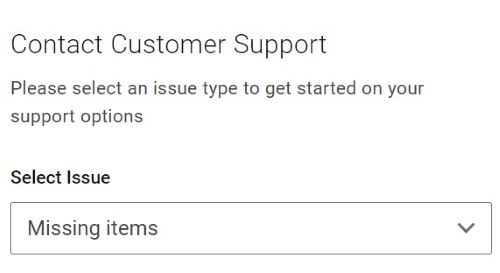
图 9:(仅限英文)选择“Missing or Wrong Items”
- 选择可用的联系人选项。
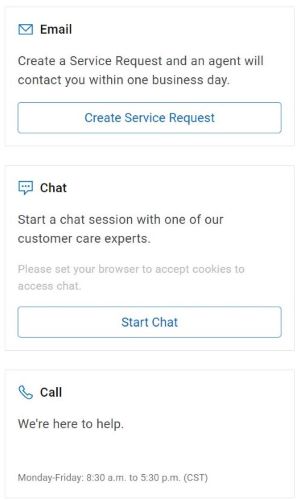
图 10:(仅限英文)选择联系人选项
提醒:
- 联系方式选项可能因地区而异。
- 联系技术支持时,请参阅本文 (000189148)。
Additional Information
Videos
Affected Products
Dell Command | Intel vPro Out of BandArticle Properties
Article Number: 000189148
Article Type: How To
Last Modified: 13 Jun 2024
Version: 16
Find answers to your questions from other Dell users
Support Services
Check if your device is covered by Support Services.