PowerEdge:在 SLI 中运行压力测试 Support Live Image。
Summary: 本文介绍了在SLI Support Live Image中运行压力测试的最基本和最有效的方法,目的是对已安装作系统之外的硬件施加压力。
This article applies to
This article does not apply to
This article is not tied to any specific product.
Not all product versions are identified in this article.
Instructions
Stressapptest 对 CPU 和内存施加压力
提醒:建议仅使用 stressapptest。《SLI 用户指南》中引用了实用程序 stress,但 stressapptest 最近通过更新进行了维护,建议在 stress 实用程序之上使用。
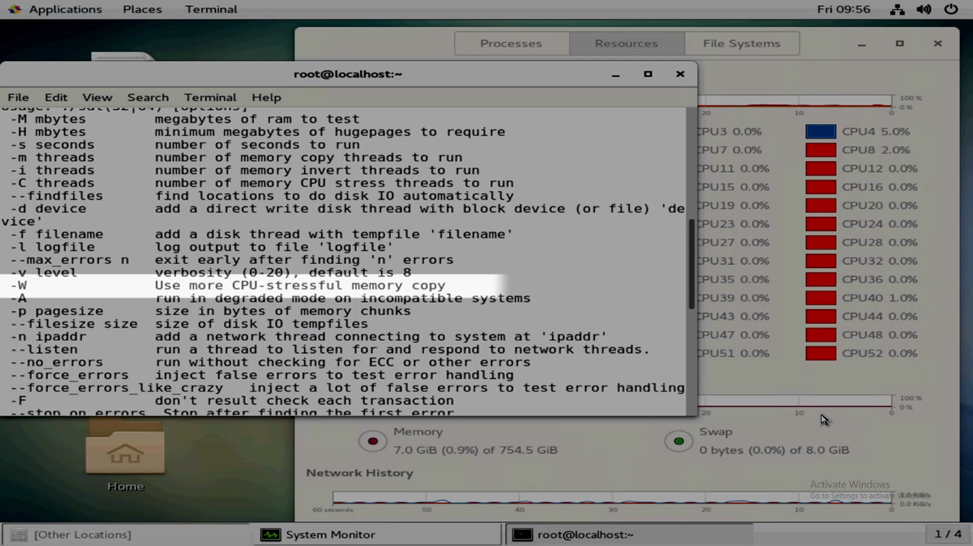
Stressapptest 参数:
stressapptest 的手册可在此处
找到:在 SLI 中,如果您键入的命令包含连字符,但未定义参数:

stressapptest -
它输出可以使用的可用参数。
提醒:最常见的利用方式是对 CPU 和内存施加压力。如果需要额外的压力,例如对存储和驱动器施加压力,请联系戴尔技术支持。
对于大多数用途, -W 参数会导致更多的 CPU 密集型压力,并且 -s 参数可用于指定定义的时间。

示例 1: 不带参数的 stressapptest
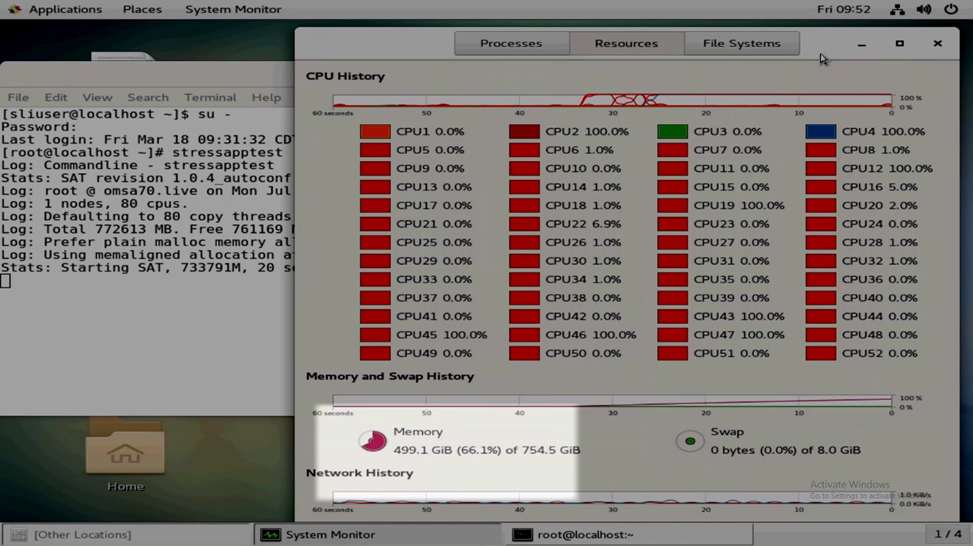
在左上角,打开 应用程序>系统工具>系统监视器。我们可以使用“Resources”选项卡查看 CPU 和内存利用率。

右键单击桌面并选择“在终端中打开”或在左上角 的应用程序 >收藏夹 >终端中打开终端,以打开终端。
更改为 root 用户,然后运行不带参数的 stressapptest 。
您注意到内存已尽可能饱和。该实用程序会为继续运行所需的功能留出一些可用内存。内存饱和后,您会注意到 CPU 将飙升至 100%。由于未输入任何参数,因此测试仅运行 20 秒。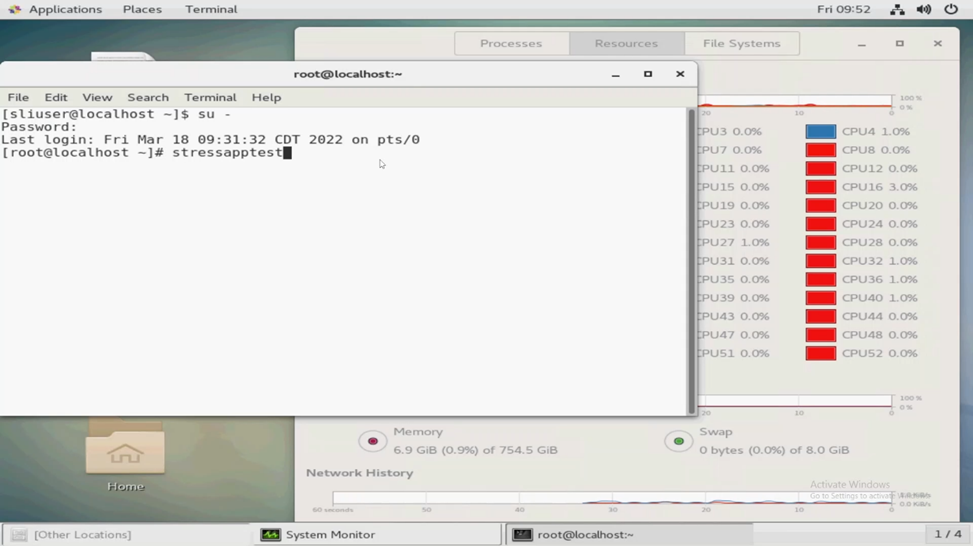

示例 2: stressapptest 用于具有规定长度的 CPU 和内存
我们可以运行 stressapptest -W -s X,其中 X 是定义的时间(以秒为单位)。例如:
stressapptest -W -s 300
上面的示例运行 stressapptest 5分钟。
在下面的示例中,我们定义了大量的秒数,因此测试将运行数天。

Additional Information
请观看此视频:
Affected Products
Support Live Image, Support Live ImageProducts
C Series, Modular Infrastructure, Rack Servers, Tower Servers, OEM Server SolutionsArticle Properties
Article Number: 000198650
Article Type: How To
Last Modified: 10 Mar 2025
Version: 9
Find answers to your questions from other Dell users
Support Services
Check if your device is covered by Support Services.