Dell Networking SONiC: WINSCP와 같은 소프트웨어와 함께 SCP 프로토콜을 사용하여 SONiC 업그레이드 또는 다운그레이드
Summary: 이 문서에서는 WINSCP 애플리케이션에서 SCP 프로토콜을 사용하는 Dell Networking SONiC 업그레이드 또는 다운그레이드에 대해 설명합니다.
This article applies to
This article does not apply to
This article is not tied to any specific product.
Not all product versions are identified in this article.
Instructions
참고: SCP 프로토콜을 지원하는 모든 애플리케이션을 사용하여 스위치에 펌웨어 파일을 업로드할 수 있습니다. 이 기사에서는 WINSCP 응용 프로그램을 사용하여 프로세스를 보여 줍니다.
단계:
- 스위치에 SONiC 파일을 복사할 충분한 공간이 있는지 확인합니다. 다음 명령을 사용합니다.
df /home -h
샘플 출력
admin@sonic:~$ df /home -h
Filesystem      Size  Used Avail Use% Mounted on
root-overlay     29G  5.0G   23G  18% /
- WINSCP를 사용하여 스위치에 로그인합니다. SCP를 파일 프로토콜로 사용합니다.

- 파일을 스위치에 복사하고 파일 경로를 기록해 둡니다. 아래에서 파일 경로는 /home/admin입니다.
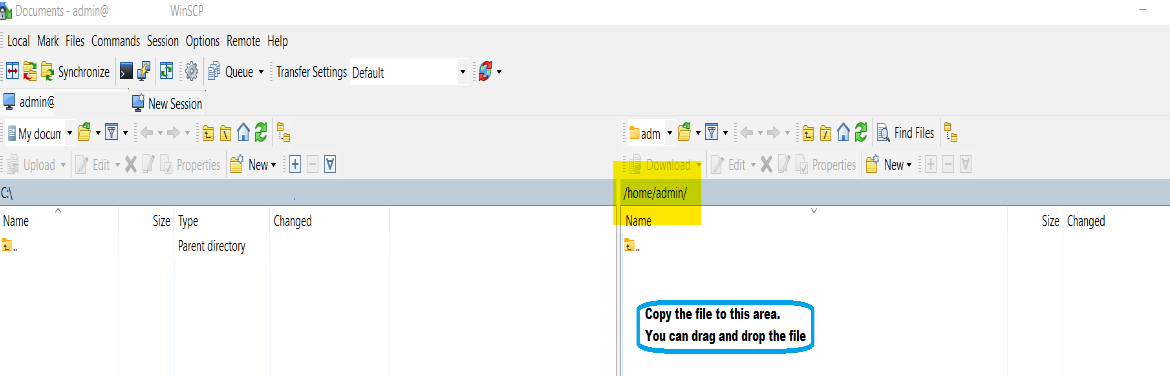
아래는 파일을 성공적으로 복사한 후의 스크린샷 샘플입니다. SONiC 업그레이드 파일의 파일 이름은 Enterprise_SONiC_OS_4.0.5_Edge_Standard.bin입니다.

SSH와 PuTTY와 같은 터미널 애플리케이션을 사용하여 스위치에 로그인합니다.
참고: 이미지 설치 명령을 실행하기 전에 write memory 명령을 사용하여 구성을 저장했는지 확인하십시오. 그러면 구성이 백업되어 있습니다.
다음은 사용 중인 명령 목록입니다.
| 명령 | 설명 |
|---|---|
admin@sonic:~$ sonic-cli |
Dell SONiC에 로그인 |
sonic# dir home:/ |
SONiC 버전 파일이 홈 디렉토리에 올바르게 복사되었는지 확인합니다. |
sonic# write memory |
구성 저장 |
sonic# image install file://<File path>/<Install File.bin> |
파일을 설치합니다. 전체 파일 경로를 사용해야 합니다. 예: /home/admin/ |
sonic# show image status |
이미지 설치 진행률을 확인합니다. |
sonic# show image list |
이미지 목록 표시 |
sonic# reboot |
재부팅 스위치 |
sonic# show version |
Sonic 버전 표시 |
선택적 명령:
| 명령 | 설명 |
|---|---|
sonic# image set-default <Image file> |
적절한 SONiC 이미지가 Next로 선택되지 않은 경우 수동으로 구성합니다. |
sonic# image remove <all/image file> |
공간을 절약하기 위해 이전 펌웨어를 제거하십시오. |
샘플 출력:
- Dell SONiC에 로그인합니다. 다음 명령을 사용합니다.
sonic-cli

admin@sonic:~$ sonic-cli
sonic#
- 다음 명령을 사용하여 파일이 제대로 복사되었는지 확인합니다.
dir home:/

sonic# dir home:/
-------------------------------------------------------------------------
Date(Last Modified)      Size(Bytes)    Type      Filename
-------------------------------------------------------------------------
2023-02-23 19:22         1032101870     -         Enterprise_SONiC_OS_4.0.5_Edge_Standard.bin
- 구성을 저장합니다. 다음 명령을 사용합니다.
write memory

sonic# write memory
- Dell SONiC을 설치합니다. 전체 파일 경로(예: /home/admin/File-name.bin)를 사용해야 합니다. 명령 이미지 설치 파일 사용:
//<File path>/<Install File.bin>

sonic# image install file://home/admin/Enterprise_SONiC_OS_4.0.5_Edge_Standard.bin
%Info: Check 'show image status' for image install progress.
- 다음 명령을 사용하여 이미지 설치 진행률을 확인합니다.
show image status

sonic# show image status
-----------------------------------------------------------
Global operation status  : GLOBAL_STATE_SUCCESS
-----------------------------------------------------------
File operation status    : TRANSFER_VALIDATION
File size(bytes)         : 0
File transfer bytes      : 0
File download speed      : 0 KB/s
File progress            : 100%
Transfer start time      : 2022-09-30 17:42:22+0000
Transfer end time        : 2022-09-30 17:42:22+0000
-----------------------------------------------------------
Install operation status : INSTALL_STATE_SUCCESS
Install start time       : N/A
Install end time         : N/A
sonic#
- 다음 명령을 사용하여 새 버전이 다음 부팅 파일로 선택되었는지 확인합니다.
show image list

sonic# show image list
Current: SONiC-OS-4.0.3-Campus
Next: SONiC-OS-4.0.5-Campus
Available:
SONiC-OS-4.0.5-Campus
SONiC-OS-4.0.3-Campus
(선택 사항) 적절한 SONiC 이미지가 Next로 선택되지 않은 경우 수동으로 구성합니다. 일반적으로 이것은 필요하지 않습니다.
sonic# image set-default SONiC-OS-4.0.5-Campus
- 재부팅
sonic#
sonic# reboot
reboot in process .....
Waiting for the reboot operation to complete
- 재부팅 후 SONiC이 업그레이드되었는지 확인합니다(간결하게 출력을 잘라냄).
admin@sonic:~$ sonic-cli
sonic# show version

Software Version  : 4.0.5-Campus
Product           : Enterprise SONiC Distribution by Dell Technologies
- 업그레이드 후 SONiC 파일이 홈에서 삭제되었는지 확인합니다(일반적으로 자체적으로 삭제됨).
sonic# dir home:/
-------------------------------------------------------------------------
Date(Last Modified)      Size(Bytes)    Type      Filename
-------------------------------------------------------------------------
sonic#
(선택 사항) Dell SONiC 파일이 삭제되지 않은 경우 다음 명령을 사용하여 삭제합니다.
delete home://<filename>

sonic# delete home://Enterprise_SONiC_OS_4.0.5_Edge_Standard.bin
Proceed to delete home://Enterprise_SONiC_OS_4.0.5_Edge_Standard.bin? [y/N]:y

sonic# dir home:/
-------------------------------------------------------------------------
Date(Last Modified)      Size(Bytes)    Type      Filename
-------------------------------------------------------------------------
Affected Products
Enterprise SONiC Distribution, PowerSwitch E3200-ON Series, Dell EMC Networking N3200-ON, PowerSwitch S5212F-ON, PowerSwitch S5224F-ON, PowerSwitch S5232F-ON, PowerSwitch S5248F-ON, PowerSwitch S5296F-ON, PowerSwitch Z9100-ON, PowerSwitch Z9264F-ONArticle Properties
Article Number: 000212674
Article Type: How To
Last Modified: 11 Apr 2024
Version: 4
Find answers to your questions from other Dell users
Support Services
Check if your device is covered by Support Services.