PowerProtect Data Manager: VM Restore Stops Responding and Fails with Data Domain Certificate Issue
Summary: PowerProtect Data Manager VM restore stops responding and then fails with the error "The operation was unsuccessful because of an issue with the certificate. Verify that the certificate was accepted." ...
This article applies to
This article does not apply to
This article is not tied to any specific product.
Not all product versions are identified in this article.
Symptoms
Error message:
YYYY-MM-DDTHH:MM:SS.956Z INFO [request-dispatch-service-1] [][][][][] [c.e.b.d.c.r.c.DdRestClient.dataDomainLogin(236)] -  hostname=mynas-dd####.abc.local url=https://mynas-dd####.abc.local:3009/rest/v1.0/auth
YYYY-MM-DDTHH:MM:SS.222Z ERROR [request-dispatch-service-1] [][][][][] [c.e.b.d.c.r.c.DdRestClient.executeDataDomainAuthRequest(281)] -  issue with certificate when execute request
YYYY-MM-DDTHH:MM:SS.222Z ERROR [request-dispatch-service-1] [][][][][] [c.e.b.d.c.r.c.DdRestClient.executeDataDomainAuthRequest(285)] -  Exception when trying to login, PowerProtect DD System = mynas-dd####.abc.local, error = The operation was unsuccessful because of an issue with certificate.  Verify that the certificate was accepted.
Cause
Expired Data Domain certificate is causing PowerProtect Data Manager VM restore to fail.
Resolution
Renew the expired Data Domain certificate using PPCP command line utility:
- Setup PPCP script permission
Run
admin@my-ppdm:~> sudo chmod 755 /home/admin/bin/ppcp
admin@my-ppdm:~> cd /home/admin/bin/ppcp
- List the Certificates to validate the
port: 3009andstate showing expired
Run
admin@my-ppdm:~> ./ppcp certs list
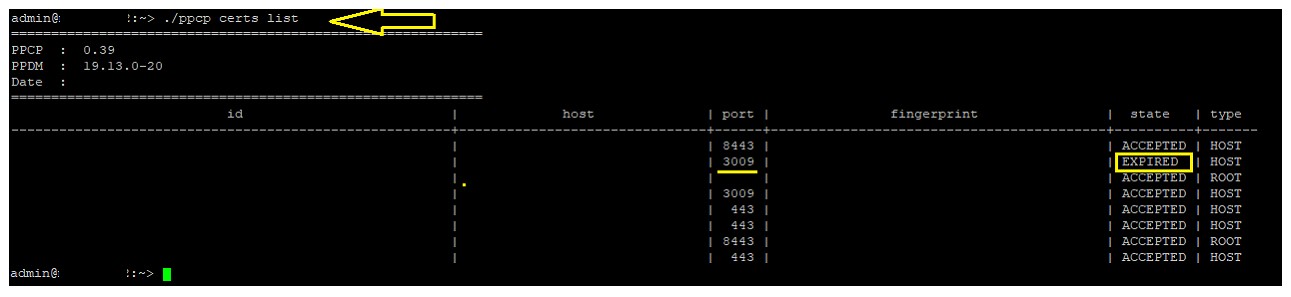
- Run certificate update command to update the Data Domain certificate. this renews the certificate removing expired.
Run below command using the actual <certid>

admin@my-ppdm:~> ./ppcp certs update --host mynas-dd####.abc.local --port 3009
- Restart VMDM service
Run
admin@my-ppdm:~> vmdm restart
admin@my-ppdm:~> vmdm status
- Restart VPOD service
Run
admin@my-ppdm:~> systemctl restart vpod
admin@my-ppdm:~> systemctl status vpod
- Restart vproxyd service
Run
admin@my-ppdm:~> systemctl restart vproxyd
admin@my-ppdm:~> systemctl status vproxyd
- Test the PPDM VM Restore again.
Products
PowerProtect SoftwareArticle Properties
Article Number: 000218428
Article Type: Solution
Last Modified: 21 Aug 2026
Version: 4
Find answers to your questions from other Dell users
Support Services
Check if your device is covered by Support Services.