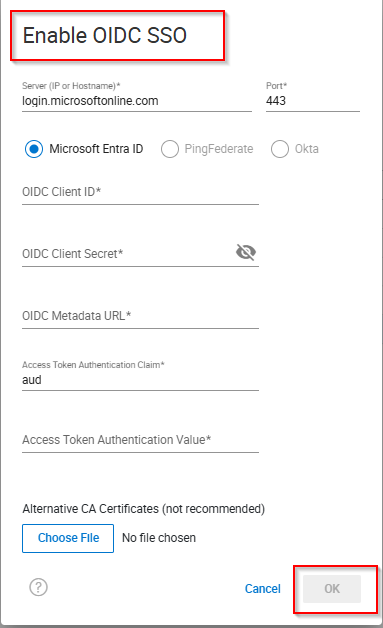
Unisphere For PowerMax 10.3: How to enable OIDC SSO

Summary: This KB article describes how to configure or enable OpenID Connect (OIDC) Single Sign-On (SSO) in Unisphere for PowerMax.

This article applies to This article does not apply to This article is not tied to any specific product. Not all product versions are identified in this article.

Instructions

Configuring OIDC SSO is available from Unisphere for PowerMax version 10.3.0 and later versions. 


Steps

  1. Go to Settings 

  2. Select Users and Groups > Authentication.

  3. Select the Authentication Authority to use during login. Possible value is OIDC SSOWhen OIDC SSO is enabled, you can log in using OIDC SSO.

  4. If you are configuring OIDC SSO, click Enable or Modify and do the following:

    Specify values for the following parameters:
    • Server (IP or Hostname)—IP address or hostname of the OIDC SSO server to use for authentication. Only alphanumeric characters are allowed. Microsoft Entra ID is selected by default.
    • Port—Port number
    • OIDC Client ID—Client identity
    • OIDC Client Secret—Client password
    • OIDC Metadata URL —Client password
    • To upload a root CA certificate of the OIDC SSO server, click Choose File, locate the certificate, and click Open. To clear the file selection, click Clear.
  5. Click OK.
    Settings >> Authentication  

         OIDC SSO 


Affected Products

Unisphere for PowerMax
Article Properties
Article Number: 000380006
Article Type: How To
Last Modified: 19 Dec 2025
Version:  3
Find answers to your questions from other Dell users
Support Services
Check if your device is covered by Support Services.