Windows Server:リモート デスクトップ プロトコルを設定する方法
Summary: この記事では、Windows Server 2008からWindows Server 2016を実行しているサーバーで、Windowsグラフィカル ユーザー インターフェイス(GUI)を使用してリモート デスクトップを有効にする方法について説明します。
This article applies to
This article does not apply to
This article is not tied to any specific product.
Not all product versions are identified in this article.
Instructions
この記事では、Windows Server 2008からWindows Server 2016を実行しているサーバーで、Windowsグラフィカル ユーザー インターフェイス(GUI)を使用して リモート デスクトップ を有効にする方法について説明します。
次のものに適用されます。
- Windows Server 2008
- Windows Server 2008 R2
- Windows Server 2012
- Windows Server 2012 R2
- Windows Server 2016
リモートデスクトップの有効化
- システムのプロパティを開きます。
- Windows Server 2012~Windows Server 2016の場合:
- デスクトップで、Windowsキー+Xキーを押して[Quick Access Menu(クイック アクセス メニュー)]を開き、[System]を選択します
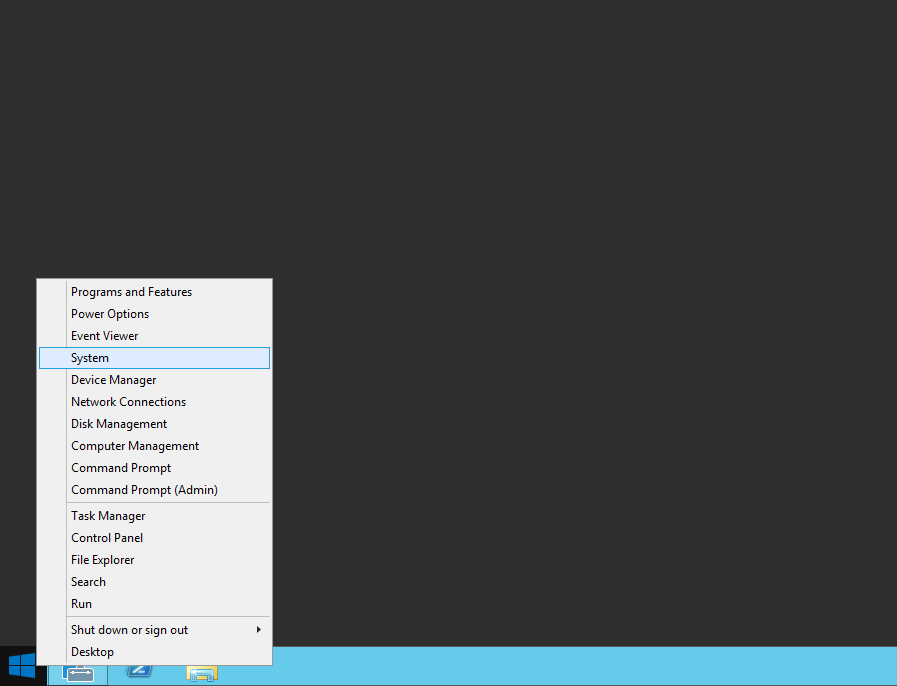
- デスクトップで、Windowsキー+Xキーを押して[Quick Access Menu(クイック アクセス メニュー)]を開き、[System]を選択します
- Windows Server 2008~Windows Server 2008 R2の場合:
- [サーバー マネージャー]を開きます。サーバー マネージャーを開くには、[スタート]をクリックし、[管理ツール]を選択し、[サーバー マネージャー]をクリックします。
- [サーバー マネージャー]を開きます。サーバー マネージャーを開くには、[スタート]をクリックし、[管理ツール]を選択し、[サーバー マネージャー]をクリックします。
- Windows Server 2012~Windows Server 2016の場合:
- コンピュータ情報 で、リモートデスクトップの設定 をクリックします。
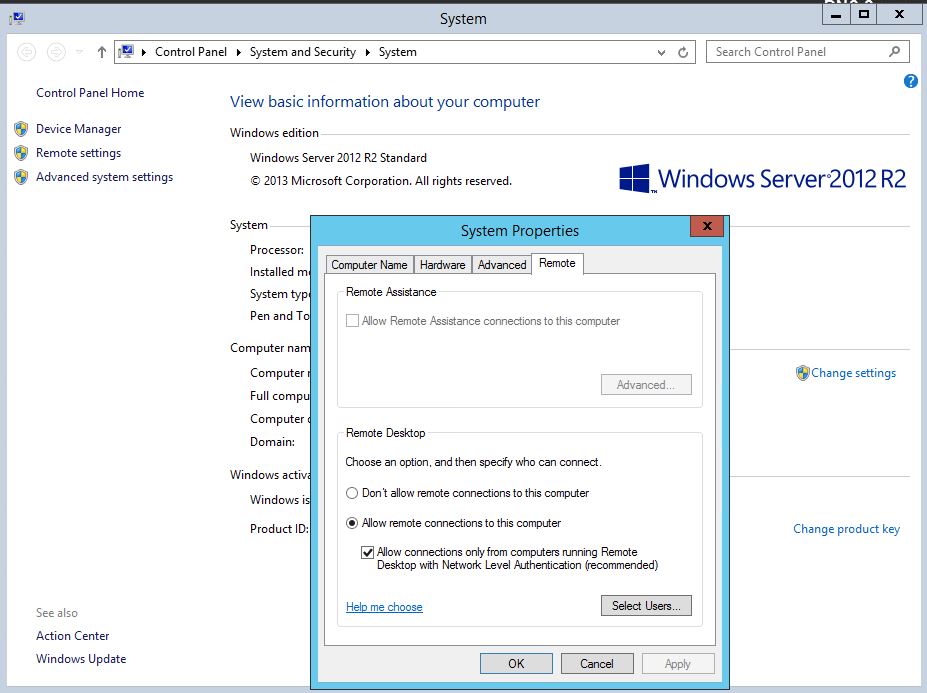
- [システムのプロパティ]ダイアログ ボックスの[リモート デスクトップ]で、次のオプションのいずれかをクリックします。
- どのバージョンのリモート デスクトップを実行しているコンピューターからも接続を許可する(安全性が低い)- このサーバーへの接続に使用するリモート デスクトップ接続のバージョンがわからない場合は、このオプションを使用します。
- ネットワーク レベル認証によりリモート デスクトップを実行しているコンピューターからのみ接続を許可します(より安全です)。
- [リモート デスクトップ]ダイアログ ボックスの情報を確認し、[OK]を2回クリックします。
Affected Products
Microsoft Windows Server 2016, Microsoft Windows 2008 Server R2, Microsoft Windows 2008 Server Service Pack 2, Microsoft Windows 2012 Server, Microsoft Windows 2012 Server R2Article Properties
Article Number: 000121878
Article Type: How To
Last Modified: 29 Nov 2024
Version: 6
Find answers to your questions from other Dell users
Support Services
Check if your device is covered by Support Services.