How to Remove a Device from the Dell Threat Defense Administration Console
Summary: Learn about how devices can be removed from the Dell Threat Defense administration console by following these instructions.
This article applies to
This article does not apply to
This article is not tied to any specific product.
Not all product versions are identified in this article.
Instructions
Note:
- As of May 2022, Dell Threat Defense has reached End of Maintenance. This product and its articles are no longer updated by Dell. For more information, reference Product Life Cycle (End of Support and End of Life) Policy for Dell Data Security. If you have any questions on alternative articles, either reach out to your sales team or contact endpointsecurity@dell.com.
- Reference Endpoint Security for additional information about current products.
This article covers how to remove a device from the Dell Threat Defense administration console.
Affected Products:
- Dell Threat Defense
Devices are not automatically removed from the Dell Threat Defense administration console during uninstall. Devices must be manually removed from the administration console.
- From a web browser, go to the Dell Threat Defense administration console at:
- North America: https://dellthreatdefense.cylance.com
- Europe: https://dellthreatdefense-eu.cylance.com
- Asia Pacific: https://dellthreatdefense-au.cylance.com
- North America: https://dellthreatdefense.cylance.com
- Log in to the Dell Threat Defense administration console.
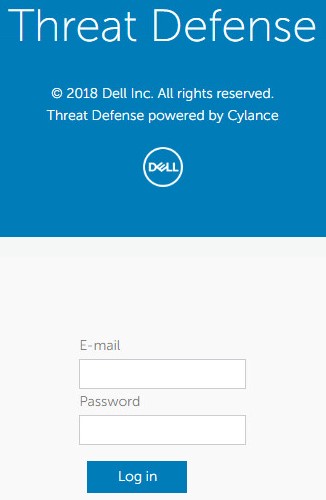
- In the console, click the Devices tab.

- Click at least one device to remove.
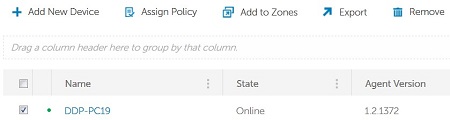 Note: The example device name may differ in your environment.
 - Click Remove.

- Click Yes to confirm removal of the device.
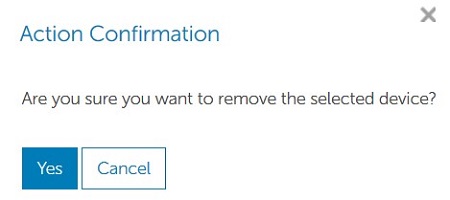 Warning: Removing a device is a permanent action which cannot be undone. This action also removes all associated records from the console.

To contact support, reference Dell Data Security International Support Phone Numbers.
Go to TechDirect to generate a technical support request online.
For additional insights and resources, join the Dell Security Community Forum.
Affected Products
Dell Threat DefenseArticle Properties
Article Number: 000124568
Article Type: How To
Last Modified: 22 May 2025
Version: 11
Find answers to your questions from other Dell users
Support Services
Check if your device is covered by Support Services.